Search entry and reader questions
Shopify theme customization: duplicate, preview, publish, and roll back safely
Duplicate and name the theme first, then separate the jobs of Theme settings, Sections, Blocks, and Templates. Read back real products, collections, search, cart, and mobile previews; official pages explain product entry points and rules, not this store’s publish, template-assignment, or rollback evidence.
What does duplicating a Shopify theme protect before editing, and what does it not protect?
Where should Theme settings, Sections, Blocks, and Templates be changed?
When is a new product or collection template worth creating?
How should a theme be previewed with real products, collections, search, cart, and mobile?
What is the difference between a draft-theme template preview and assigning it to a live resource?
What should be checked first when mobile is obstructed or an App embed conflicts?
What acceptance evidence and rollback conditions should be recorded before publishing?
Does switching back to an old theme restore product, menu, and price changes?
Official sources and readback boundaries
These pages confirm official entry points for theme customization, Sections, Blocks, Templates, downloads, and store duplication. They cannot prove this store copied a theme, assigned templates, cleared mobile obstruction, avoided App conflicts, or can roll back after publishing; keep evidence redacted.
Phase 2 · Theme and store structure
Theme Backup and Customization: Copy First, Then Edit Sections, Blocks, and Templates
Preview real customer paths and duplicate the theme first, then organize home, product, and collection pages with global settings, Sections, Blocks, and Templates before desktop/mobile acceptance, publishing, and rollback.
What counts as complete
Use Online Store > Themes > Edit theme to reach the correct page, then configure, save, verify, and record the result. Completion means you can point to the saved state, verification result, and condition for continuing.
- Admin path
- Online Store > Themes > Edit theme
- Output to keep
- A dated theme backup, page-template list, home/product structure map, mobile captures, publish record, and rollback method for each change.
- Continue when
- The copy is identifiable, key pages and templates pass desktop/mobile preview, paths remain stable after publishing, and the prior theme and rollback owner are explicit.
- Stop when
- Pause customization and publishing when the live theme is not copied, template assignment is unclear, mobile is obstructed, an App conflicts, or rollback is not possible.
Evidence boundary: Theme-editor preview does not prove the live theme is published or that every device, App, dynamic source, and customer path works; reread after publishing.
Why this step comes now
Theme customization affects conversion and can touch every product, collection, menu, and checkout entry. Without a copy and rollback, one padding, template, App embed, or global-color change can put the whole store into an unexplained state.
Prepare before opening the admin
- Prepare current live theme name, version, backup naming rule, and rollback owner.
- List real products, collections, menus, search, cart, templates, and mobile devices.
- Map the home-page hierarchy, purpose of each change, and prior version to retain.
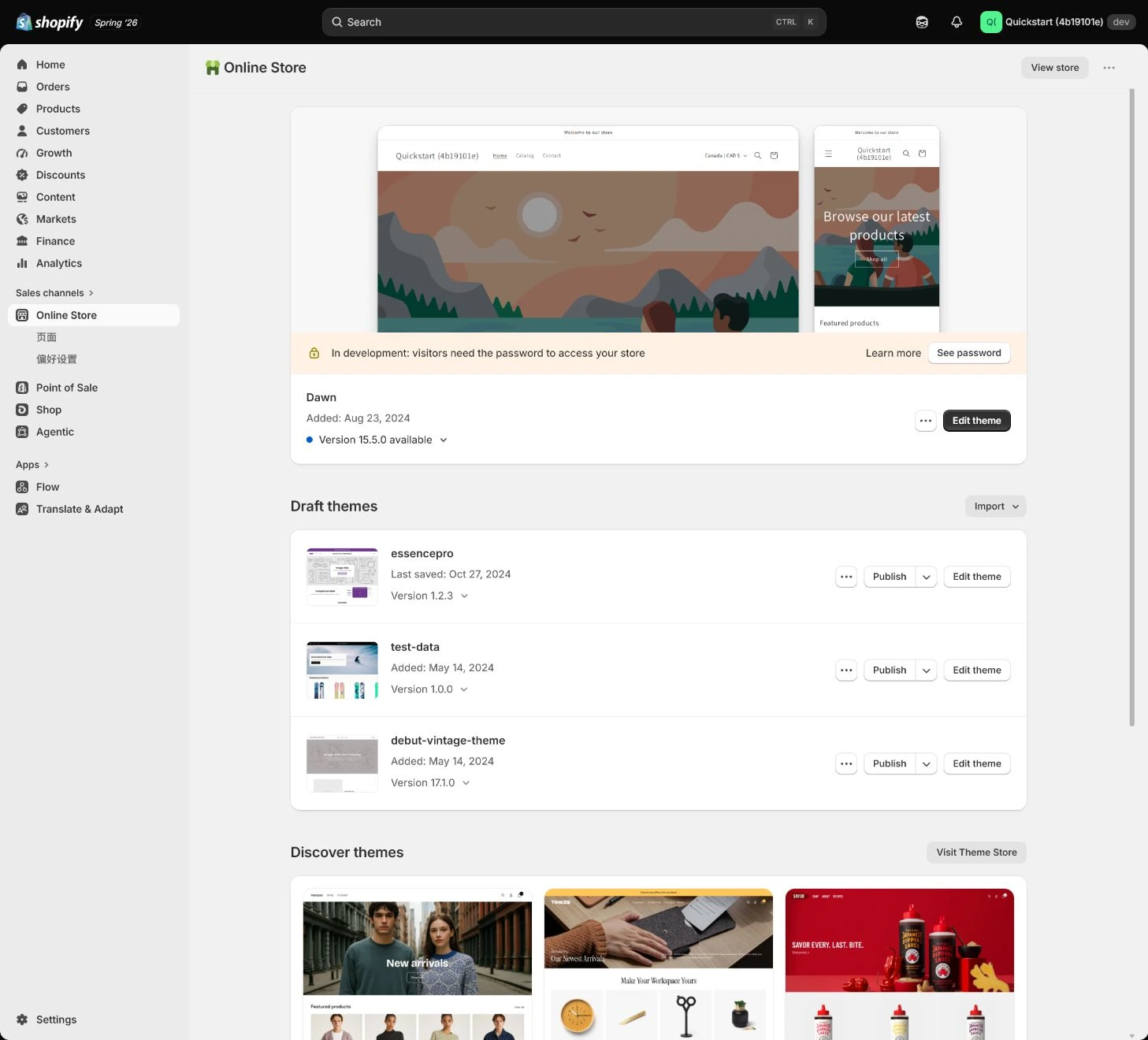
Follow the English admin step by step
After each step, refresh the admin or verify the storefront. A saved admin state does not automatically prove the customer-facing result.
Choose and preview the theme
Open Online Store > Themes to review the current theme and Theme Store options. Use Preview to inspect product, collection, menu, search, cart, and mobile paths instead of only the demo home page.
Expected result: Have preview results for the theme candidate across real store paths.
Completion standard: Product, collection, menu, search, cart, and mobile paths have no critical obstruction or break, so the candidate is safe to copy.
If the result is missing or wrong: When the entry or preview is wrong, confirm store, page title, and Preview context, then return to the complete Online Store > Themes section.
Evidence to keep: Record theme name, version, preview URL, device, critical-path result, and time. Preview does not prove the live theme is published.
Duplicate the theme and name the backup
Duplicate the current theme and use a date-and-purpose name such as 2026-08-01-before-launch. Edit theme code and settings in the copy and record who changed what and when. The copy is not a complete store backup or an isolated catalog: preserve separate earlier records for products, collections, menus, pages and other shared data.
Expected result: Have an identifiable, revertible copy separate from the current live theme.
Completion standard: Copy name, source theme, creation time, editor, and rollback target are reviewable.
If the result is missing or wrong: If a new template is absent from a product or collection assignment list, first identify its theme. The admin lists templates from the currently published theme. Preview a draft-only template in the theme editor; do not rush publication just to make a dropdown option appear.
Evidence to keep: Keep copy name, source, date, change record, template assignment, and live theme name.
Failure handling: Do not make major live-theme edits and rely on memory to recover. Duplication isolates theme changes only; check the impact and save earlier values before editing products or menus.
Understand Sections, Blocks, and Theme settings
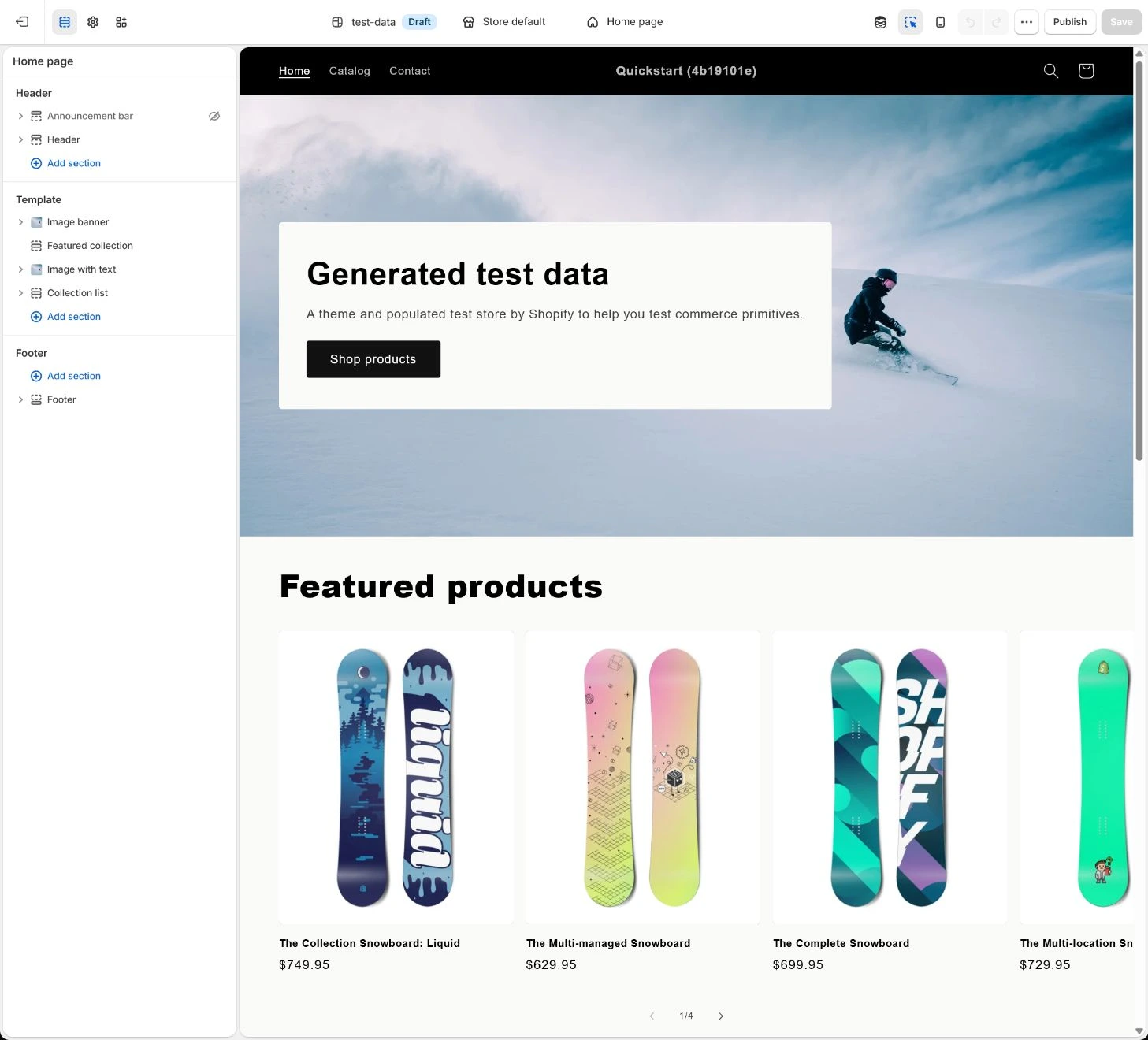
Open Edit theme. A Section is a page module, a Block is an element inside a module, and Theme settings control global color, type, buttons, and layout. Change global settings first, then page-level content, so the same style is not repaired in several places.
Expected result: Have clear responsibility boundaries for global settings, page Sections, and Blocks.
Completion standard: Every change has an identifiable scope, saved state, storefront result, and recovery method.
If the result is missing or wrong: When an entry or field is wrong, confirm template, page title, and section/card instead of editing a similarly named template.
Evidence to keep: Record global setting, template, Section/Block, dynamic source, affected page, and capture.
Organize the information order on the home page
Use the first screen to explain what is sold, who it is for, and the next action; follow with benefits, featured products, trust, use cases, FAQ, and email signup. Give each Section one primary job and remove default modules with no information value.
Expected result: Have a home-page hierarchy and module responsibility from understanding to action.
Completion standard: Desktop and mobile order first screen, benefits, products, trust, FAQ, and CTA around customer tasks without blocked text or buttons.
If the result is missing or wrong: When mobile text or buttons are covered, check Section padding, fixed/sticky elements, App embeds, and safe areas instead of only shrinking the font.
Evidence to keep: Keep home-page map, Section order, mobile capture, CTA path, and retest time.
Failure handling: When every module competes for first-screen attention, return to customer tasks and remove or reorder before adding another banner.
Build product and collection Templates
Create a product or collection template only for a real layout difference. In the draft theme editor, choose the template and use Preview > Change to inspect a resource; this previews rather than assigns it. The product or collection Theme template list uses the currently published theme only. For a draft-only template, finish preview first and put the later assignment and recovery of the previous assignment into the release plan.
Expected result: Have reusable template previews, dynamic-data checks and an assignment plan; record actual live assignment separately.
Completion standard: The draft template previews correctly against the named product or collection, with the resource, theme and previous assignment recorded. Put resources requiring the new template into the controlled release plan; a successful preview is not a completed live assignment.
If the result is missing or wrong: If a resource still shows the default template, distinguish editor preview from assignment. Confirm that the currently published theme contains the target before assigning it within the approved scope, then inspect the real URL. Do not repeatedly search the admin list for a template that exists only in a draft.
Evidence to keep: Record template name, theme, preview resource, previous assignment, dynamic source, preview URL and mobile result. Add the actual assignment time only after the approved publish-and-assign operation; keep it pending until then.
Complete preview, publish, and rollback records
Preview home, collections, products, cart and search on desktop and mobile, checking buttons, text, image ratios and sticky elements. Save captures and each previous resource template assignment. Publish the selected copy only after the named release approval; then assign approved resources to templates available only in the new theme and immediately verify their real URLs. Keep the earlier theme and separate data-recovery records; unfinished assignments cannot count as launch acceptance.
Expected result: Have the published copy, acceptance captures, publish time, prior theme, and an executable rollback action.
Completion standard: Critical paths pass before and after publishing, with a written owner and condition for restoring which theme.
If the result is missing or wrong: When the published result reverts to the old version, confirm the correct copy was published, check theme switch history and saved customization, and roll back to the prior theme when needed.
Evidence to keep: Keep desktop/mobile captures, published theme, time, critical URLs, issue, rollback owner, and rollback result.
Failure handling: If layout, template or app conflicts appear, contain the affected release scope and preserve evidence. Restore an earlier theme only after checking compatibility with current products and apps. Switching themes does not automatically restore product content, menus or resource template assignments; recover affected data separately from earlier records.
Apply the decision in your store
Preview real product, collection, search and cart paths, then duplicate and name the backup. Edit Theme settings and Sections/Blocks in the copy and inspect alternate templates using Preview > Change. Preserve earlier shared product/menu values separately. Publish and assign new templates under one approved plan, then repeat desktop/mobile paths and check theme recovery separately from data recovery.
Use the admin path above, then apply it to one concrete situation.
Use this lesson in your store
By the end, you should have: A dated theme backup, template inventory, home and product-page structure map, mobile screenshots, and a rollback method for every change.
Relevant admin path: Online Store > Themes > Edit theme
Make the decision before reading the reason
Choose the action that solves the problem first, then read the explanation.
Confirm these items in your store
Check each item against the current store; this checklist does not save settings or run tests.
This screen still cannot tell you: Theme-editor preview does not prove the live theme is published or that every device, app, and real customer flow works
Continue when: a clearly named backup exists, key templates and mobile first view are previewed, and publisher/rollback point are explicit
Stop when: If changes exist only in the live theme, no backup exists, or mobile purchase flow is obstructed, do not publish
Next: Next, build Pages, Menus, and URL redirects so customers can actually find the content.
Complete the decision or checks first. When information is missing, a pause is safer than guessing a pass.
Recovery rehearsal after theme backup
Turn common failures into executable recovery actions: locate the version, template, or module first, then repair the copy, pause publishing, or restore the prior version. Record the actual result instead of treating “knowing how to roll back” as a rehearsal.
| Scenario | Check first | Continue when | Failure/rollback | Evidence |
|---|---|---|---|---|
| Template is published but a resource still shows the old layout | Product/collection assignment and published theme | Storefront reads the current object’s template and dynamic source | Repair the assignment against the recorded previous value and approved target; a draft preview does not replace assignment. | Object URL/template: ________ |
| Mobile obstruction | Padding, sticky/fixed, App embed, safe area | Buttons, copy, and image ratio are usable | Restore copy or remove conflicting module | Device/capture: ________ |
| Published result becomes old version | Published copy, theme switch history, saved state | Correct copy is stable on critical paths | Restore prior theme and preserve issue evidence | Time/owner: ________ |
| App or template conflict | Copy version, App embed, template assignment | Conflict is located and retest passes | Pause publish or roll back prior version | Issue/retest: ________ |
| Shared product or menu data changed | Separate theme settings from shared store data and inspect the previous values. | Recover or approve each affected product, menu and previous template assignment separately, then verify the storefront again. | Do not only switch themes. Recover data against saved earlier values and the separately approved scope. | Object/previous value/actual result: ________ |
Decisions to confirm here
Enter the actual values for this store row by row. Do not treat examples or planned values as completed work. Mark a row passed only when the condition and saved or tested evidence are present.
| Item | Recommended setting | Why |
|---|---|---|
| Change location | Global Theme settings, then Sections/Blocks | Reduces duplicate fixes and style drift |
| Backup naming | Date + purpose | Makes source and rollback target identifiable |
| Template count | Create for real structural differences | Avoid an unmaintainable template per SKU |
| Publish action | Preview, capture, second-person review, then publish | Turns rollback from a promise into an action |
Do not change these blindly
- Do not make major changes directly on the live theme and rely on memory to recover.
- Do not copy a template for every SKU or forget to assign it back to products or collections.
- Do not check only desktop or a Theme Store demo; accept mobile, real objects, and the post-publish version.
FAQ
Does duplicating a theme make it live automatically?
No. The copy needs separate preview, editing, acceptance, and publishing; keep the current live theme as the rollback target before publishing.
Should every product have its own template?
No. Split templates only when product or collection structure truly differs, or the template count becomes difficult to maintain.
Can we publish after Theme editor preview passes?
Also check real products, collections, search, cart, templates, and App effects on desktop and mobile, and write the post-publish rollback action.
Is a theme copy a complete test store and backup?
No. A theme copy isolates the theme, while products, collections, menus and other store data can still be read by multiple themes. In a hypothetical example, changing a tumbler price from 49 to 39 is not undone by switching back to the old theme. Theme recovery and data recovery need different earlier records and checks.
Conclusion and continue line
Theme work is complete not when the page merely looks better, but when every change has a copy, scope, template assignment, real storefront result, and rollback action. Continue only when critical desktop/mobile paths are stable and both published copy and prior theme are identifiable.