Search entry and reader questions
Shopify Pages, Menus, and Navigation: make the customer path work before launch
This guide joins Pages, Main menu, Footer, Customer menu, handles, and URL redirects into one acceptance path: confirm every link has a real object, then walk from home to products, policies, and checkout. Official pages explain product entry points and rules; they do not replace this store’s storefront, mobile, or keyboard tests.
Do Shopify Pages appear in the Main menu automatically after creation?
What belongs in Main menu, Footer, and Customer menu?
Why select Page, Product, or Collection objects directly in a menu?
How many Shopify menu levels work well on mobile?
How should old URLs be preserved after changing a page or collection handle?
What should you check first when a saved menu link still returns 404?
How do you accept mobile behavior, keyboard focus, and the Customer menu?
Does an admin status prove that the customer path is usable?
Official sources and readback boundaries
These pages help confirm official Pages, Menus, and URL redirect entry points. They cannot prove this store’s theme uses a particular menu, links avoid 404s, redirect status codes are correct, or mobile and keyboard paths work; an authorized owner must read each result back while redacting store domains, customer addresses, orders, and internal links.
Phase 2 · Products and store structure
Pages, Menus, and Navigation: Connect the Path from Home to Checkout
Create core pages, give Main menu, Footer, and Customer menu distinct jobs, handle handles and redirects, and verify key paths from mobile and keyboard.
What counts as complete
Use Online Store > Pages and Content > Menus to reach the correct page, then configure, save, verify, and record the result. Completion means you can point to the saved state, verification result, and condition for continuing.
- Admin path
- Online Store > Pages and Content > Menus
- Output to keep
- A navigation map, core-page list, Main/Footer/Customer menus, handle/redirect record, and mobile/keyboard acceptance record.
- Continue when
- Main menu supports shopping, Footer supplies trust information, Customer menu supports accounts, old URLs resolve, and mobile/keyboard paths are reviewable.
- Stop when
- Pause launch when core pages lack real targets, key links 404, policies/Contact cannot be found, or mobile/keyboard access fails.
Evidence boundary: A saved admin menu does not prove the theme uses it, targets exist, or customers can complete the path; read each link from the real storefront.
Why this step comes now
Navigation is not a pile of links; it connects shopping, trust, account, and checkout responsibilities. A wrong page, menu, handle, redirect, or theme location breaks the customer path when information matters most.
Prepare before opening the admin
- List core pages, real collections, products, and policy URLs.
- Map Main, Footer, and Customer menu responsibilities.
- Prepare representative mobile and keyboard paths.
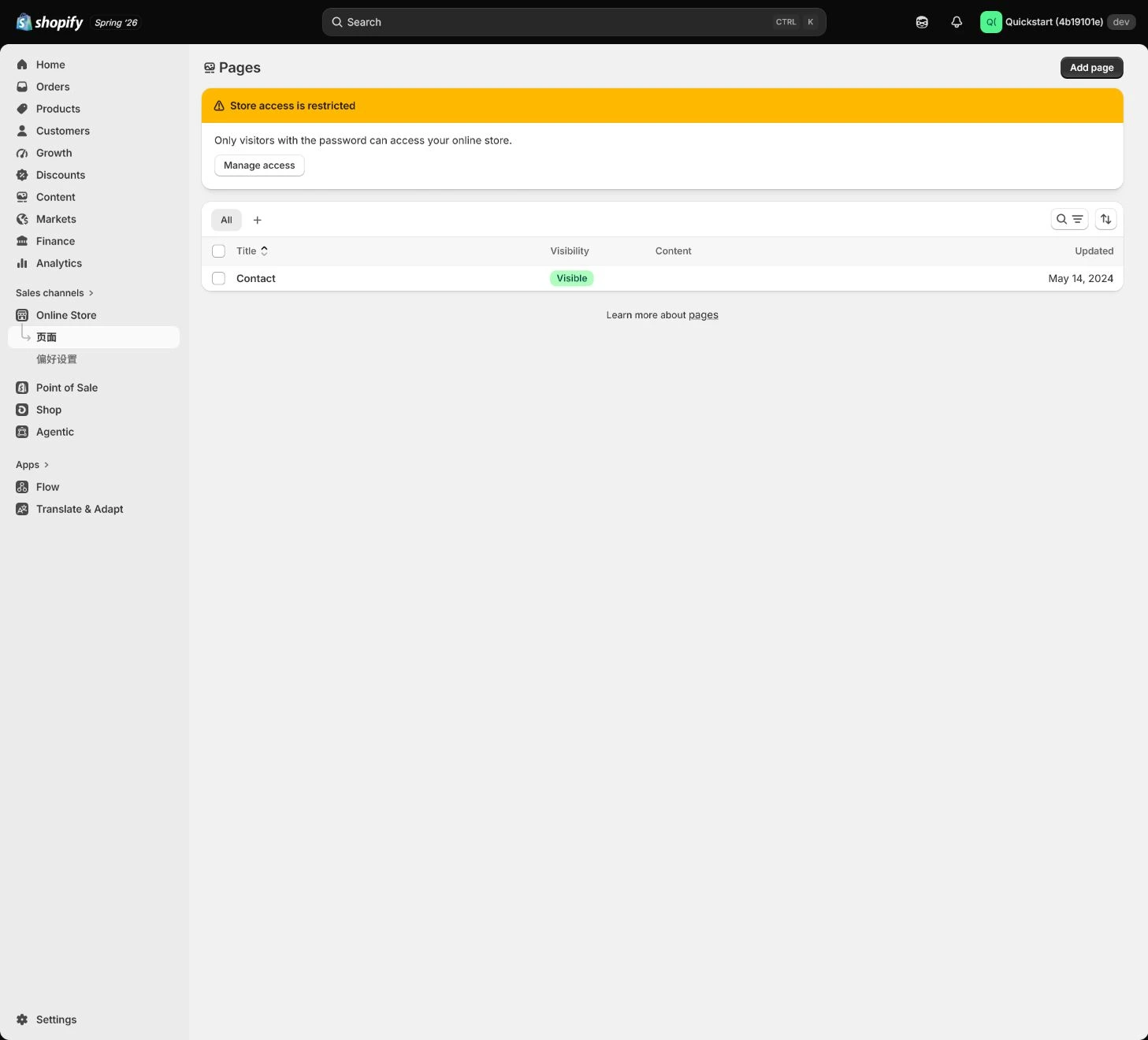
Follow the English admin step by step
After each step, refresh the admin or verify the storefront. A saved admin state does not automatically prove the customer-facing result.
Create core Pages
Create About, Contact, and FAQ pages in Online Store > Pages. Give each page a customer job, owner, update cadence, and next entry instead of replacing all trust content with one long page.
Expected result: Have core pages with title, body, contact/policy boundaries, and next links.
Completion standard: Pages are reachable on the storefront and align with Brand, Policies, and support process.
If the result is missing or wrong: When a page entry or copy is wrong, confirm store and title and return to Pages instead of hiding long copy in a menu.
Evidence to keep: Record page handle, state, owner, storefront URL, and verification time.
Map main-menu and footer responsibilities
Map entries across home, collections, products, About, Contact, FAQ, Policies, and checkout. Main menu supports shopping, Footer supports trust/policies, and Customer menu supports accounts; do not put every link in one menu.
Expected result: Have menu responsibilities, link hierarchy, and a list of internal links that must not appear.
Completion standard: Customers can reach shopping, trust, support, and policy entries from the home path without relying on Back.
If the result is missing or wrong: When paths loop or key pages disappear, return to customer tasks and menu responsibilities instead of adding endless submenu levels.
Evidence to keep: Keep navigation map, link hierarchy, menu location, and one complete storefront path.
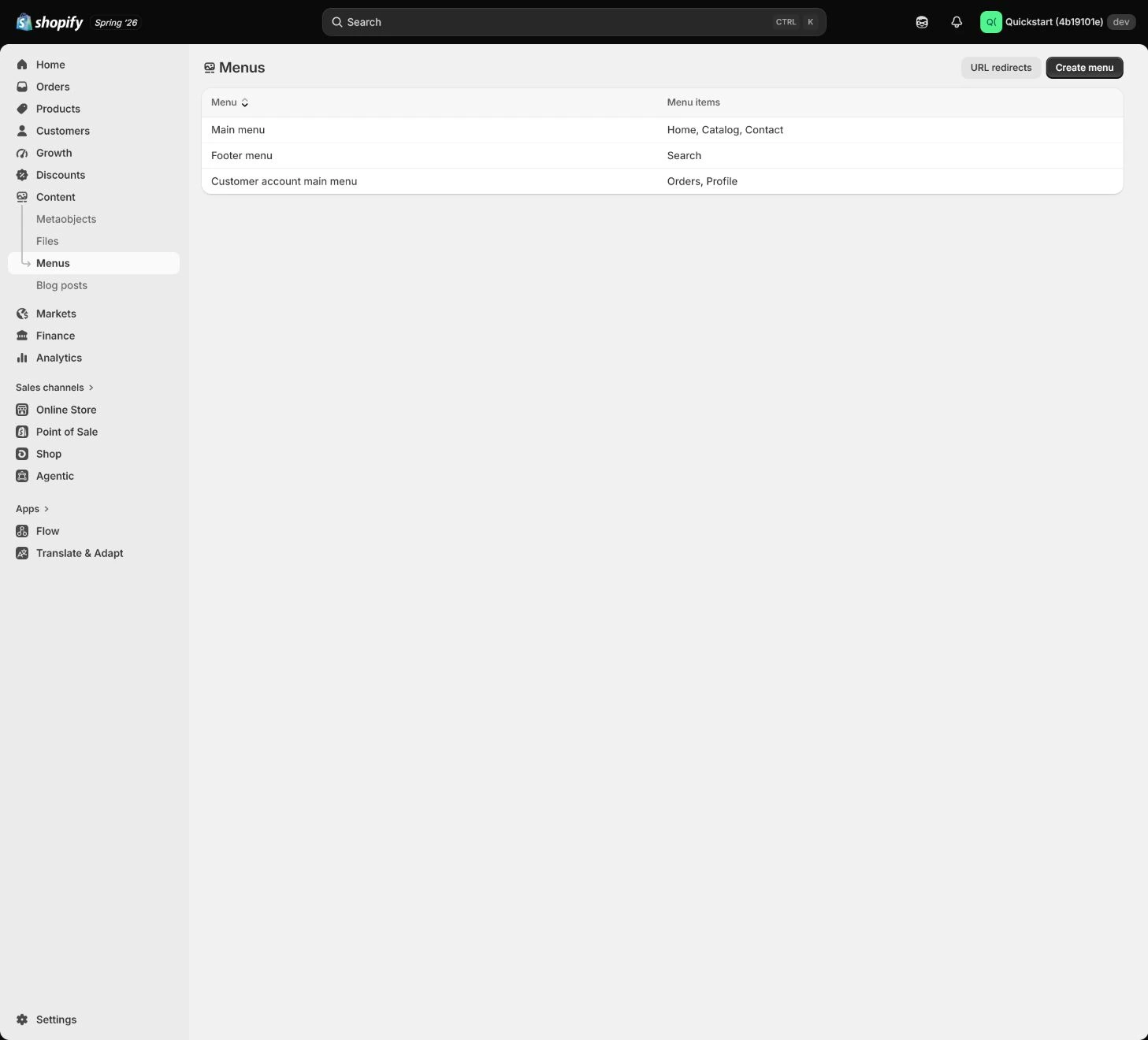
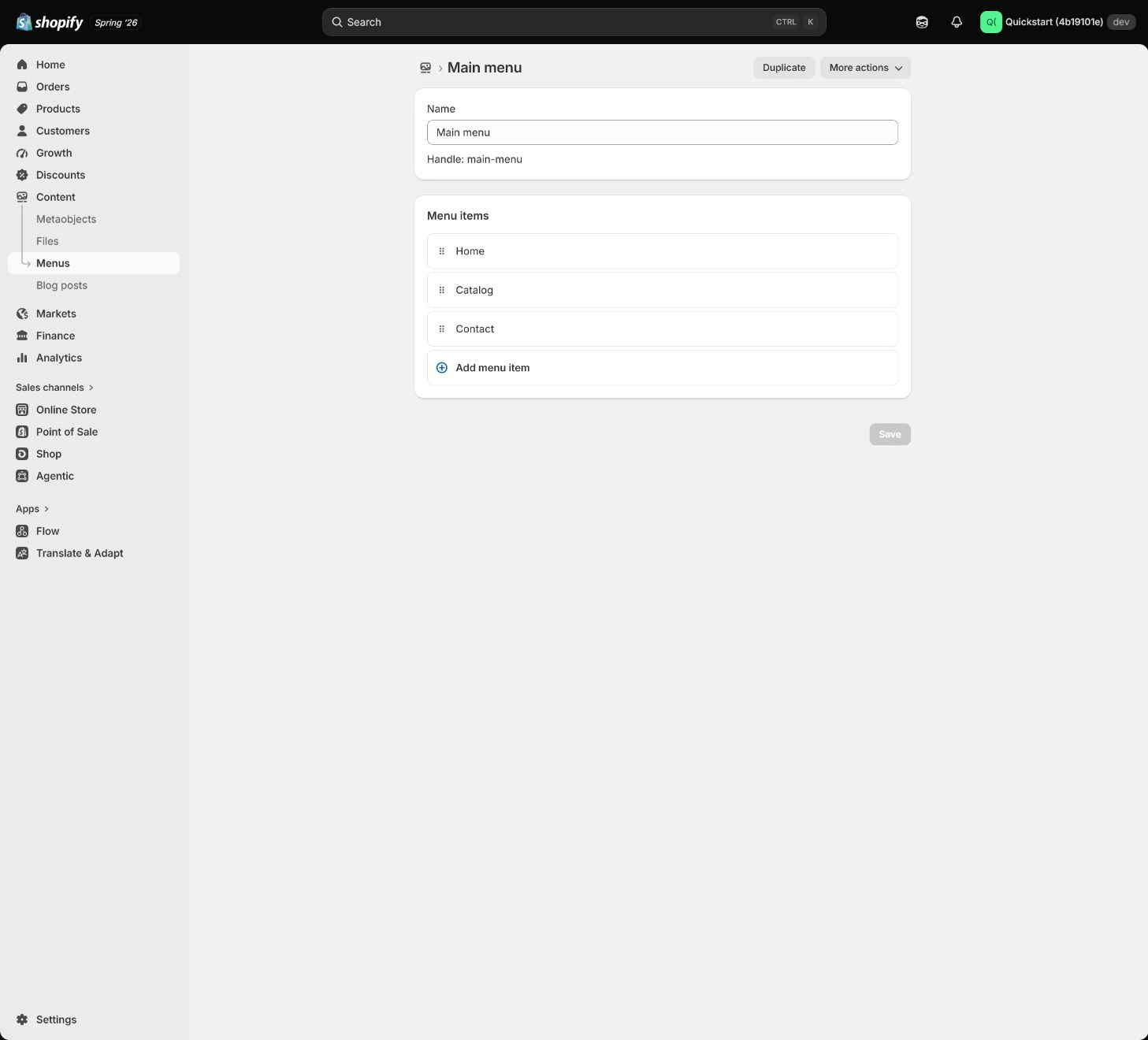
Build the primary navigation in Content > Menus
Add real collections, products, pages, and home entry to Main menu, checking target type and save result for each. Do not treat a planned slug as an existing page.
Expected result: Have a saved main navigation with actual targets for every link.
Completion standard: Main-menu clicks reach the correct collection/page with working return path, mobile behavior, and keyboard focus.
If the result is missing or wrong: When a link 404s or lands wrong, check handle, locale, domain, and redirects instead of hiding the missing target behind a home link.
Evidence to keep: Record link label, target URL, save time, mobile result, and keyboard result.
Failure handling: If a new page exists but the menu points old, reread saved menu and storefront HTML to distinguish cache from wrong menu location.
Build Footer and Customer menus
Use Footer for policy, Contact, About, FAQ, shipping/returns, and trust entries; use Customer menu for account paths. Labels should be customer-readable and must not expose admin or internal tickets.
Expected result: Have separate Footer, Customer menu, and public-page entries.
Completion standard: Customers can reach policies, contact, and FAQ from Footer, signed-in customers can reach accounts, and no internal links appear.
If the result is missing or wrong: When policy or Contact is missing, check which Footer menu the theme actually uses and link state instead of only checking menu names.
Evidence to keep: Record Footer/Customer menu locations, public paths, policy links, and time.
Check handles and URL redirects
When renaming a page or collection, check handle, canonical, old URL, and redirect. Do not delete old paths to make a new menu work or send every language/market to the wrong home page.
Expected result: Have alignment between new/old URLs, redirects, canonical, and language/market paths.
Completion standard: Old links reach the new target, internal links have no 404, and canonical matches public URL.
If the result is missing or wrong: When there is a 404 or redirect chain, inspect handle and source one by one instead of adding endless redirects.
Evidence to keep: Keep old URL, target URL, response, canonical, and retest time.
Complete mobile and keyboard acceptance
Walk from home through collection, product, policy, and checkout and inspect mobile overflow, focus order, visible labels, external-link cues, and return path. Menu completion is not a desktop-only glance.
Expected result: Have actual mobile, keyboard, and critical-path acceptance records.
Completion standard: Customers can reach key entries without a mouse or wide screen, with no overflow, obstruction, or lost focus.
If the result is missing or wrong: When a menu is obstructed or keyboard focus traps, locate the actual theme menu/component and fix hierarchy/labels instead of shortening all copy.
Evidence to keep: Record viewport, keyboard path, target page, issue, and retest owner.
Failure handling: If a key link is icon-only without a visible or readable label, add label and focus state before launch.
Apply the decision in your store
Make the path from home to collection, product, Contact, Policies, and checkout work first. Put shopping entries in Main menu, trust content in Footer, and accounts in Customer menu. Preserve redirects after renaming and repeat the path on mobile and keyboard.
Use the admin path above, then apply it to one concrete situation.
Use this lesson in your store
By the end, you should have: A main navigation no deeper than two levels, complete footer, customer-account entry, direct object links for core pages, mobile acceptance, and a redirect register.
Relevant admin path: Online Store > Pages and Content > Menus
Make the decision before reading the reason
Choose the action that solves the problem first, then read the explanation.
Confirm these items in your store
Check each item against the current store; this checklist does not save settings or run tests.
This screen still cannot tell you: A link in the menu editor does not prove live navigation, redirects, status codes, or keyboard behavior
Continue when: every core page has an entry, menu depth works on mobile, links target the correct objects, and old handles have needed redirects
Stop when: If dead links, redirect loops, unusable mobile menus, or unreachable keyboard items remain, repair navigation first
Next: Next, place real operating rules into Policies, Brand, About, Contact, and FAQ.
Complete the decision or checks first. When information is missing, a pause is safer than guessing a pass.
Decisions to confirm here
Enter the actual values for this store row by row. Do not treat examples or planned values as completed work. Mark a row passed only when the condition and saved or tested evidence are present.
| Item | Recommended setting | Why |
|---|---|---|
| Main menu | Shopping entries | Helps customers find collections and products |
| Footer | Policies, trust, contact | Supports pre/post-purchase trust |
| Customer menu | Account paths | Keeps admin links private |
| URL changes | Preserve old paths and redirect | Reduces 404s and SEO breaks |
Do not change these blindly
- Do not put every link in Main menu.
- Do not place admin or internal-ticket links in public menus.
- Do not lose old-URL redirects after changing a handle.
FAQ
Does creating a page add it to Main menu automatically?
No. Pages and Menus are separate surfaces; add the real page target to the menu the theme actually uses.
Why does a saved menu link still 404?
Check handle, page state, locale, domain, old-URL redirects, and that the theme uses this menu.
Can we test only the desktop menu?
No. Mobile overflow, keyboard focus, and touch entries fail differently; review critical paths on representative devices.
Conclusion and continue line
Navigation acceptance is not visual tidiness; customers must reach the right product, trust page, and checkout from home, old links must resolve, and mobile/keyboard must work. Continue only when every public link has a real target, responsible menu, and readback evidence.