Phase 4 · Markets and data
Apps and Sales Channels: Review Permissions Before Install and Cleanup After Removal
Create app approval, permission, and cost records, audit sales-channel product availability and data sharing, and handle uninstall cleanup for code, webhooks, pixels, and custom apps.
Search entry and reader questions
Review Shopify app permissions and channel availability before you install, keep, or remove anything
This lesson is for anyone setting up a Shopify store, reviewing app permissions, or checking a sales-channel launch. It connects install approval, permissions and charges, product publication, pixels, webhooks, custom apps, and post-uninstall residue in one auditable route; the page explains the method and does not claim a result for any current store.
Which Shopify apps should a new store install first, and which should wait?
How should Shopify app permissions be reviewed, and does an app need Customers, Orders, and Themes access?
Why check theme code, app embeds, pixels, and webhooks after uninstalling a Shopify app?
Why can a product be Active in Shopify but unavailable on a sales channel?
How do you verify market, catalog, policy, and product publication for a Shopify sales channel?
Where are Shopify custom apps created in 2026, and how should their tokens be protected?
How should Shopify app charges and trials be recorded to avoid surprise billing?
How should retention and deletion boundaries be recorded when an external app stored customer or order data?
Completion standard
Use Settings > Apps and sales channels to reach the correct page, then configure, save, verify, and record the result. Completion means you can point to the saved state, verification result, and condition that allows the next step—not merely that you opened the page.
- Admin path
- Settings > Apps and sales channels
- Required record
- An app and channel register with owner, purpose, permissions, data, cost, trial end, products, pixels, webhooks, privacy impact, uninstall steps, and last review date.
- Continue when
- Every retained item has an owner and job, permissions and cost are explainable, product/event paths are tested, and removed items have residue checks.
- Stop when
- An app has no defined job, asks for excess access, has an ownerless trial, or has unchecked uninstall residue.
Evidence boundary: A saved admin state is not the same as a verified storefront, order path, or downstream result. Check the current store, page title, complete target section/card, and returned result at every step.
Why this comes first
Apps add capability quickly but can also access products, customers, orders, themes, and payment-related data. Uninstalling does not guarantee that theme code, pixels, webhooks, or external data disappear immediately. New custom apps use the current Dev Dashboard path; every app needs a business job, permission boundary, and exit plan.
Prepare before opening the admin
- Complete Billing, Users, Customer privacy, and Customer events foundations.
- List installed apps, channels, theme app embeds, and external accounts.
- Define launch-required capabilities and place the rest in a backlog.
Make the approval record auditable: This grounded-theory single-case study traces SAP's 2012-2019 shift from an on-premises ERP product-platform ecosystem to a cloud innovation-platform ecosystem; interviews ran from early 2016 through mid-2019. The formal article was published in 2022, while this page-level review uses the public 2019 author-version PDF. The study identifies three governance challenges: rebalancing top-down control with bottom-up emergence, re-professionalizing ecosystem participants, and redefining the ecosystem's organizational vision (see the paper). Because it studies one enterprise-software company, its findings do not transfer automatically to ecommerce. It does not prove current Shopify permissions, channel, pixel, or webhook behavior, and it does not support revenue, conversion, or causal claims. Use it only as a governance prompt: in addition to purpose, permissions, cost, and exit conditions, record input ownership, approver, rollback method, and which decisions must remain human controlled. The current store still needs separate verification: review permissions, product publication, pixels, and webhooks through Shopify admin plus storefront or event readback.
Follow the English admin step by step
After each step, refresh the admin or verify the storefront. A saved state in admin does not automatically prove the customer-facing result.
Create a pre-install approval card
For every app, record the problem, current alternative, success metric, cost, data types, permissions, owner, trial end, and uninstall condition. Do not install an app without a defined job.
Expected result: Create one complete approval card for the app instead of leaving only an open install page or a plan to review it later.
Completion standard: The actual store’s approval card contains the real job, cost, owner, and exit condition and can be reviewed in the record.
If the result is missing or wrong: If the entry, fields, or save response are wrong, confirm the current store and page title, then return to Settings > Apps and sales channels and recheck access, plan, market, and required fields.
Evidence to keep: Record the actual value, verification time, owner, and evidence location. An app list, permission page, or Uninstalled state does not prove that theme code, pixels, webhooks, and external data are gone.
Read permissions and data access
Review installation permissions field by field, especially Customers, Orders, Products, Themes, Marketing, and store settings. When access exceeds the job, ask the developer or choose an alternative.
Expected result: You can explain why each permission is needed and which data it reads or changes.
Completion standard: The real permission scope matches the business job, with at least one saved value, page result, storefront behavior, or written record available for review.
If the result is missing or wrong: Do not edit a similarly named page. Return to the full settings section or card and recheck account access, plan or market availability, required fields, and the save response.
Evidence to keep: Put permissions, job, owner, and last review date in the register. A permission page proves configuration only; it does not prove the app kept no external data.
Failure handling: If a product is missing from a channel, check channel connection, Markets, Catalog, product availability, policy review, and feed errors instead of repeatedly publishing.
Configure sales channels and product availability
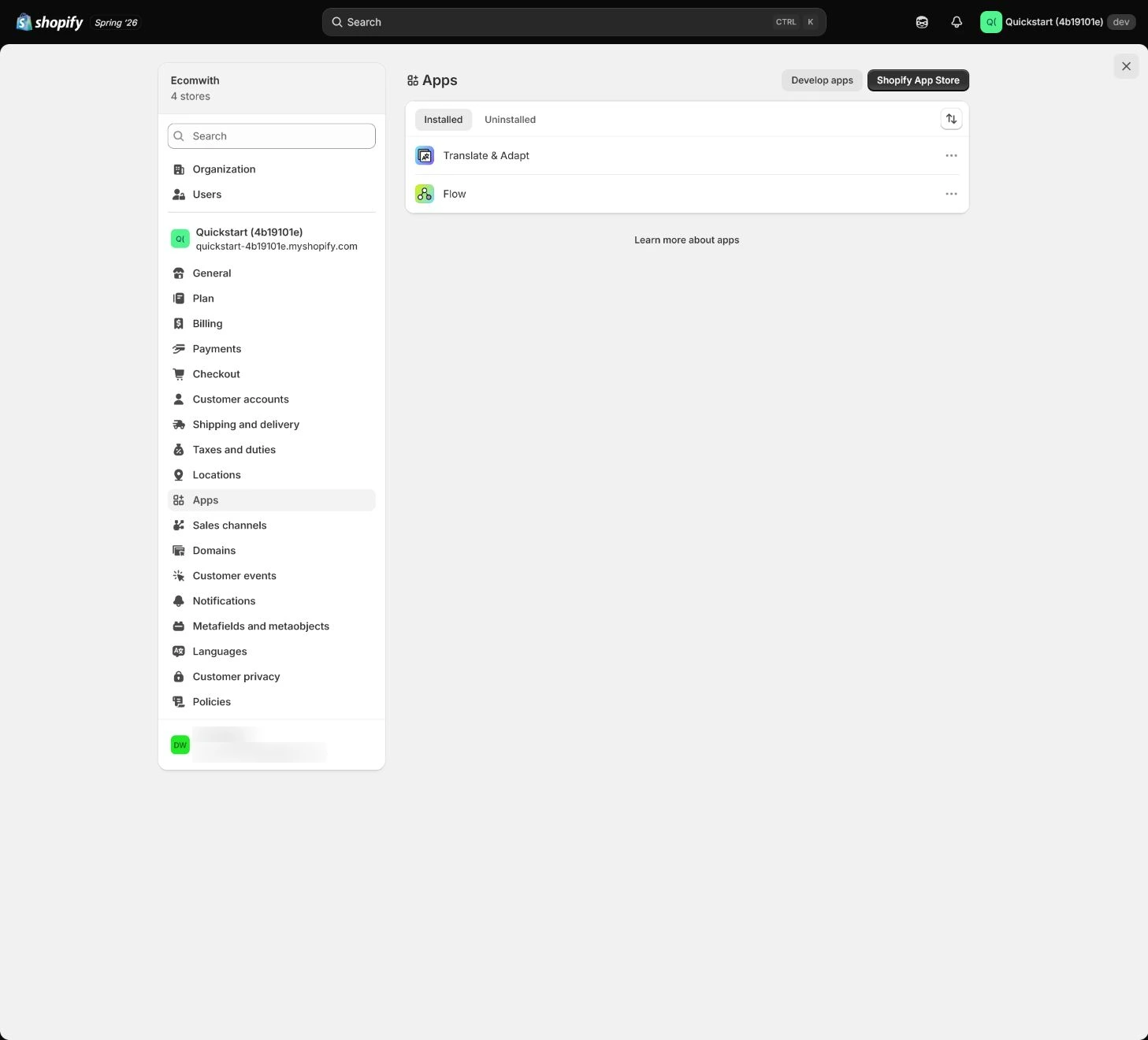
Open Settings > Apps and sales channels and review active channels such as Online Store, Shop, Google, and Meta. Verify account connection, data sharing, market, and product publication; Active in Shopify does not mean available everywhere.
Expected result: Each channel actually in use has its own product-availability and data-sharing result.
Completion standard: Channel connection, market, catalog, and product publication were read back separately with reviewable evidence.
If the result is missing or wrong: If the state looks correct but the storefront or channel preview is wrong, confirm the page title and current store, then check sync timing, market scope, and policy review.
Evidence to keep: Record the channel, product, market, observed result, and verification time; “Active” describes only the Shopify-side state.
Inspect app embeds, pixels, and webhooks
After installation, inspect Theme App embeds, Customer events, notifications, and external platform behavior. Record scripts, pixels, webhooks, or order tags, then test performance, consent, and duplicate events before launch.
Expected result: You know which storefront, event, and external-data paths the app affects, not merely that it is installed.
Completion standard: App embeds, pixels, webhooks, performance, consent, and duplicate events each have a check result and owner.
If the result is missing or wrong: If a storefront widget remains after uninstall, inspect Theme App embeds, sections, snippets, script tags, and cache, and validate cleanup on a theme copy.
Evidence to keep: Keep storefront, Customer events, webhook, or external-platform readback together; an admin “saved” state is not proof that an event succeeded.
Failure handling: If a widget or event survives uninstall, pause further rollout and complete a residue checklist and theme-copy validation first.
Handle custom apps correctly
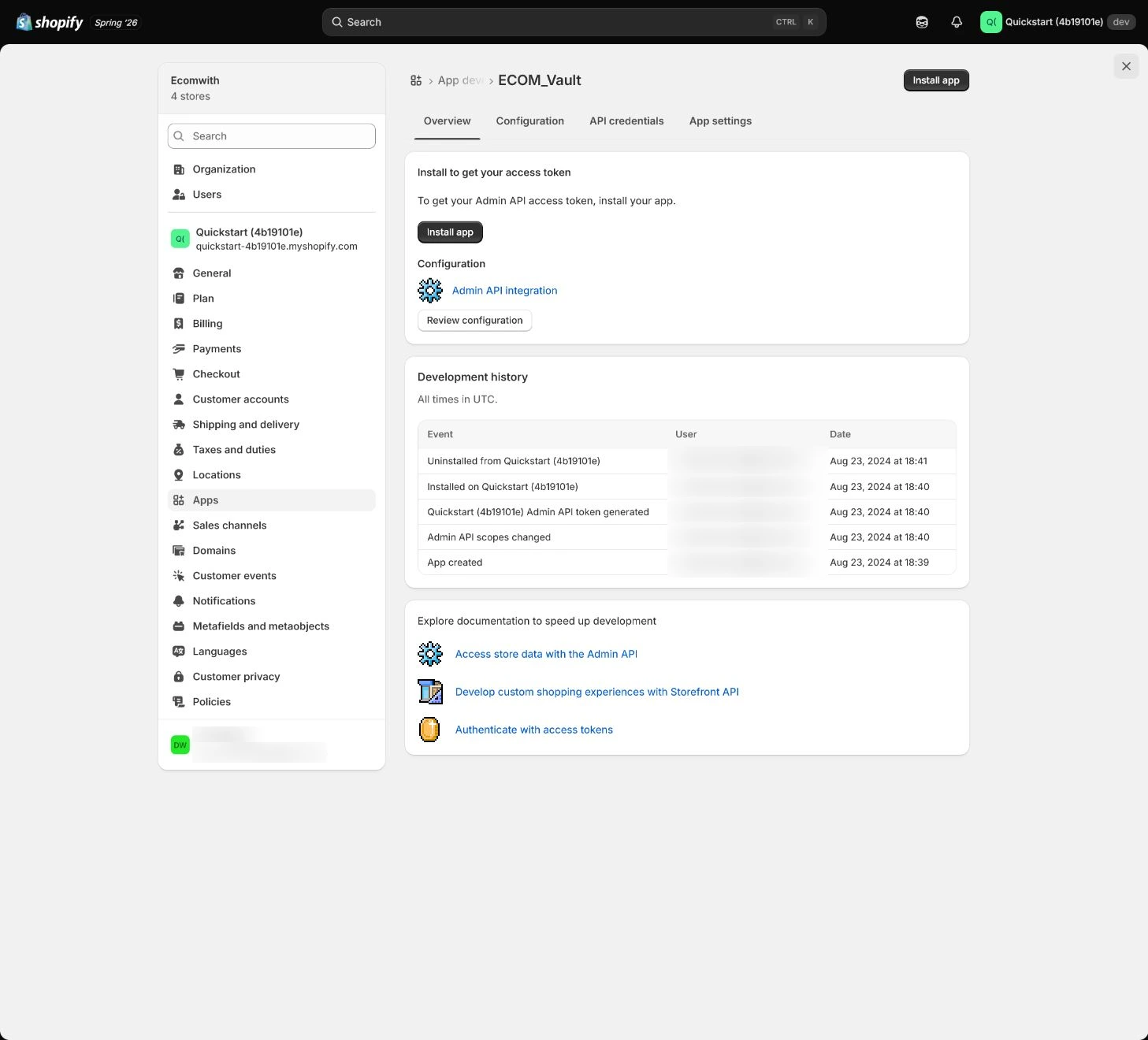
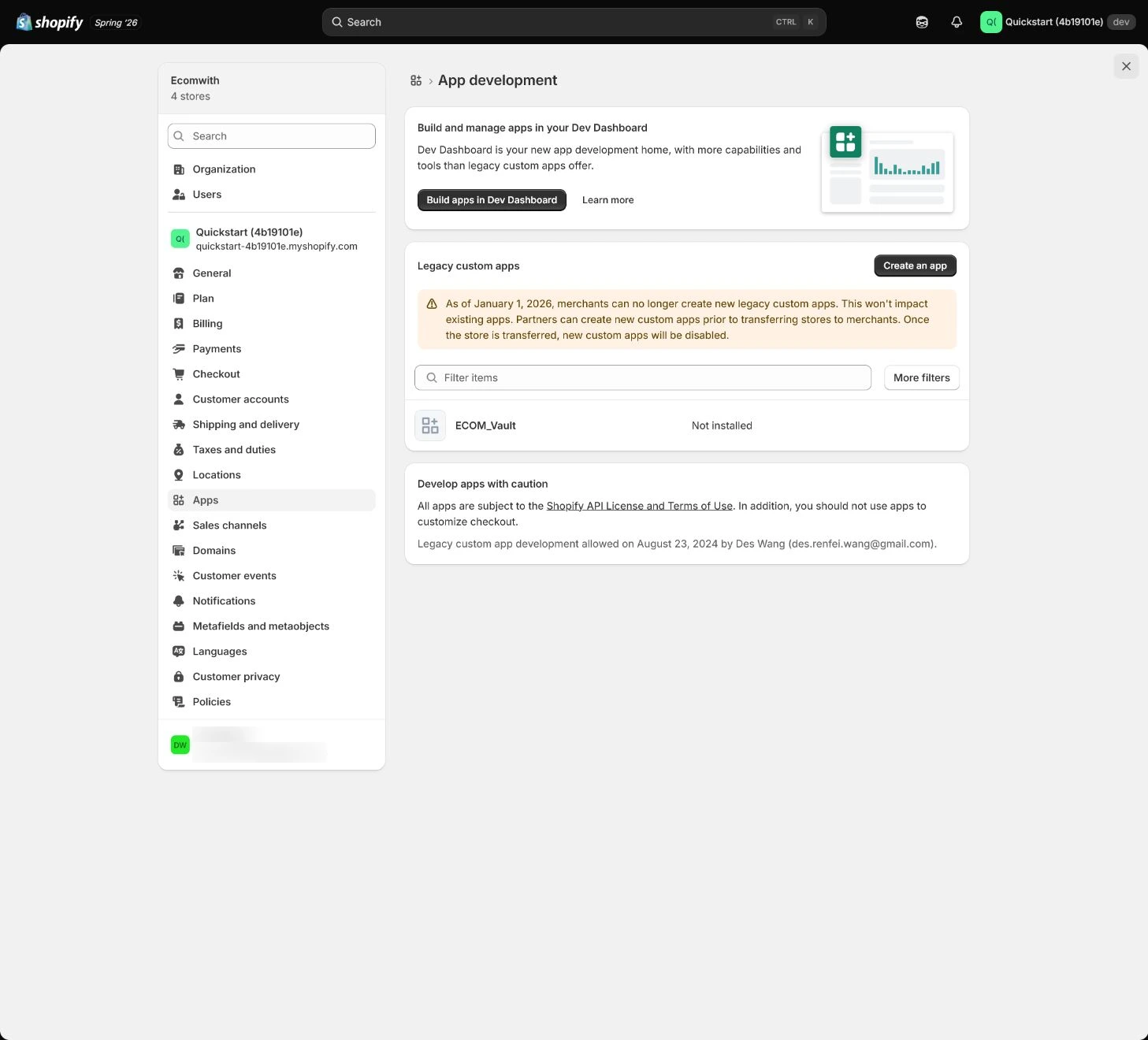
For new integrations in 2026, create custom apps through Shopify’s current Dev Dashboard rather than old Develop apps instructions. Record scopes, tokens, rotation, and owner, and never expose a token in storefront code.
Expected result: The register explains the custom app’s scopes, token rotation, owner, and storage location.
Completion standard: The creation path matches the current admin, tokens are not in the storefront, and rotation and revocation ownership are clear.
If the result is missing or wrong: If the old Develop apps entry is missing, do not keep searching for a legacy path. Return to Dev Dashboard and recheck scopes and owner.
Evidence to keep: Record only the app name, scopes, owner, rotation date, and revocation condition; never record a secret.
Complete post-uninstall cleanup and evidence
Export required data and record billing and dependencies before removal. After uninstall, check theme code, app embeds, pixels, webhooks, API tokens, DNS, pages, menus, and external accounts. Confirm charges stop, handle retention or deletion, and close the ticket only after that.
Expected result: Leave a reviewable exit chain: export, uninstall, residue check, charge confirmation, data handling, and closure condition.
Completion standard: An Uninstalled app-list state is only one step; theme, events, external data, charges, and access each have their own result.
If the result is missing or wrong: If any residue or billing state is unclear, do not mark the task complete. Return to the affected system, assign an owner, and set the next review date.
Evidence to keep: An app list, permission page, or Uninstalled state does not prove that theme code, pixels, webhooks, and externally stored data are removed.
Failure handling: If the old Develop apps entry is missing, use Shopify Dev Dashboard for new custom apps and record the current path again.
Apply the decision in your store
Use one concrete situation to test the decision instead of only remembering the page: an old app shows Uninstalled, but its theme app embed remains and Customer events still contains its pixel. Can the task be closed?
Do not treat disappearance from the app list as completion; cleanup must be verified across theme, pixel, webhook, access, and external data.
Use the admin path above, then apply it to one concrete situation.
Use this lesson in your store
By the end, you should have: An app and channel register with owner, purpose, permissions, data, cost, trial end, published products, pixels, webhooks, privacy impact, uninstall steps, and last review date.
Relevant admin path: Settings > Apps and sales channels
Make the decision before reading the reason
Choose the action that solves the problem first, then read the explanation.
Confirm these items in your store
Check each item against the current store; this checklist does not save settings or run tests.
This screen still cannot tell you: An app list, permission page, or Uninstalled state does not prove theme code, pixels, webhooks, and externally stored data are removed
Continue when: every retained item has an owner/job, permissions and cost are explainable, product/event paths are tested, and removed items have residual checks
Stop when: If an app has no job, asks for excess access, has an ownerless trial, or removal residue is unchecked, do not expand
Next: The final step uses test orders and launch QA to connect the previous 19 setup steps into a reversible release path.
Complete the decision or checks first. When information is missing, a pause is safer than guessing a pass.
Decisions for this store
Enter the actual values for this store row by row. Do not treat examples or planned values as completed work. Mark a row passed only when the actual value meets the condition and has saved or tested evidence.
| Decision | Recommended setting | Why |
|---|---|---|
| Install condition | Defined job and metric | Potential usefulness is not enough |
| Permissions | Minimum necessary | Reduces customer and order-data exposure |
| Sales channels | Validate separately | Product status does not guarantee channel publication |
| Custom app | Dev Dashboard | Matches the current creation path |
Review every row after filling it in. Missing permission, result, or ownership means return to the relevant step before continuing.
Do not change these blindly
- Do not one-click every recommended app.
- Do not assume uninstall removes all code and external data.
- Do not follow old instructions to create a legacy custom app.
FAQ
Is cleanup complete when billing stops after uninstall?
No. Billing is only the cost boundary; also check theme code, app embeds, pixels, webhooks, API tokens, and external data.
Does Active in Shopify mean every channel can sell the product?
No. Account connection, market, catalog, policy review, and channel publication need separate readback.
What if the old Develop apps entry is missing?
Do not keep searching for the legacy path; use Dev Dashboard and record scopes, rotation, and owner.
Conclusion and continuation conditions
Apps and channels are controlled assets with a business rationale, least privilege, cost boundaries, and verified exit work. Continue only when every retained item has an owner and job, permissions and cost are explainable, product/event paths are tested, and removed items have residue checks.
- • Every app and channel has owner, job, cost, and permission records.
- • Product availability is checked in every used channel.
- • App embeds, pixels, webhooks, and performance are reviewed.
- • Custom apps use the current Dev Dashboard path with protected tokens.
- • Uninstall cleanup covers code, charges, data, and external accounts.
After channel changes, connect product discovery, privacy, and launch acceptance
Shopify currently includes Agentic storefronts management under Settings > Sales channels. Like any channel, it needs separate validation for product availability, market, catalog, policy, and data boundaries; an installed channel does not prove that products are sellable or correctly discoverable by agents.
Official sources and readback boundaries
These official pages help confirm current entry points, fields, and platform guidance. They do not prove that a store has a permission, published a product, deleted external data, or will receive orders from a channel; an authorized owner must read back the target store, storefront, or event record.