Search entry and reader questions
Shopify product setup: variants, SKU, inventory, and storefront acceptance
Build a product model you can repeat, then check variants, unique SKUs, real GTINs, Location inventory, weight, channels, and mobile add-to-cart one by one. Official pages explain product entry points and rules; they do not replace this store’s field, inventory, or fulfillment results.
How does a Shopify product move from Products > Add product to genuinely sellable?
Why does every sellable variant need a unique SKU?
Can a SKU and a GTIN/Barcode substitute for each other?
How should inventory quantity, Track quantity, and Location be checked together?
Why can variant weight change checkout shipping?
Why can a Published product still be missing or unavailable on the storefront?
What jobs belong to product category, Collections, Markets, and sales channels?
How do you confirm on mobile that variant image, price, and inventory really change?
Official sources and readback boundaries
These pages confirm official entry points for products, variants, and inventory. They cannot prove this store’s SKU/GTIN, quantity, Location, channel visibility, tax, shipping, or storefront add-to-cart result; redact test records and do not expose customer addresses, order numbers, or internal stock data.
Phase 2 · Products and store structure
Products, Variants, and Inventory: Publish the First Sellable SKU
Start with product information, media, price, and cost; build color variants with unique SKUs; connect inventory locations and sales channels; then complete a real storefront check on mobile.
What counts as complete
Use Products > Add product to reach the correct page, then configure, save, verify, and record the result. Completion means you can point to the saved state, verification result, and condition for continuing.
- Admin path
- Products > Add product
- Output to keep
- A sellable test product with variants A/B, unique SKUs, price, cost, weight, inventory locations, sales channels, and mobile results.
- Continue when
- Each variant has matching image, SKU, inventory, weight, and channel state, and storefront price, selection, and add-to-cart agree.
- Stop when
- Stop when variants share an incorrect SKU, weight is missing, inventory has no Location, or storefront selection does not change image and inventory.
Evidence boundary: Complete product fields do not prove storefront templates, channel sync, real inventory, or shipping calculations; verify again through variant selection, add-to-cart, and checkout.
Why this step comes now
The first product is not complete when fields are merely filled; it establishes a model that can be repeated. Copy and media support understanding, variants and SKUs support orders and inventory, Location and weight affect fulfillment, and channels and SEO determine whether customers can find and buy it.
Prepare before opening the admin
- Prepare real specifications, cost, images, variant values, GTIN if available, and inventory locations.
- Define launch channels, Markets, product category, and tax reviewer.
- Prepare desktop and mobile storefront paths using a test product, not real customer orders.
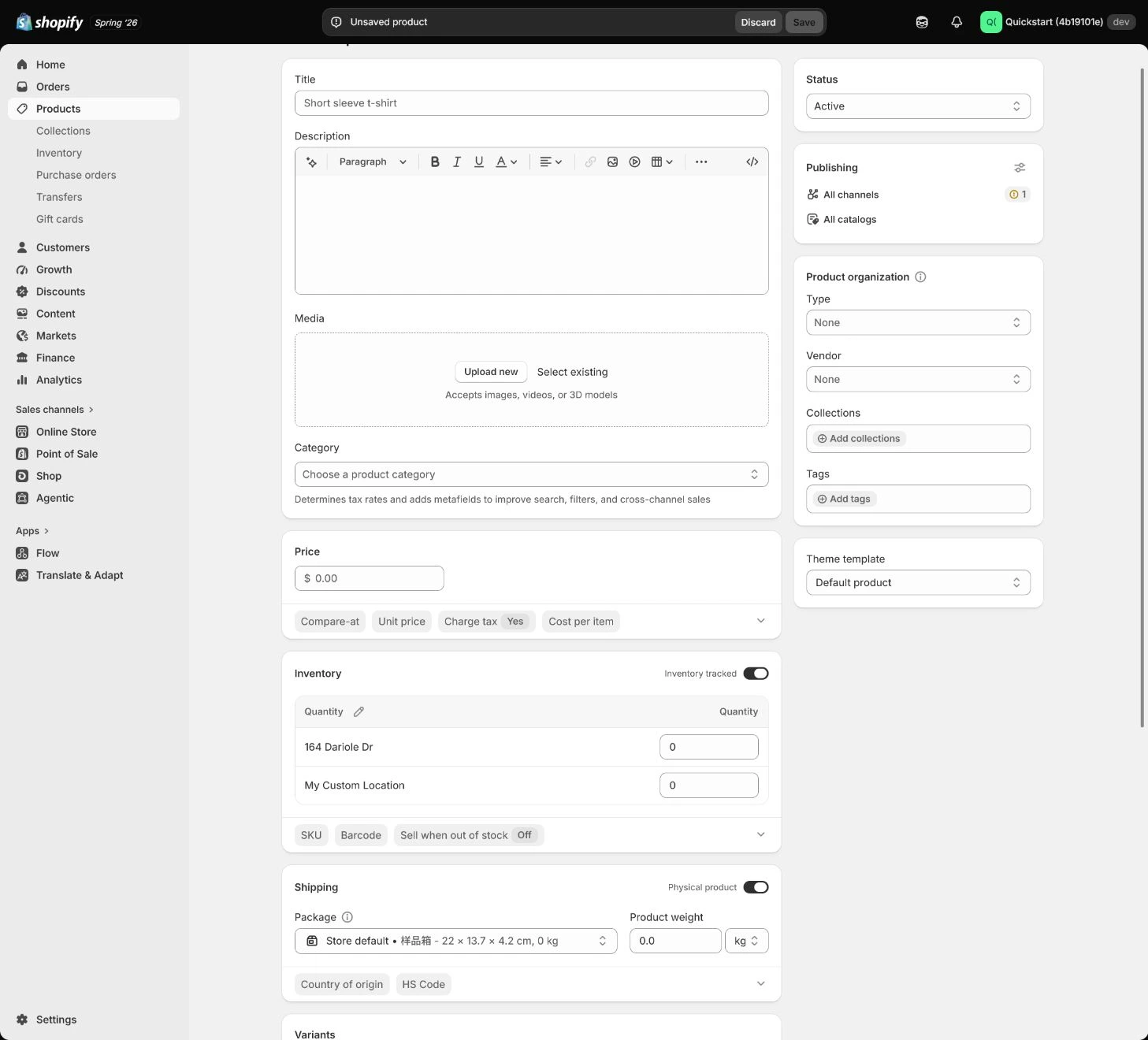
Follow the English admin step by step
After each step, refresh the admin or verify the storefront. A saved admin state does not automatically prove the customer-facing result.
Build the product core information
Open Products > Add product. State the product type and defining feature in the title instead of stuffing keywords; structure the description around use, benefits, materials, dimensions, care, and packaging so it answers pre-purchase questions.
Expected result: Have a product record that explains use, specifications, and buying boundaries on the storefront.
Completion standard: The title, description, product type, vendor, and storefront presentation match the actual product.
If the result is missing or wrong: When the entry or fields are wrong, confirm the store and page title and return to the complete Products > Add product section instead of editing a similarly named setting.
Evidence to keep: Record the product handle, state, pricing basis, owner, save time, and storefront URL. Complete admin fields do not prove the theme, channel, or inventory is correct.
Upload and order the media
Use the first image to explain the product, then show detail, dimensions, use, and packaging. Write alt text that describes each image instead of copying the same keywords, and use mobile preview to ensure the subject is not cropped.
Expected result: Have a product media set with clear order, image descriptions, and a mobile result.
Completion standard: The hero image, detail images, alt text, variant images, and mobile crop are reviewable on the storefront.
If the result is missing or wrong: When a storefront variant appears unavailable or keeps the wrong image, check variant-media binding, channel publication, and inventory at the relevant Location.
Evidence to keep: Keep image order, each alt text, variant mapping, mobile capture, and verification time.
Failure handling: Do not use title or description changes to hide a variant-image, inventory, or channel relationship error.
Set price, cost, and tax basics
Set price in the store currency using an explainable margin basis. Use Compare-at price only when a real comparison price exists; enter a traceable Cost per item with its date. Select the accurate product category before the tax process reviews whether tax applies.
Expected result: Have an explainable record connecting price, cost, comparison price, and product category.
Completion standard: Product page, cart, and record use the same pricing basis, with cost and category reviewed by an owner.
If the result is missing or wrong: When pricing or tax prompts look wrong, confirm currency, product category, current market, and page title instead of changing one amount just to make the preview look normal.
Evidence to keep: Record price, cost date, comparison-price basis, category, tax reviewer, and storefront amount.
Build color variants and unique identifiers
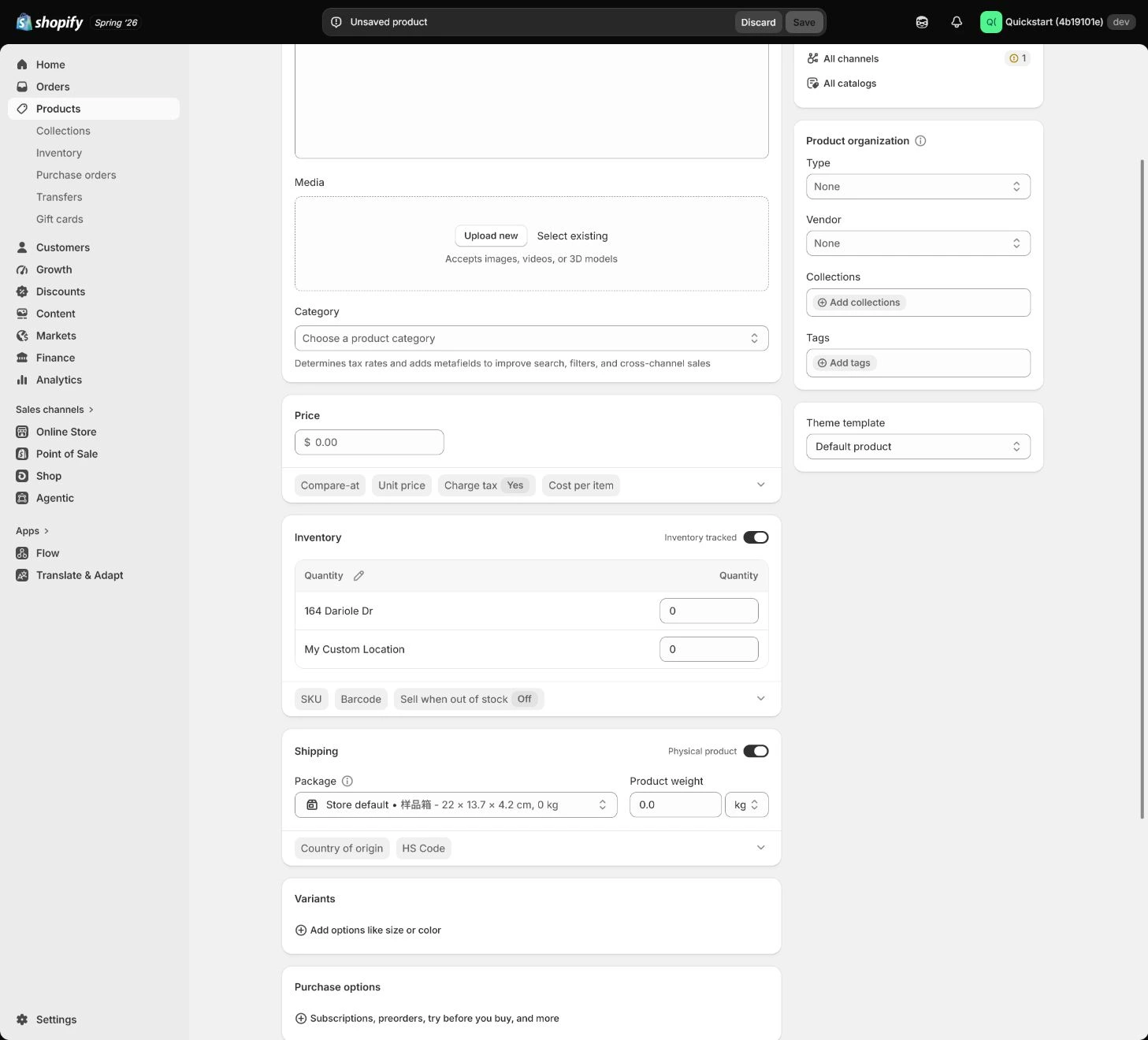
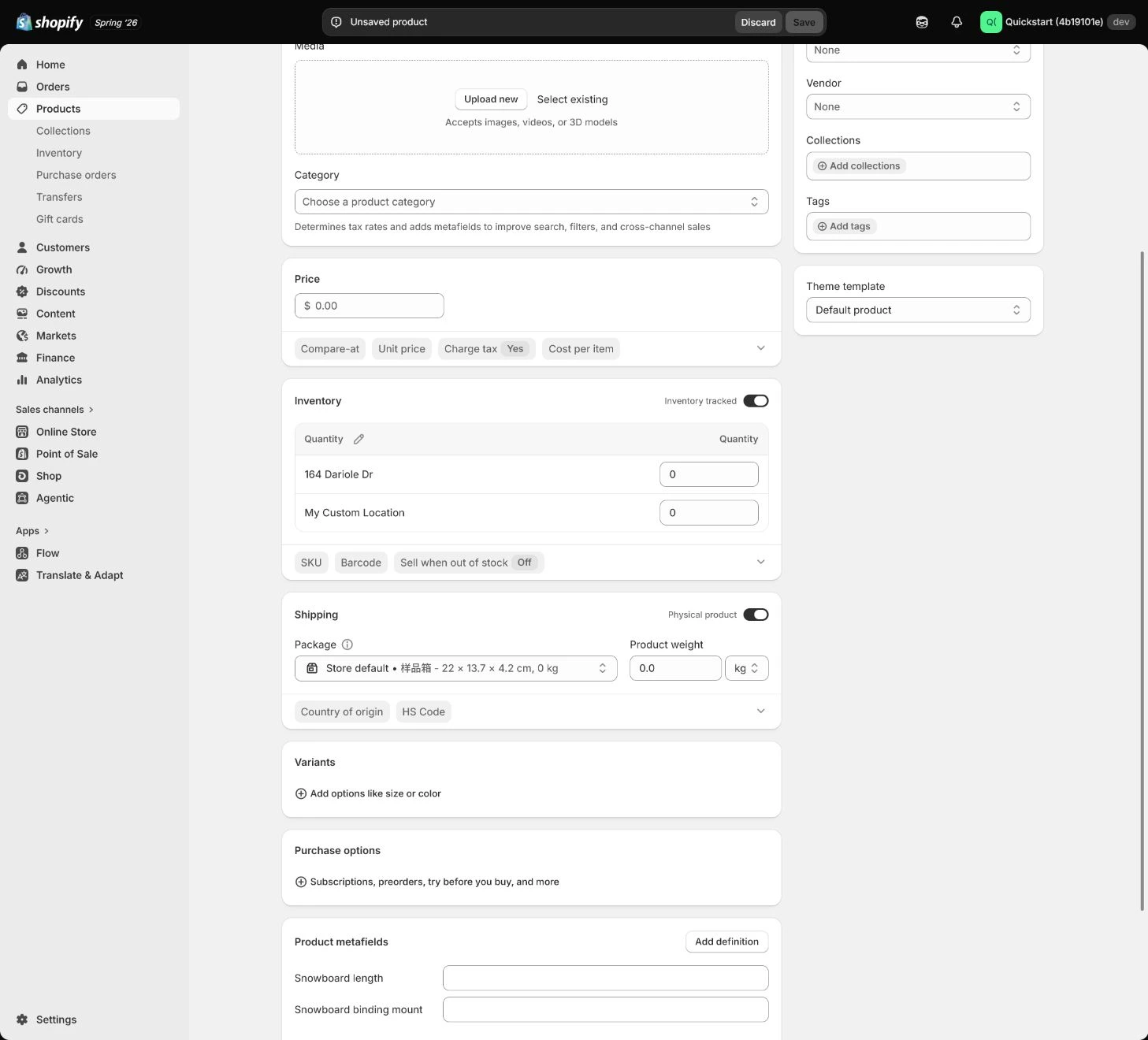
Add a Color option with Variant A and Variant B values. Give every variant a unique SKU; put only a real assigned GTIN in Barcode instead of copying the SKU. Check that variant name, image, price, and inventory correspond one to one.
Expected result: Have variants that can be identified, priced, pictured, and decremented independently.
Completion standard: Both variants have independently reviewable SKU, image, price, weight, Barcode, and inventory.
If the result is missing or wrong: When shipping is implausibly high, check variant weight, units, default package, and Shipping profile instead of changing only the shipping amount.
Evidence to keep: Keep the variant table, SKU/GTIN source, image binding, weight, inventory location, and one storefront switching result.
Configure inventory, locations, and shipping data
Enable Track quantity and enter quantities for each fulfillment location. The two 120-unit variant values in the example are practice values; use real fulfillable quantities in the actual store. Turn off Continue selling when out of stock unless a defined pre-order and delivery plan exists, enter accurate weight, and confirm the product requires shipping.
Expected result: Have inventory, weight, and shipping state separated by variant and Location.
Completion standard: Inventory decrement, out-of-stock behavior, Location assignment, and product weight agree between admin and checkout.
If the result is missing or wrong: When a storefront variant is unavailable or shipping is wrong, check channel, Location, inventory policy, and weight units, then rerun the same variant.
Evidence to keep: Record quantity, Location, Track quantity, out-of-stock policy, weight, and verification order for each variant.
Publish after organization, channels, and SEO
Fill category, vendor, product type, collections, and a small set of stable tags. Publish only to the prepared Online Store channel and selected launch markets; edit the search engine listing, check URL handle, SEO title, and description, then select a variant and add to cart from the storefront.
Expected result: Have a product page discoverable by the target channel, understandable, and able to complete add-to-cart.
Completion standard: Status, Sales channels, Markets, collection, handle, SEO fields, storefront price, and variant selection are all reviewable.
If the result is missing or wrong: When a product exists in admin but cannot be found on the storefront, check Status, Sales channels, Markets, collection conditions, and navigation instead of repeatedly publishing.
Evidence to keep: Keep channel, market, handle, SEO title/description, storefront URL, mobile selection, and add-to-cart evidence.
Failure handling: If storefront price, image, or inventory disagrees with admin, freeze the product and repair the variant/Location relationship before retesting.
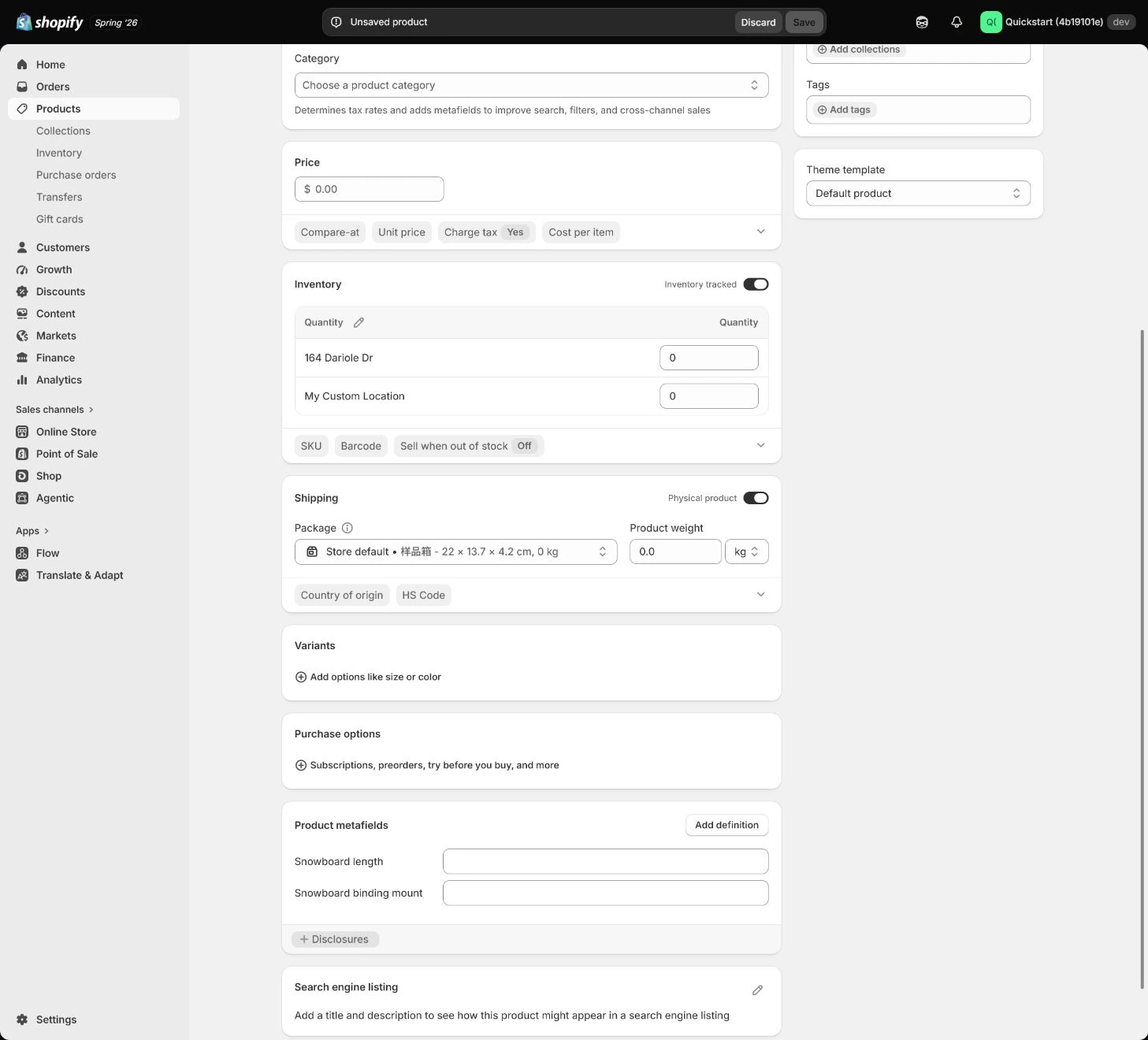
Apply the decision in your store
Use one real test product with two color variants, then check media, SKUs, price, cost, weight, inventory, Location, channel, and mobile add-to-cart one by one. Do not substitute “Published” for product-model acceptance; pause, repair, and retest when a relationship is wrong.
Use the admin path above, then apply it to one concrete situation.
Use this lesson in your store
By the end, you should have: Your first physical test product has Variant A and Variant B as sellable variants, each with a unique SKU, price, cost, weight, inventory location, sales-channel availability, and mobile verification.
Relevant admin path: Products > Add product
Make the decision before reading the reason
Choose the action that solves the problem first, then read the explanation.
Confirm these items in your store
Check each item against the current store; this checklist does not save settings or run tests.
This screen still cannot tell you: Complete product fields do not prove storefront rendering, channel synchronization, physical stock, or shipping calculation
Continue when: every variant has matching media, SKU, inventory, weight, and channel state, with consistent storefront price and add-to-cart behavior
Stop when: If variants share incorrect SKUs, weight is missing, or storefront media/inventory does not change with selection, repair the product model first
Next: Next, use stable fields to build Collections and a maintainable catalog structure.
Complete the decision or checks first. When information is missing, a pause is safer than guessing a pass.
Record the relationship of both variants
This table is not a substitute for actual store data; it turns each variant relationship into a review record. The operator must fill in real values, evidence, and results.
| Field | Variant A | Variant B | Evidence | Result |
|---|---|---|---|---|
| Unique identity | SKU / GTIN: ________ | SKU / GTIN: ________ | Admin record: ________ | Pass / fail |
| Price and cost | Price / cost: ________ | Price / cost: ________ | Basis and date: ________ | Pass / fail |
| Image and inventory | Image / Location / quantity: ________ | Image / Location / quantity: ________ | Storefront switch: ________ | Pass / fail |
| Weight and channel | Weight / channel: ________ | Weight / channel: ________ | Add-to-cart result: ________ | Pass / fail |
Decisions to confirm here
Enter the actual values for this store row by row. Do not treat examples or planned values as completed work. Mark a row passed only when the condition and saved or tested evidence are present.
| Item | Recommended setting | Why |
|---|---|---|
| Core product information | Use, specifications, care, packaging | Answers pre-purchase questions first |
| Variant model | Independent SKU, image, inventory per value | Keeps order, inventory, and media relationships clear |
| Out-of-stock policy | Stop selling by default | Continue only with a real pre-order plan |
| Publication scope | Prepared channels and launch markets | Avoid orders from markets that are not ready to fulfill |
Do not change these blindly
- Do not copy SKU into Barcode or let two sellable variants share one SKU.
- Do not use an admin Published state as proof that the storefront can find, select, and add the product.
- Do not change shipping numbers before weight, Location, and channel relationships are verified.
FAQ
Can two color variants share one SKU?
No. Each independently sold, stocked, and fulfilled variant needs a traceable unique SKU, or orders and inventory cannot reconcile reliably.
Does inventory mean the product is ready to publish?
No. Media, variants, weight, channels, Markets, SEO, storefront selection, and add-to-cart still need to match reality.
Can we copy the SKU into Barcode?
Only a real assigned GTIN belongs in Barcode. If no real barcode exists, follow the store process and leave it empty rather than inventing a complete-looking number.
Conclusion and continue line
A sellable SKU is complete when relationships agree, not when many admin fields are filled: customers see the right media and price, variant selection changes inventory and image correctly, weight feeds shipping, target channels and markets can find it, and add-to-cart is reviewable.
Choose the next route by the problem