Phase 1 Account and store foundations
Create individual accounts and least-privilege roles for owners, operators, support, developers, and collaborators, then complete 2FA, recovery codes, and offboarding controls.
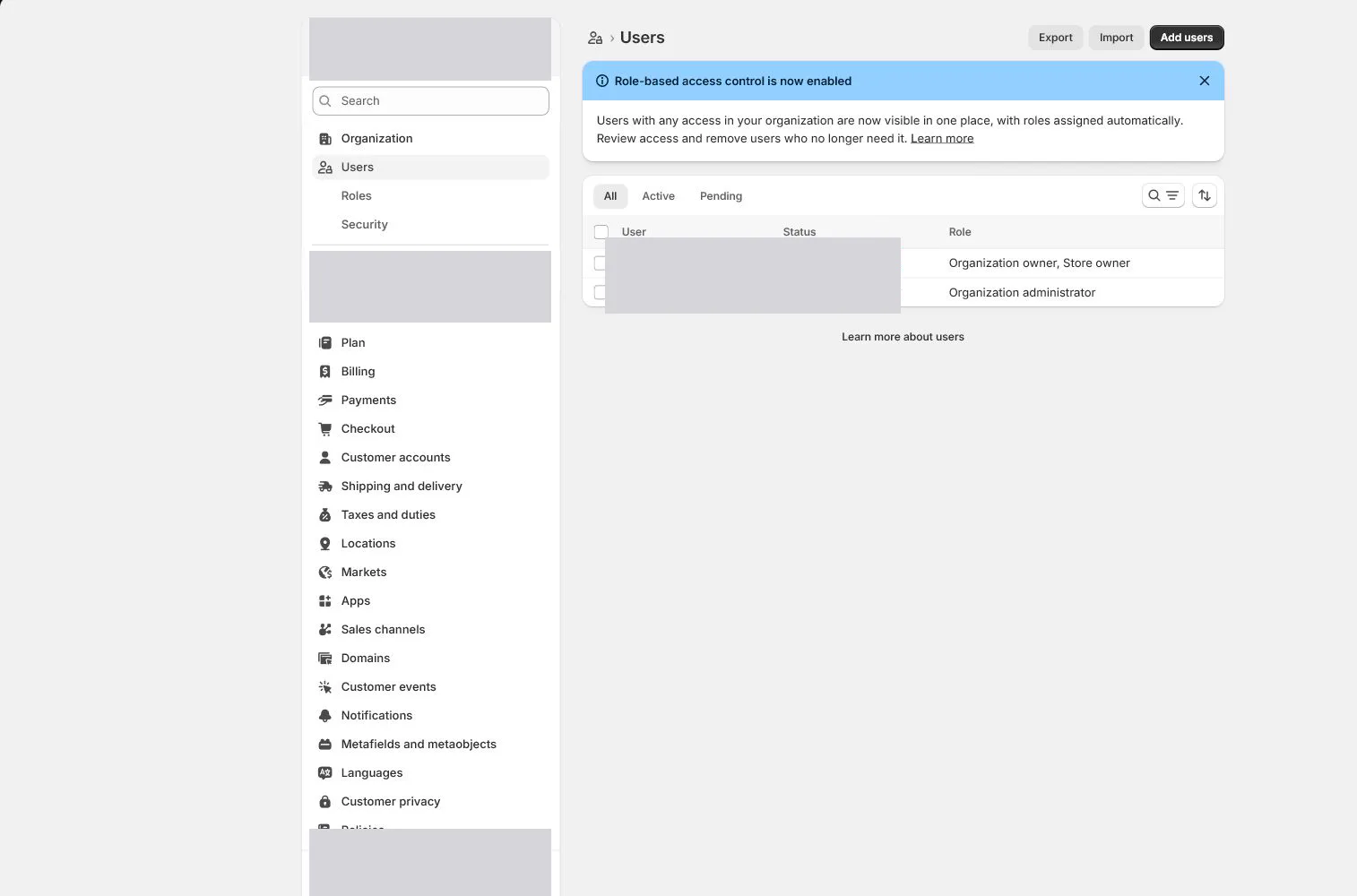
Settings > Users50 minutes
Phase 1 Account and store foundations
What counts as complete
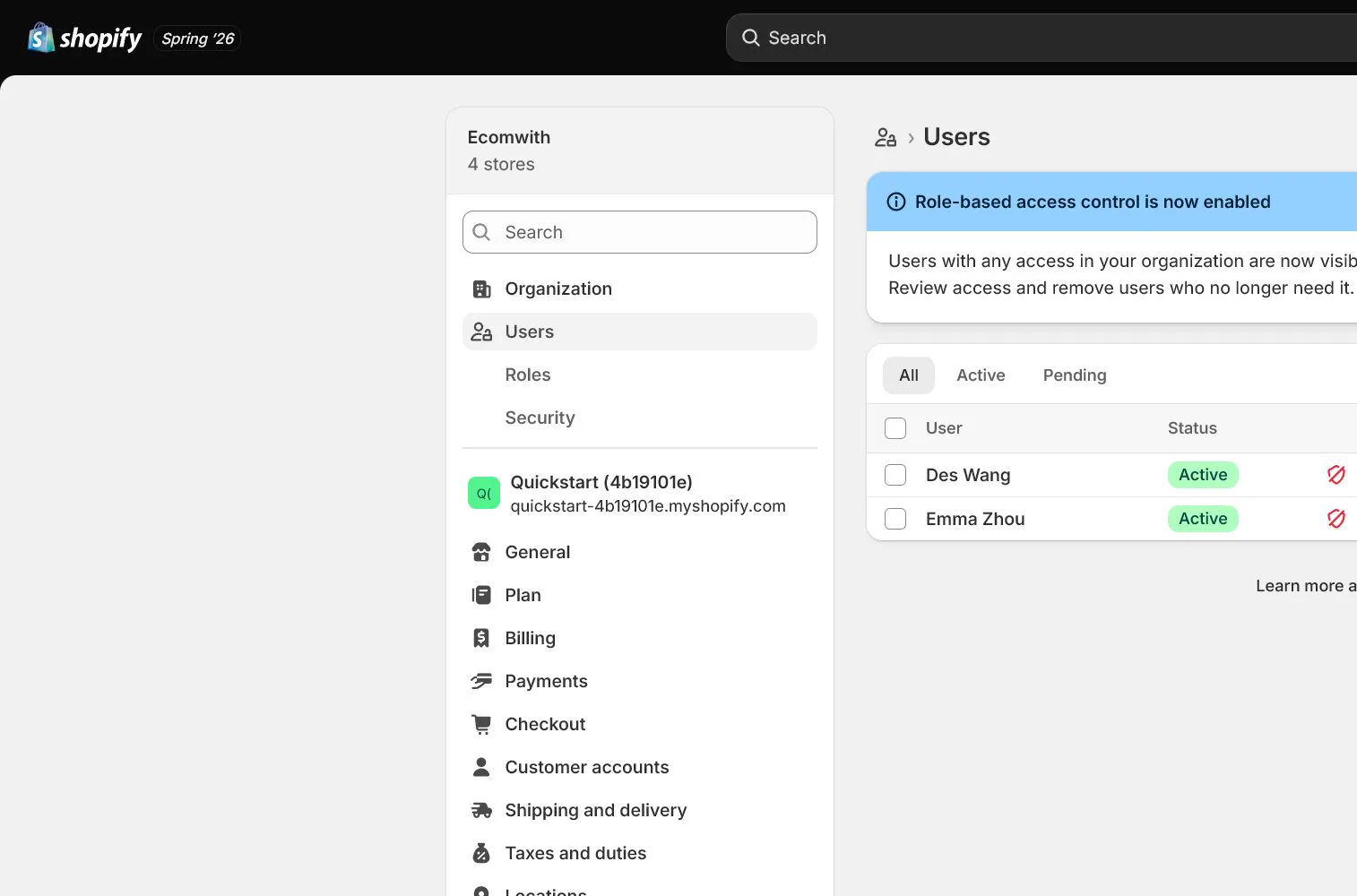
Use Settings > Users to reach the correct page, then configure, save, verify, and record the result. Completion means you can point to the saved state, the verification result, and the condition that allows the next step—not merely that you opened the page.
- Output to keep
- A permission matrix, 2FA status for every active user, recovery-code custody, collaborator expiry dates, and a standard revocation procedure.
- Continue when
- the owner account is uniquely controlled, every person has an individual login, privileged users have 2FA, and external users have no excess access.
- Pause when
- If anyone still shares the owner password or recovery and revocation owners are unclear, do not expand access.
- Proof boundary
- A role page shows configured access; it does not prove invitee identity, active 2FA, or completed offboarding.
A saved admin state is not the same as a verified storefront, order path, or downstream result. Check the current store, page title, complete target section/card, and returned result at every step.
Why this step comes now
A small team is not a reason to share one admin account. Shared logins remove accountability, security boundaries, and clean offboarding. Each person should sign in separately and receive a role based on work. Developers and agencies should use collaborator or restricted access rather than the owner password.
What you should have at the end
A permission matrix, 2FA status for every active user, recovery-code custody, collaborator expiry dates, and a standard revocation procedure.
Prepare before opening the admin
- List everyone who will access the store, including contractors, agencies, developers, and report-only users.
- Group work into products, orders, customers, marketing, analytics, finance, settings, and apps.
- Prepare the company password manager and recovery-code custody process.
Follow the English admin step by step
After each step, refresh the admin or verify the storefront. A saved state in admin does not automatically prove the customer-facing result.
Keep one owner account
Confirm that the store owner is a durable responsible person. Do not use this login for every product, order, and support task. Reserve it for ownership, security, and selected high-risk settings.
Expected result: The check for this step is: A result directly tied to “Keep one owner account.” Follow the lesson instruction: Confirm that the store owner is a durable responsible person. Do not use this login for every product, order, and support task. The page, storefront, test output, or working record should then contain an actual result tied to “Keep one owner account,” not only a plan or an open screen.
Completion standard: “Keep one owner account” has been handled for the actual store, and at least one reviewable result exists in the saved value, confirmation message, storefront behavior, test output, or working record. Opening the page or merely seeing the button is not completion.
If the result is missing or wrong: Confirm the current store and page title, then return through Settings > Users and locate the complete section or card used by this step. Recheck access, plan or market availability, required fields, and the save response instead of editing a similarly named page.
Evidence to keep: Record the actual value, verification time, owner, and evidence location for “Keep one owner account.” This record proves only that the step was checked; it does not prove downstream behavior or future platform state.
Create roles by job
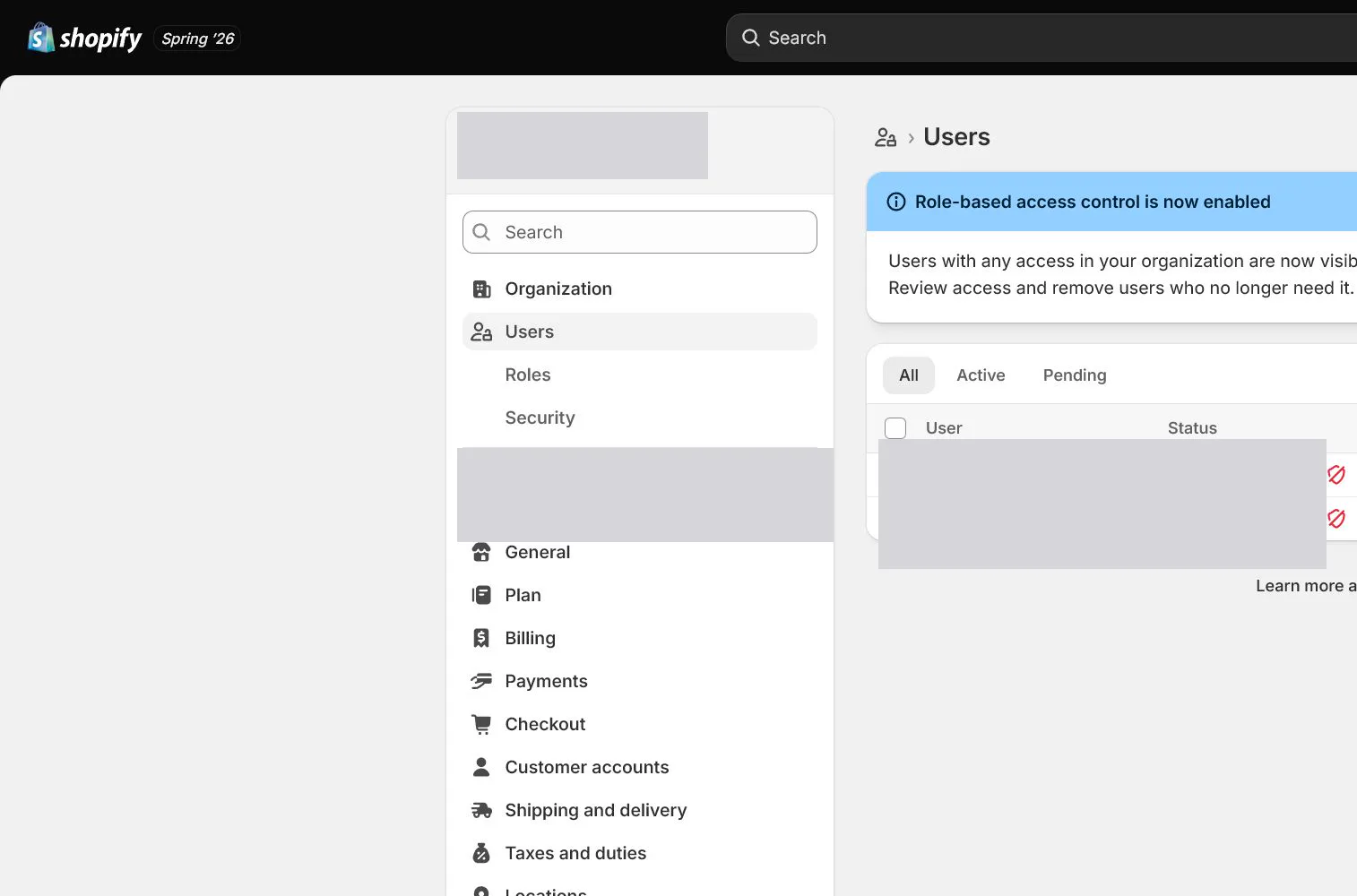
Open Settings > Users, review existing roles, and create operations, support, finance-read-only, and technical roles. Name roles by purpose instead of Admin 1 or Admin 2.
Expected result: The check for this step is: A result directly tied to “Create roles by job.” Follow the lesson instruction: Open Settings > Users, review existing roles, and create operations, support, finance-read-only, and technical roles. The page, storefront, test output, or working record should then contain an actual result tied to “Create roles by job,” not only a plan or an open screen.
Completion standard: “Create roles by job” has been handled for the actual store, and at least one reviewable result exists in the saved value, confirmation message, storefront behavior, test output, or working record. Opening the page or merely seeing the button is not completion.
If the result is missing or wrong: Confirm the current store and page title, then return through Settings > Users and locate the complete section or card used by this step. Recheck access, plan or market availability, required fields, and the save response instead of editing a similarly named page.
Evidence to keep: Record the actual value, verification time, owner, and evidence location for “Create roles by job.” This record proves only that the step was checked; it does not prove downstream behavior or future platform state.
Failure handling: If you see An invited user cannot see a feature, Check the assigned role and store or organization scope before escalating to Full permissions.
Reduce permissions field by field
Support usually does not need payment or app-install access, developers usually do not need customer exports, and finance-read-only does not need theme editing. Start with the minimum and expand only for a defined task.
Expected result: The check for this step is: A result directly tied to “Reduce permissions field by field.” Follow the lesson instruction: Support usually does not need payment or app-install access, developers usually do not need customer exports, and finance-read-only does not need theme editing. The page, storefront, test output, or working record should then contain an actual result tied to “Reduce permissions field by field,” not only a plan or an open screen.
Completion standard: “Reduce permissions field by field” has been handled for the actual store, and at least one reviewable result exists in the saved value, confirmation message, storefront behavior, test output, or working record. Opening the page or merely seeing the button is not completion.
If the result is missing or wrong: Confirm the current store and page title, then return through Settings > Users and locate the complete section or card used by this step. Recheck access, plan or market availability, required fields, and the save response instead of editing a similarly named page.
Evidence to keep: Record the actual value, verification time, owner, and evidence location for “Reduce permissions field by field.” This record proves only that the step was checked; it does not prove downstream behavior or future platform state.
Invite individual users or collaborators
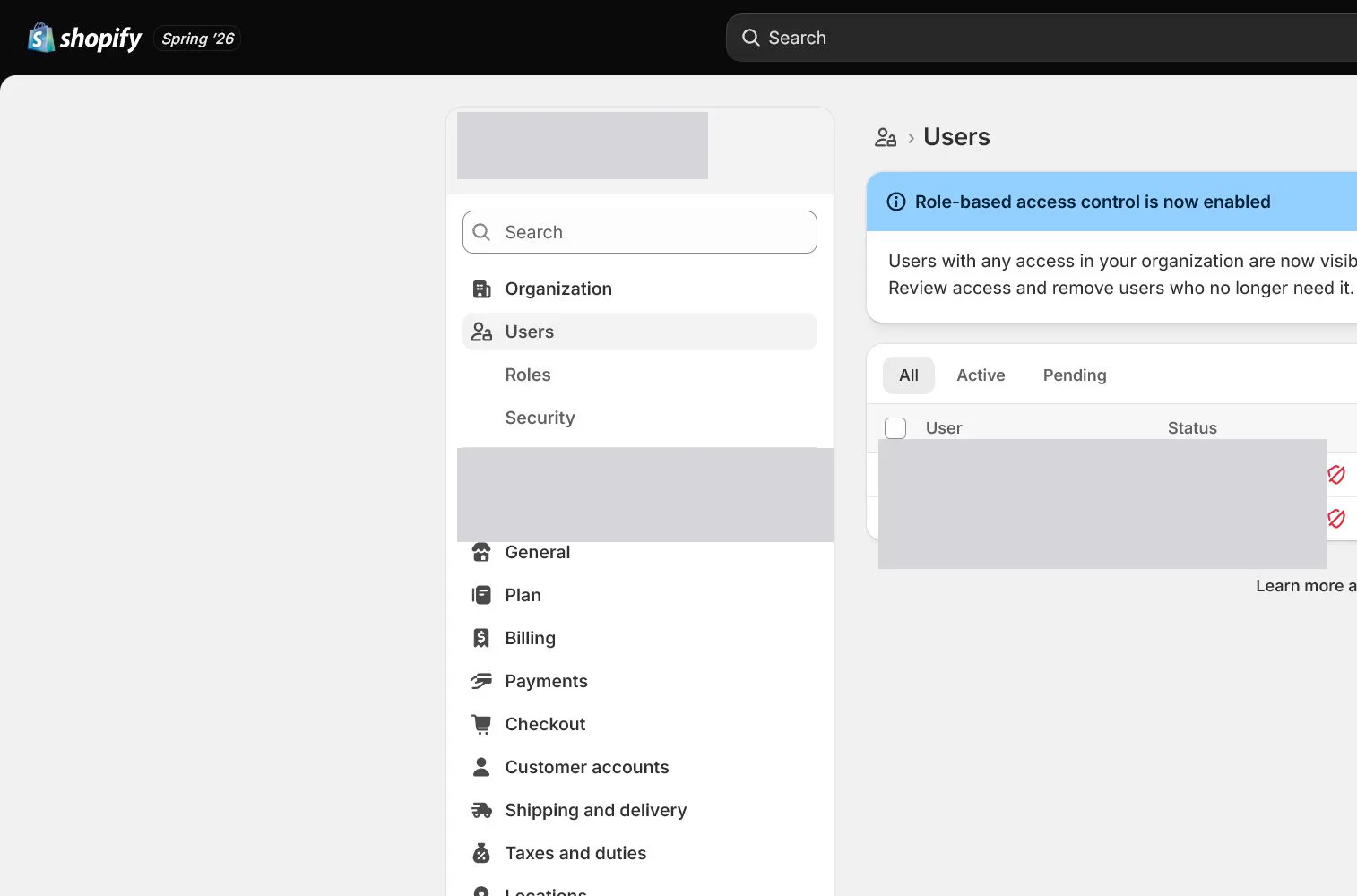
Each person accepts with an individual email. Agencies and Shopify Partners should use collaborator access where appropriate and receive a revocation date. Never send the owner password through chat.
Expected result: The check for this step is: A result directly tied to “Invite individual users or collaborators.” Follow the lesson instruction: Each person accepts with an individual email. Agencies and Shopify Partners should use collaborator access where appropriate and receive a revocation date. The page, storefront, test output, or working record should then contain an actual result tied to “Invite individual users or collaborators,” not only a plan or an open screen.
Completion standard: “Invite individual users or collaborators” has been handled for the actual store, and at least one reviewable result exists in the saved value, confirmation message, storefront behavior, test output, or working record. Opening the page or merely seeing the button is not completion.
If the result is missing or wrong: Confirm the current store and page title, then return through Settings > Users and locate the complete section or card used by this step. Recheck access, plan or market availability, required fields, and the save response instead of editing a similarly named page.
Evidence to keep: Record the actual value, verification time, owner, and evidence location for “Invite individual users or collaborators.” This record proves only that the step was checked; it does not prove downstream behavior or future platform state.
Failure handling: If you see A collaborator asks for the owner password, Use a collaborator request or restricted user and map the request to specific permissions.
Require and verify two-step authentication
Require two-step authentication for high-privilege users, especially owner, payments, user management, and app access. Sign out and back in once to prove the authenticator or phone works.
Expected result: The check for this step is: A result directly tied to “Require and verify two-step authentication.” Follow the lesson instruction: Require two-step authentication for high-privilege users, especially owner, payments, user management, and app access. The page, storefront, test output, or working record should then contain an actual result tied to “Require and verify two-step authentication,” not only a plan or an open screen.
Completion standard: “Require and verify two-step authentication” has been handled for the actual store, and at least one reviewable result exists in the saved value, confirmation message, storefront behavior, test output, or working record. Opening the page or merely seeing the button is not completion.
If the result is missing or wrong: Confirm the current store and page title, then return through Settings > Users and locate the complete section or card used by this step. Recheck access, plan or market availability, required fields, and the save response instead of editing a similarly named page.
Evidence to keep: Record the actual value, verification time, owner, and evidence location for “Require and verify two-step authentication.” This record proves only that the step was checked; it does not prove downstream behavior or future platform state.
Store recovery codes and create an offboarding checklist
Store recovery codes in a controlled vault rather than one person's screenshot. When work ends, revoke the user, review app and API access, rotate shared secrets, and check activity logs.
Expected result: The check for this step is: A result directly tied to “Store recovery codes and create an offboarding checklist.” Follow the lesson instruction: Store recovery codes in a controlled vault rather than one person's screenshot. When work ends, revoke the user, review app and API access, rotate shared secrets, and check activity logs. The page, storefront, test output, or working record should then contain an actual result tied to “Store recovery codes and create an offboarding checklist,” not only a plan or an open screen.
Completion standard: “Store recovery codes and create an offboarding checklist” has been handled for the actual store, and at least one reviewable result exists in the saved value, confirmation message, storefront behavior, test output, or working record. Opening the page or merely seeing the button is not completion.
If the result is missing or wrong: Confirm the current store and page title, then return through Settings > Users and locate the complete section or card used by this step. Recheck access, plan or market availability, required fields, and the save response instead of editing a similarly named page.
Evidence to keep: Record the actual value, verification time, owner, and evidence location for “Store recovery codes and create an offboarding checklist.” This record proves only that the step was checked; it does not prove downstream behavior or future platform state.
Failure handling: If you see A lost phone blocks 2FA, Use controlled recovery codes or a backup method, then regenerate and replace old recovery codes after access is restored.
Apply this decision in your store
Build roles from your real jobs, such as owner, operations, support, finance, and external development. Support receives only order/communication access, developers receive theme and approved-app scope, and finance can start with read-only reports. Complete 2FA for privileged users and name owners for recovery codes and offboarding.
Decisions to confirm here
Use this table to turn “Decisions to confirm here” into a reviewable record. Enter the current store’s actual values row by row; do not treat examples or planned values as completed work.
| Decision | Recommended setting | Why |
|---|---|---|
| Store owner | One person | Keeps ownership and recovery responsibility clear |
| Operations role | Products, orders, discounts | Does not include payments or user management by default |
| Developer role | Themes and required apps | Customer export, billing, and payments stay off by default |
| Collaborators | Expiry-based revocation | Access does not remain after the project |
Review every row after filling it in. Mark a row passed only when the actual value meets the lesson condition and has saved or tested evidence. Missing permission, result, or ownership means return to the relevant step before continuing.
Do not change these blindly
- Do not share the owner login or send its password to an agency.
- Do not grant Full permissions to everyone for convenience.
- Do not leave former users or collaborators active after work ends.
Use the admin path above, then apply it to one concrete situation.
Use this lesson in your store
By the end, you should have: A permission matrix, 2FA status for every active user, recovery-code custody, collaborator expiry dates, and a standard revocation procedure.
Relevant admin path: Settings > Users
Make the decision before reading the reason
Choose the action that solves the problem first, then read the explanation.
Confirm these items in your store
Check each item against the current store; this checklist does not save settings or run tests.
This screen still cannot tell you: A role page shows configured access; it does not prove invitee identity, active 2FA, or completed offboarding
Continue when: the owner account is uniquely controlled, every person has an individual login, privileged users have 2FA, and external users have no excess access
Stop when: If anyone still shares the owner password or recovery and revocation owners are unclear, do not expand access
Next: Next, review Plan and Billing so subscriptions, trials, and invoices have the same ownership discipline.
Complete the decision or checks first. When information is missing, a pause is safer than guessing a pass.
Conclusion and continue line
Current conclusion: Admin access now works by person and job, with accountable and revocable permissions. Continue only when the owner account is uniquely controlled, every person has an individual login, privileged users have 2FA, and external users have no excess access. If anyone still shares the owner password or recovery and revocation owners are unclear, do not expand access.
- Every active person has an individual account.
- Roles map to actual job tasks.
- All privileged users have verified 2FA.
- Recovery codes are in a controlled vault.
- The offboarding checklist covers users, apps, API secrets, and activity review.
Official sources
Shopify labels and rules can change. Use these official pages to confirm current conditions before changing a setting; each screenshot shows only the admin state captured at that time.