Theme customization should help customers understand the store and complete a purchase. Start with page order, readable mobile content and working product selection. Before moving sections or changing global colors, identify the theme you are editing and retain a version you can return to.
10 parts · 5 checkpoints · Take away: 1 record · 1 note
Show all 10 parts
- 01Define the change and its data boundary
- 02Step 1: choose and preview the candidate
- 03Step 2: duplicate and name a recoverable version
- 04Step 3: choose the correct editing layer
- 05Step 4: give home and product content a buying order
- 06Step 5: preview templates, then plan assignment
- 07Step 6: review, publish and recheck the actual URLs
- 08Rehearse theme recovery and data recovery separately
- 09Decide what to do after an unprotected live edit, has a checkpoint
- 10Keep the decision and release record, has a checkpoint, has a work product
Key point A theme copy protects a theme, not the whole store
An unpublished theme preview is not an isolated test store. Products, collections, menus, pages and other shared data can be read by several themes. A saved preview does not prove publication, correct template assignment or a working customer path. Keep theme recovery and shared-data recovery separate.
You can begin here without earlier course records. Confirm the selected store and permission to edit themes, and identify who may approve and carry out publication or rollback. Prepare at least one real product and collection for preview, their URLs and current template assignments, the menu/search/cart paths, and a list of apps affecting the storefront. Gather the logo, typography rules, primary/secondary colors and real product images. Record the current live theme's name, version, retained prior version, change owner and naming rule before making changes.
Questions to settle before changing a theme
- What belongs to the theme, and what remains shared store data?
- How can you compare a candidate against real products and mobile paths?
- What can a duplicate or downloaded ZIP actually restore?
- How do Theme settings, Sections, Blocks and Templates differ?
- When should you create another product or collection template?
- Why does Preview > Change not assign the template to the product?
- What must pass before publication, and what needs rechecking afterward?
- What should happen when a mobile overlay, app or shared-data change breaks the path?
Define the change and its data boundary
The classroom store sells desk-organization products. Use its organizer with Tan and Olive variants and a prepared collection to test the theme. The example customer should understand the product, reach the collection, select the intended color and add it to the cart. These are teaching goals; a previous lesson or screenshot does not establish that your products and collection already work.
A theme supplies the storefront's presentation, templates, code and theme-specific settings. The live theme is the published theme customers receive. A draft theme can be edited and previewed before publication; duplicating it does not make it live. Only one theme is published at a time, and publishing a replacement moves the previous theme into Draft themes. Publishing also does not remove the store's private/password access setting.
Changing product content or a menu through the admin can affect the live store even while you are looking at a draft. Identify each change as theme configuration, resource assignment, shared content or external app configuration. Save the previous value and scope for any shared change. Copying or downloading a theme does not grant a paid-theme license or permission to use it in another store. A Theme Store paid trial can be previewed and customized within its permitted controls, but does not allow theme-code editing. Buying and publishing require separate authority and the applicable store license.
Before moving modules, write the five questions home and product pages need to answer: what is sold and for whom; why choose it; what the buyer receives and pays; what delivery or buying limitations apply; and what to do next. Use these questions to decide whether a section has a job. They are a planning worksheet, not a required number of sections.
Step 1: choose and preview the candidate
A Theme Store demo can show a theme's possibilities, but your product images, long titles, variants, menus and apps can behave differently. Start with the current lightweight theme or compare a candidate against the same actual paths. Record the context so a good-looking demo is not mistaken for a verified store.
Compare the real buying path
Choose and preview the theme
Open Online Store > Themes. Identify the current live theme and the candidate in Draft themes. Use Preview and the theme editor to inspect home, product, collection, menu, search and cart behavior on desktop and mobile.
How to confirm
Record theme name/version, draft or live status, preview URL, selected resources, device/viewport, path result and time. Confirm the candidate's own context before comparing screenshots. A preview result does not establish publication.If it goes wrong
If the wrong store, theme or content appears, return to the complete Themes page and confirm the page title, theme identity, access and preview context. Reopen the intended preview rather than editing the live theme to make two screens look alike.
The historical Themes page below shows Dawn above the Draft themes list and a development-store password notice. Its thumbnail previews, version-update notice and Publish buttons locate controls; they do not establish the current version, licensing or a successful customer path in your store.
Admin path: Online Store › Themes
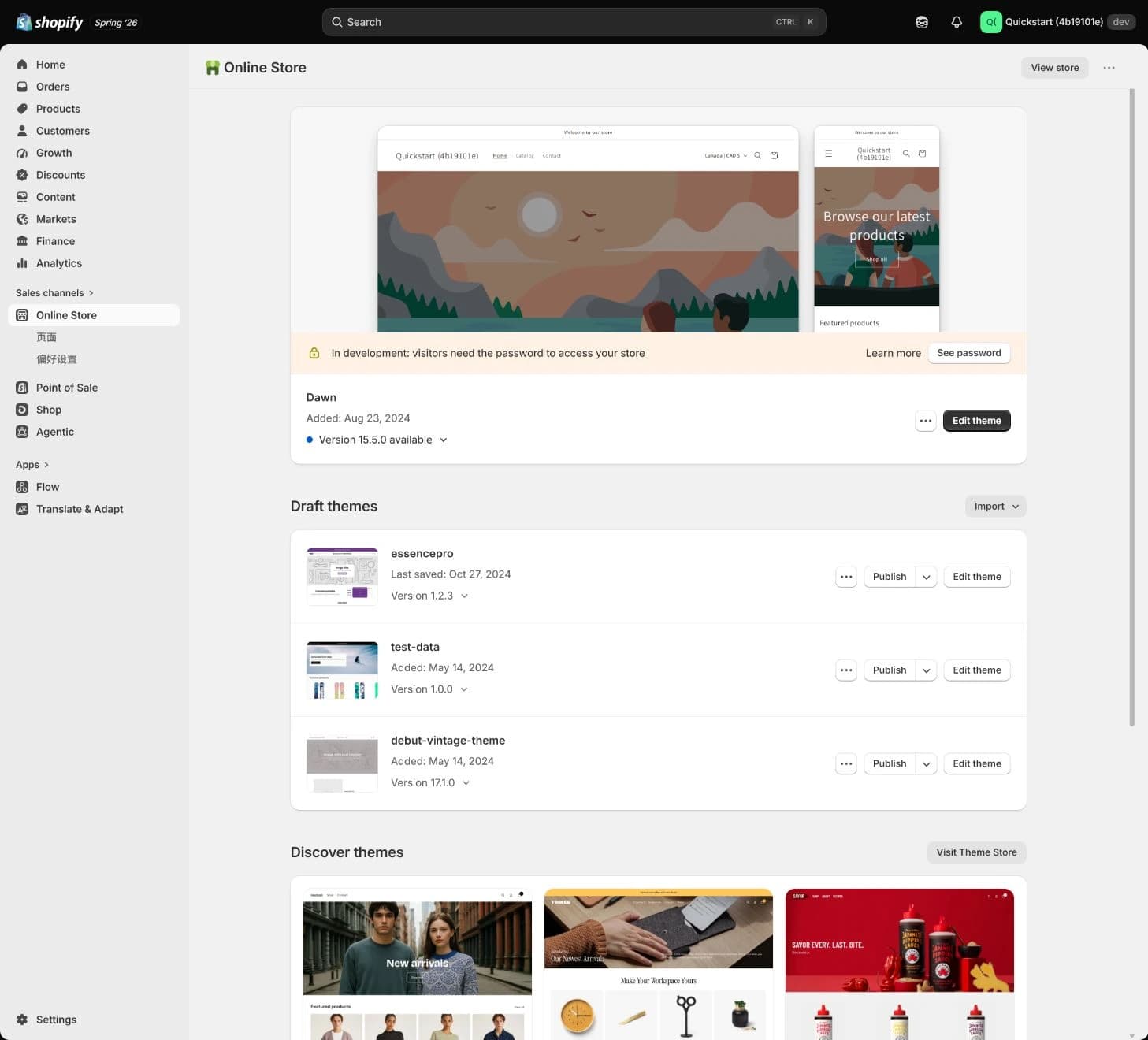
Historical screenshot: distinguish the current theme area from Draft themes. Thumbnail previews and available actions do not prove a copy, release or rollback was completed.
A theme-editor preview, a shared visitor preview and the actual live URL serve different checks. Keep track of which one you opened. A shareable preview can expose draft content to its recipient; share only the intended review link and material. Previewing does not create a separate product database or make test orders harmless. Check checkout behavior through the store's controlled testing process, not through real customer orders.
Step 2: duplicate and name a recoverable version
Retain an untouched prior theme and use a working copy for customization. A dated name such as 2026-08-01-before-launch identifies the example's purpose; use the actual date, source theme and purpose in your own naming. A screenshot records appearance. A retained theme or suitable theme file provides a version to restore.
Keep the prior state and working copy identifiable
Duplicate the theme and name the backup
In the source theme's actions menu, choose Duplicate. Identify the resulting copy, name it with date and purpose, and record source theme, version, creation time, editor and rollback target. Perform theme code, style and configuration changes in the working copy, leaving the retained recovery version untouched.
How to confirm
Reopen the working copy and confirm its name and Draft context. Keep a change log of who changed what and when, the live theme name, template assignments and any shared-data originals. If downloading a theme file is part of the backup process, retain the actual ZIP and its identity.If it goes wrong
If the duplicate is unavailable, inspect permissions, the selected theme and any theme-library capacity message. Preserve required versions before considering removal; do not delete the only recovery copy to clear space. A missing draft-only template in an assignment list is a separate issue addressed below.
A theme download contains theme files. It does not include products, collections, menus, pages, blog posts, product images or other Content > Files resources. Those need their own earlier records and restoration process. Apps and store settings outside the theme also need separate handling. A duplicate inside the same store is useful for theme work, but does not produce a complete store backup or isolated catalog.
The next historical image is already inside the test-data Draft theme editor. The Duplicate menu and backup naming action are not shown. The header's theme name and Draft label are useful checks after opening your own copy.
Admin path: Online Store › Themes › Edit theme › draft context
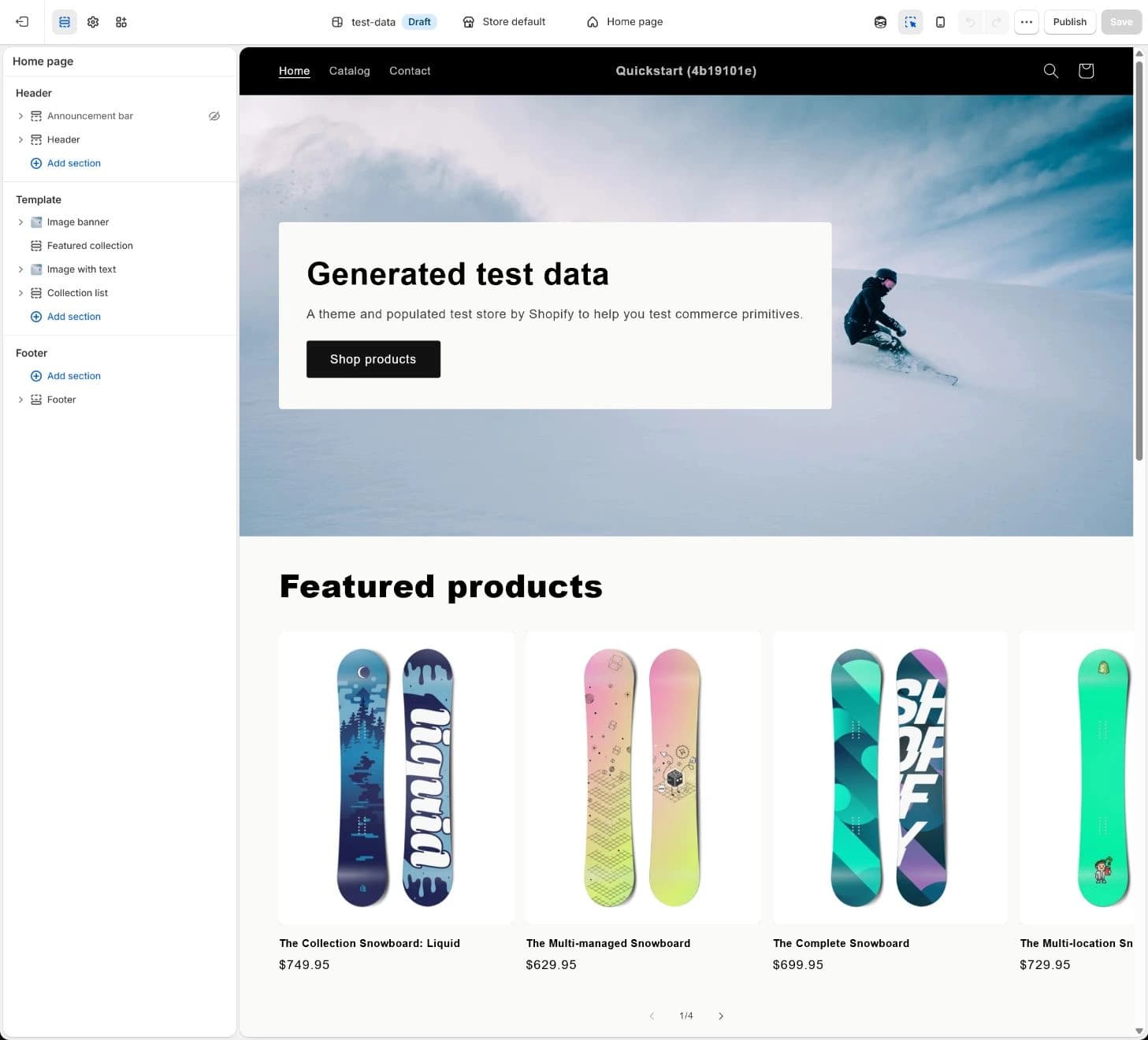
Historical screenshot: verify which theme is open. The draft editor is not evidence that a dated backup exists or that Publish has been approved.
Step 3: choose the correct editing layer
Start in Online Store > Themes > Edit theme for the working copy. The page selector chooses a template; the sidebar exposes its sections and blocks. Theme settings control shared design choices within that theme. Check the template and Store default or selected market context before editing, because one change can affect more pages than the previewed item.
Locate the cause before repeating a local fix
| Item | What it controls | Scope and check |
|---|---|---|
| Theme settings | Theme-wide color, typography, buttons and layout rules supported by the theme. | Set global rules first, then inspect affected page types. This is global within the relevant theme/context, not an automatic update to every saved theme. |
| Template | The arrangement of sections for a page type or a structurally different group of resources. | Changes affect every resource using that template. Preview several assigned products or collections before saving the scope as accepted. |
| Section | A page module such as product information, image banner or featured collection. | Give the module one main job. Shared areas such as header/footer can appear across templates; check the actual theme structure. |
| Block | An element such as text, a button, an image or supported app functionality within the available structure. | Allowed types, nesting and settings depend on theme/version and section support. A missing control is not proof that another theme's instructions apply. |
Change one understood scope at a time
Understand Sections, Blocks and Theme settings
Set the intended global colors, typography and button rules first, then adjust the relevant template, sections and blocks. Record each changed setting, dynamic source, affected pages and the previous value. Save and reopen in the same theme/context.
How to confirm
For every change, identify its scope, saved state, actual preview result and recovery method. Check readable text, image contrast and visible keyboard focus, not only the hero's appearance.If it goes wrong
If the field or layout is wrong, confirm the theme, template, page title and selected section/block. Consult the theme's supported controls before adding code or repairing the same global issue separately on several pages.
The historical editor below repeats the section-tree view. It shows Header, Template and Footer groups plus a settings icon; the Theme settings panel is not open. Its generated snowboard content is unrelated to the desk-organizer case.
Admin path: Online Store › Themes › Edit theme › sections view
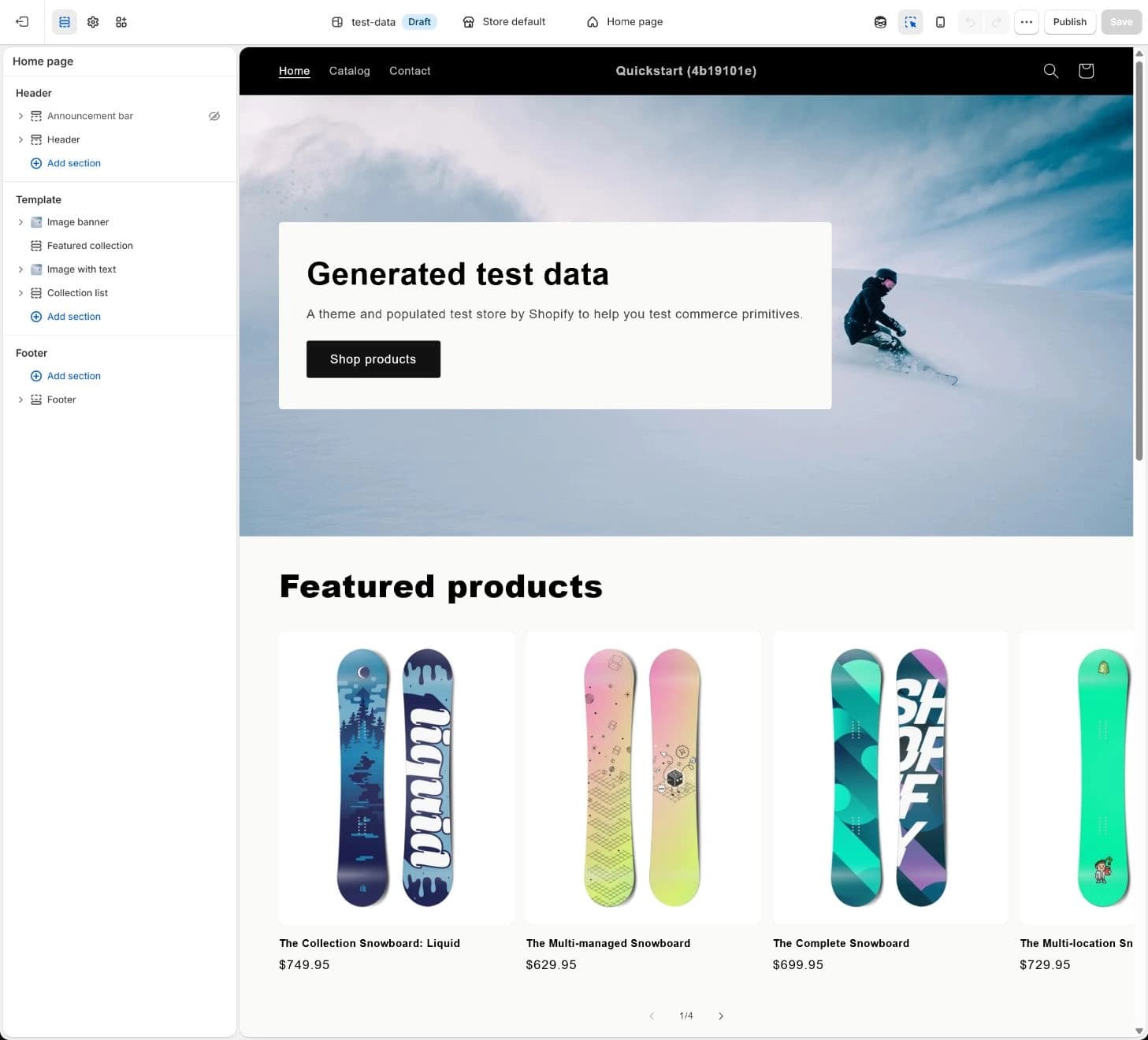
Historical screenshot: locate the page structure and editor controls. It does not demonstrate changed global settings, supported nested blocks or saved acceptance.
Step 4: give home and product content a buying order
For the example home page, use one clear promise about desk organization and a primary action such as “Shop desk organizers” leading to the prepared collection. Follow with core benefits, featured products, relevant trust information, use cases, FAQ and email signup. Keep the claim and delivery information accurate. Remove default placeholders, competing banners, carousels or animation that do not answer a customer question.
The mobile checks below use a few layout terms. Padding is the space inside a module's edges. Fixed or sticky elements can remain in view as the page scrolls, such as a persistent add-to-cart bar; an app overlay can cover page content. If a button is obscured, first identify what occupies or covers that space and which module controls it, rather than shrinking text across the whole page.
Map understanding to the next action
Organize the home-page information order
Write the home-page map and move sections into that order in the copy. Check the product-page sequence too: media, title/price, variant choice, add-to-cart, delivery promise, details and FAQ should support the buying decision. Use real product images and content rather than accepting the demo arrangement.
How to confirm
On desktop and a 390px mobile viewport, inspect first-screen understanding, image crop/ratio, readable copy and reachable buttons. Follow the primary action into the collection and product. Keep the map, section order, captures, CTA destination and retest time.If it goes wrong
If text or purchase controls are covered, inspect section padding, fixed/sticky elements, app overlays and device safe areas. Reorder or remove conflicting modules in the copy and retest. Shrinking the font alone can leave the obstruction and make the page harder to read.
The 390px check is an inherited classroom viewport, not evidence that every phone works. Test the actual devices and content lengths relevant to the store. Check keyboard navigation and focus, text/background contrast, useful image alt text and form labels. Avoid unexplained automatic motion; retain usable controls where motion exists. These checks help find problems but do not certify full accessibility.
Step 5: preview templates, then plan assignment
Create another product or collection template when a group needs materially different structure or page responsibilities. Different product images and copy usually belong in the same template with dynamic content. A template reads the current product or collection; hardcoding one product's price, title or image can make other assigned pages wrong. Maintaining a template for every SKU adds work without a structural reason.
Separate a previewed resource from an assigned resource
Build product and collection templates
In the draft theme editor, select the intended template in the page selector. Use Preview > Change to choose a named product or collection. Check that dynamic sources display that current object's content, then compare another suitable object. Record the template name/theme, previewed resources and their previous assignments.
How to confirm
Keep the template inventory, home/product structure maps, dynamic-source field, preview URL and desktop/mobile result. Preview > Change only changes what the editor displays. Product or collection Theme template dropdowns in the admin list templates from the currently live theme.If it goes wrong
If a draft-only template is absent from the assignment list, keep the assignment pending and finish the draft preview. Do not rush publication to make a dropdown option appear. After an approved release makes the template available, assign only the approved resources, save and inspect their real URLs.
If a product cannot be selected for preview, check its status and resource context; archived products are not previewable through product templates. A collection needs Online Store availability to be used in the collection-template preview. These availability checks can affect the store, so record a needed change rather than enabling publication simply for a screenshot.
Put new-template publication, resource assignment and restoration of previous assignments in the same release plan. If the new template exists only in the draft, the actual assignment follows publication. Until that action occurs, a successful preview remains a preview result, not a completed live assignment.
Step 6: review, publish and recheck the actual URLs
Preview all 5 page types on desktop and mobile: home, collection, product, cart and search. Include menus, the selected variants, primary actions, delivery information, text, image ratios and sticky controls. Inspect app blocks, App embeds and any injected code in the candidate theme. App compatibility and external app settings must be checked separately; switching themes does not reinstall an app or undo its external configuration.
Prepare a release with a named recovery owner
Complete preview, publish and rollback records
Save captures and results, the exact working-copy identity, previous theme and previous resource assignments. Obtain the named release approver's confirmation and a second person's review. An authorized publisher can then publish the selected copy; assign approved resources to any newly available templates and immediately revisit their real URLs.
How to confirm
Record publisher, time, change scope, critical URLs, assignment time/results, issues, rollback owner and the condition for restoring the named previous theme. Recheck the actual live URL without relying on the draft preview context. Unfinished assignments or failed paths remain unresolved.If it goes wrong
If the wrong version appears, confirm the active theme name, the selected copy, saved customization and your theme-switch/change records. If layout, template or app conflicts appear, stop further changes, preserve evidence and assess recovery below before continuing the release.
App blocks appear where the theme/section supports them. App embeds can add overlays or invisible code; check their activation and relevant market context in the candidate, not just the installed-app list. Disabling one conflicting theme embed during an approved test does not establish that the app is uninstalled, its external settings are reverted or billing has stopped.
The last historical image is byte-identical to the preceding desktop editor view. It is retained as a reference to the Draft label and Publish control, not as a mobile capture, completed publication or rollback record. A visible button is not evidence that the action was performed.
Admin path: Online Store › Themes › Edit theme › desktop draft preview
Historical screenshot: this repeated desktop view does not prove the 390px check, publication, live assignment or recovery. Retain actual before/after results for those jobs.
Rehearse theme recovery and data recovery separately
Before release, make one minimal, reversible change in the working copy and record the pages it should affect. Compare before/after, then confirm that you can restore the intended theme setting or retained version in preview. Record the actual restoration and its result to complete the rehearsal. A Publish button alone cannot establish that the previous theme is still compatible with current products, assignments and apps.
Locate the failure and retain the actual recovery result
| Item | Check first | Continue condition or recovery action | Record |
|---|---|---|---|
| Old layout after a new template is available | Published theme, resource assignment and dynamic source. | Repair the approved assignment against its recorded prior value and target, then inspect the actual resource URL. A draft preview cannot replace assignment. | Object URL, theme/template, previous assignment, actual assignment and result. |
| Mobile obstruction | Padding, sticky/fixed controls, App embed and device safe area. | Restore the copy's earlier setting or remove the conflicting module within scope; continue only when text, buttons and image ratios are usable. | Device/viewport, screenshots, changed module and retest. |
| Published result looks like the old version | Published copy identity, switch records and saved changes. | Confirm the intended copy. If recovery is needed, an authorized person can republish the retained prior theme after checking current compatibility; verify critical paths again. | Time, responsible person, restored theme and actual result. |
| App or template conflict | Copy/version, App embed or block, injected code and template assignment. | Pause the release or restore a compatible prior theme. Continue only after the conflict is located and the same path passes again. | Issue, affected URLs, dependency owner and retest. |
| Shared product or menu data changed | Separate theme settings from shared data and inspect saved earlier values. | Recover or explicitly approve each affected product, menu and previous template assignment separately. Switching themes alone does not restore them. | Object, old value, authorized scope, restored/retained value and storefront result. |
Consider a separate hypothetical example: a tumbler's price changes from 49 to 39 in the same currency. Publishing the old theme still reads the changed product price, 39. It does not restore 49. The same distinction applies to shared menu content and resource assignments. This tumbler is separate from the desk-organizer teaching product; no price change is being performed here.
If the only copy was made after an error, it preserves that erroneous current state. It does not recreate the state before the edit. Stop further live work, locate any earlier compatible theme/files and separate data originals, and record what remains unrecoverable before promising a rollback.
Decide what to do after an unprotected live edit
Suppose extensive changes were made directly on the live theme, with no duplicate and no 390px mobile first-view review. The immediate job is to contain further changes, preserve the current state and check the affected paths. A copy made now can protect against additional loss, but cannot become the missing pre-edit backup.
Live edits with no duplicate or mobile review
Self-check not answered
This choice does not edit Shopify or approve a release. Leave actual checks unticked when evidence is missing, including an earlier rollback version that no longer exists.
Also record correct product/collection assignments and the publisher, time, change scope and executable recovery steps. These two inherited extra checks are not established by the three ticks. Before a release, distinguish pending assignments from completed ones; after release, retain the actual live results.
Conditions for continuing theme work
| Done when | Stop if |
|---|---|
A clearly named copy and compatible prior theme exist, page/template scope and shared-data originals are recorded, critical desktop/mobile paths pass, and publisher, assignment plan and recovery owner are explicit. Recheck live paths after an authorized release. | Changes exist only in the live theme, an earlier recovery version is missing, assignment is unclear, mobile purchasing is obstructed, an app conflicts, or recovery has no usable target/owner. |
| Evidence Theme/file identity, actual preview and live results, template assignment records and tested recovery steps. Editor preview does not prove publication, all devices, app behavior, checkout or complete store recovery. | |
Keep the decision and release record
Retain the full template inventory, structure maps, captures, change/release log and data originals in controlled work documents. Use a non-sensitive summary here for the decision, blockers, owner, dates and evidence location. Choices, checks and notes save automatically in this browser; export or copy before moving devices. Do not put credentials, customer information or private preview tokens in these notes.
Theme customization check record
The 1 items marked Required need an answer. Start with item 1; your choices in the exercises above are carried over.
Name backup/working/prior theme, assignments and originals, path results, app issues, approver/publisher/recovery owner, time and evidence location. Keep pending actions explicit.
Not saved yet.
Kept in this browser only. Switching device or clearing browser data removes it; download a copy.
What this record establishes
Hold
Decide how to contain the live edit
Preserve a version and check the paths
Actual version or path checks remain
Decision and checks recorded
Once the theme's structure and recovery plan are clear, connect Pages, Menus and URL redirects so customers can find the content. Keep unresolved template and app issues with their responsible person before adding more decoration.
Copyable lesson notes
Theme customization and recovery decision
- Admin path:
Online Store > Themes > Edit theme. - Live-edit decision: (to fill in)
- Items checked: (to fill in)
- Record: (to fill in)
- Current result: Decide how to contain the live edit
- Continue: named working/prior themes, explicit scope/assignments, actual desktop/mobile results and a publisher/recovery owner.
- Pause: no earlier version, unclear assignment, mobile obstruction, app conflict or an untested recovery target.
- Next: connect Pages, Menus and redirects; keep theme recovery separate from shared-data recovery and verify live paths after release.
No checkpoint finished in this lesson yet. Start with “Go to the exercise”.
Self-check not answered
Your work
- Record · Keep the decision and release recordNot saved
- Note · Keep the decision and release recordNot copied
Kept in this browser only. Switching device or clearing browser data removes it; download a copy.
FAQ
- Should I duplicate before editing, and does that make the copy live?
- Duplicate before changing the theme so the earlier version can support comparison and recovery, especially when several people work on it. A duplicate stays a separate theme; preview, review and authorized publication are still required. Copying after an error only preserves the current state.
- How do Sections and Blocks differ?
- A Section is a page module; a Block is an available element within the theme's supported structure. Some blocks can nest or come from apps. Exact types, settings and placement vary by theme/version and section support.
- When should I create a product or collection template?
- Use another template for a material structural or page-job difference. Different images/copy usually fit a shared template with dynamic data. Preview the intended objects first, and plan actual assignments from the published theme rather than creating one template per SKU.
- Is passing the theme editor preview enough to publish?
- Review actual home, collection, product, cart and search paths on desktop and mobile, including menus, apps, dynamic sources and the template assignment plan. Keep captures, a second review, release authority and executable recovery. Revisit live URLs after publication.
- Is the copy or downloaded theme a complete test store and backup?
- No. It does not restore products, collections, menus, pages, product images, other shared data or app/store settings outside the theme. The hypothetical tumbler price change remains after switching themes. Retain separate originals, scope and actual restoration results.
- Why is my draft-only template missing from the product's Theme template list?
- The admin list uses the currently live theme. In the draft editor, Preview > Change can show the intended object with the new template without assigning it. Complete review, then use the approved publish-and-assign plan; do not publish merely to expose the dropdown option.
- Does copying a paid theme let another store use it?
- A copy or ZIP is not a new license. Theme Store purchases are licensed to the purchasing store, with any transfer subject to Shopify's applicable process. Confirm rights and buying authority separately; a trial preview cannot be treated as permission to publish.