A product needs more than a title and a Published label. Customers must select the intended item, see the right image and price, and add that exact variant to the cart. The resulting order must identify something the warehouse can actually ship. Verify those connections for one product before copying the model to a larger catalog.
9 parts · 5 checkpoints · Take away: 1 record · 1 note
Show all 9 parts
- 01Start with one product and two identifiable colors
- 02Step 1: write the product's core information
- 03Step 2: order media and bind the right image
- 04Step 3: record price, cost and tax foundations
- 05Step 4: build Color variants and reliable identifiers
- 06Step 5: connect stock, Location and shipping
- 07Step 6: organize, publish and inspect the buying path
- 08Check the selected variant, not just the total, has a checkpoint
- 09Retain the model and the next action, has a checkpoint, has a work product
Key point Saved, published and fulfillable are separate results
Complete admin fields do not prove storefront rendering, channel synchronization, physical stock or shipping calculations. Keep saved values and actual desktop/mobile checks separately. This lesson's examples and historical screenshots do not establish results in your store.
You can start here without completing earlier lessons. Confirm the selected store and product-editing access. Prepare the product's name, use, benefits, materials, dimensions, care and packaging; at least 4 clear images; landed cost and its source/date; selling price; each color's measured weight, package dimensions, opening stock and fulfillment location. Obtain a real barcode if one exists. Decide launch channels and markets, identify a tax reviewer, and prepare desktop and mobile test paths without using real customer orders.
Questions this product model must answer
- What belongs to a product, and what must be recorded for each variant?
- How do the title, media and price answer buying questions?
- Why are an SKU and a GTIN different identifiers?
- Why can stock exist while a selected color is unavailable?
- What do weight, package and Location contribute to shipping?
- Why can an Active or published product still be missing from the storefront?
- What should change when a customer selects another color on mobile?
Start with one product and two identifiable colors
The classroom store sells desk-organization products and plans an English storefront with USD pricing for a US launch. That plan does not establish entity country, tax treatment, payment eligibility or shipping coverage. Use one physical desk organizer with a Color option: Tan, called Variant A in the course outline, and Olive, called Variant B. Both share the same purpose and core product description. Each color is a separate sellable and stocked variant.
A product groups the shared information and buying promise. A variant is a particular option combination a customer orders. Changing Color must select the corresponding variant; changing a label while the order still points to the same item leaves the connection broken. If two items have different uses, positioning or substantial content, consider describing them as separate products.
Use ORG-TAN and ORG-OLV as the example SKU rule. The classroom price is $39 per variant, with 120 sellable units of each color at the example fulfillment location. These are planning inputs, not observed stock or recommended pricing. Real cost, weight, barcode source and location must come from your records.
Keep a separate evidence row for each variant
| Item | Tan / Variant A | Olive / Variant B | Evidence and pass/fail decision |
|---|---|---|---|
| Unique identity | SKU ORG-TAN; record barcode type, assigned value and source if applicable. | SKU ORG-OLV; record its own barcode type, value and source. | Reopened variant record and identifier source. Pass only when each orderable color maps to the intended item. |
| Price and cost | Example USD price: 39; enter actual unit cost separately. | Example USD price: 39; confirm its own cost. | Pricing basis, cost source/effective date and storefront/cart amount. Mark missing values unresolved. |
| Image and inventory | Tan image; example fulfillment location; 120 available units. | Olive image; example fulfillment location; 120 available units. | Record image binding, actual Location and quantity; switch colors on the storefront and inspect availability. |
| Weight and channel | Measured weight/unit, shipping attributes and prepared channel/market. | Measured weight/unit and its own channel/market availability. | Variant selection, cart line and applicable checkout shipping. Record result, time, owner and evidence location. |
Copy this structure into the product work record and replace classroom inputs with actual values. Decide pass or fail for each row; an example, a plan or permission to edit is not a completed check. The first product becomes a repeatable model only when these relationships agree.
Step 1: write the product's core information
Customers need to understand what the product does and what arrives in the package. A clear title names the category and defining feature. The description should answer use, benefits, materials, dimensions, care and packaging questions, including relevant buying limitations. Keyword repetition does not supply missing specifications.
Create a controlled first product
Create the product core
Open Products > Add product. Enter the title, description and actual vendor and product type. Inspect Status and Publishing before saving: current new-product defaults can be Active, so explicitly keep an unfinished product in Draft and check its channel scope.
How to confirm
Save, reopen and compare the values with the actual product. Review the available storefront preview too. Keep the handle, status, pricing basis, owner, save time and product URL; a preview does not prove public availability.If it goes wrong
For a missing entry, field or save result, confirm the store, page title and product permissions, then return to the complete Products > Add product area. Check required fields, applicable channel/market conditions and the returned message before editing a similarly named setting.
The historical image below is an unsaved, blank product form. It locates title, description, media, Status, Publishing and organization fields. Its placeholder T-shirt, Active state and broad publishing selection are not the desk-organizer case or values to copy.
Admin path: Products › Add product › top section
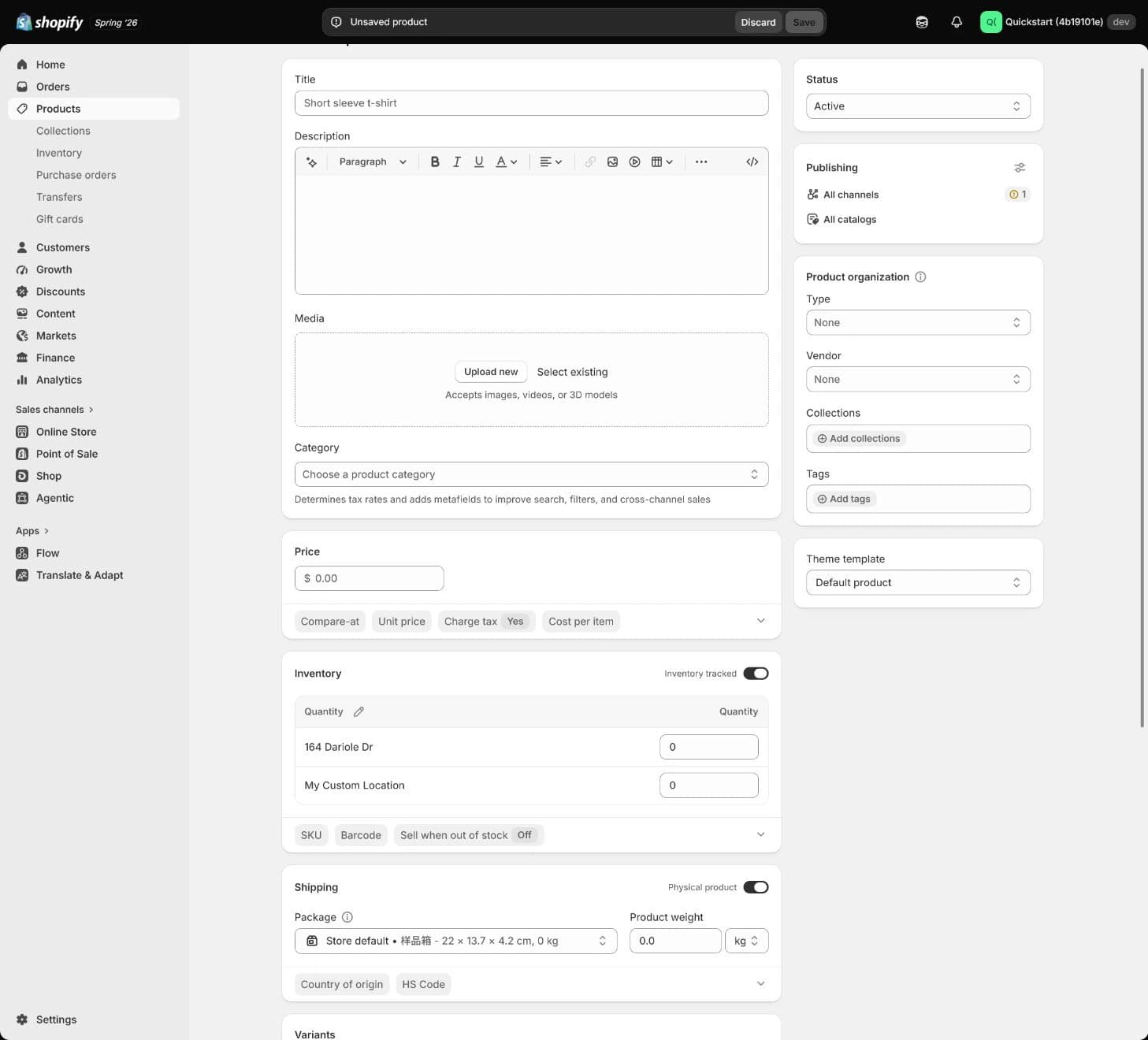
Historical screenshot: locate shared product fields and inspect Status and Publishing. It contains no saved product, completed variant or storefront result.
After variants are added, fields such as price, inventory and shipping are managed at variant level in the current editor. Reopen the intended color rather than assuming a product-level value applies correctly to both.
Step 2: order media and bind the right image
The first image should make the product understandable. Follow it with detail, dimensions, use and packaging views. Choose enough accurate images to answer the product's buying questions, even if that takes more than the preparation minimum. Describe each image in its own alt text instead of pasting one keyword phrase everywhere.
Make the two colors distinguishable
Upload and order media
Upload and order the images, then associate the Tan and Olive images with their respective variants. Preview desktop and mobile layouts, especially the hero crop and the image shown after selecting a color.
How to confirm
The hero, detail views, alt text, variant mappings and mobile crop are reviewable. Keep the image order, per-image descriptions, variant binding, mobile capture and verification time.If it goes wrong
If the wrong image remains, inspect variant-media binding and the theme's selection behavior. If the color is sold out, inspect stock at the online-fulfilling Location and the product/variant's active channel and market. Changing description text cannot repair these relationships.
Selecting Olive should identify Olive even when both colors have the same price. The check is that the selected variant's values are correct; identical prices or equal stock do not have to produce different numbers. Test the selected cart line as well as the image.
Step 3: record price, cost and tax foundations
Assess the example's USD 39 price alongside landed cost, shipping thresholds and launch positioning. Calculate the margin before adopting a price. Confirm store currency and the customer's market presentation before comparing amounts.
Define the scope of landed cost in your cost sheet. Beyond the purchase price, which transport, import or other costs did you incur to bring the product to its intended inventory location? Mark what is already included in unit cost. That makes the Cost per item entry explainable and helps avoid omissions or double counting when you later include customer delivery, payment and advertising costs.
Make the pricing basis traceable
Set price, cost and tax foundations
Enter each variant's price in the applicable currency. Use Compare-at price only with a genuine, supportable reference price. Enter a traceable Cost per item and its effective date in the work record. Select an accurate product category and have the responsible reviewer confirm applicable tax settings rather than guessing them.
How to confirm
Compare product-page, selected-variant and cart amounts on the same currency, market and tax-display basis. Record price, cost source/date, comparison-price basis, category, tax reviewer and actual storefront amount.If it goes wrong
For an unexpected price or tax prompt, check currency, category, market and the current page before changing a number merely to make a preview look normal. Resolve the underlying condition and repeat the same test.
Cost per item is optional in Shopify, but useful for product profit and margin reporting. With a current unit cost, gross margin is (price − cost) ÷ price × 100%. It does not by itself account for shipping subsidy, payment fees, advertising, returns or every other contribution cost. An outdated or incomplete cost makes the report misleading even when the selling price is correct.
The next historical view locates price, inventory and shipping areas. It shows zero/empty defaults and two Location rows, not the example price, measured weights or confirmed available stock.
Admin path: Products › Add product › price, inventory and shipping
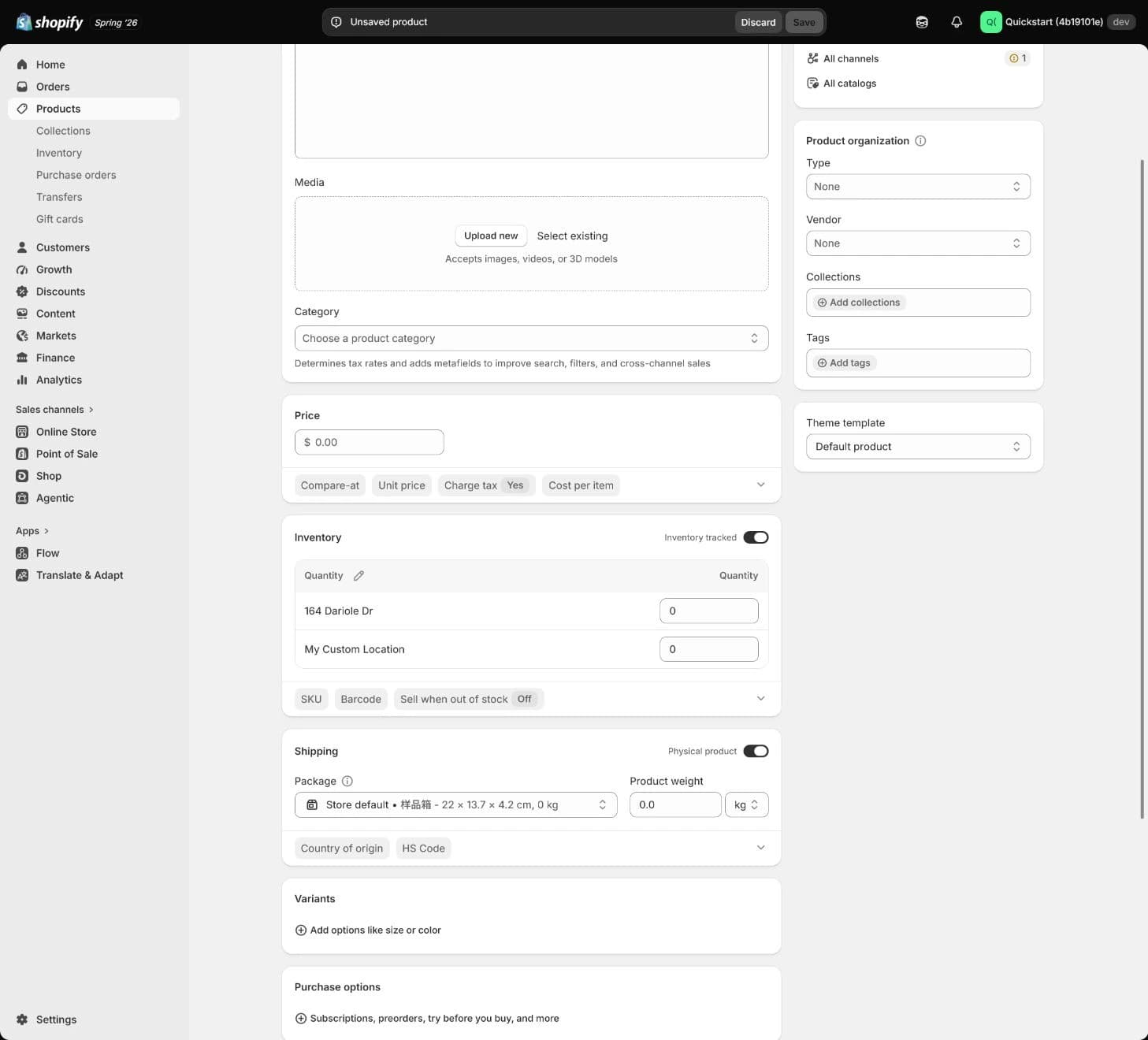
Historical screenshot: inspect the connected fields. Zero defaults and visible Location rows are not proof of cost, stock allocation or fulfillment readiness.
Step 4: build Color variants and reliable identifiers
An SKU is your internal stock-keeping identifier. A GTIN is a standardized global trade item number; UPC and EAN are common GTIN formats. Giving two different colors the same SKU can make order picking, inventory reporting and integrations ambiguous. Shopify allows an SKU to be omitted, but this course requires a unique, traceable SKU for each sellable variant. Keep the same variant's SKU consistent across locations; location quantities are separate records, not reasons to rename the variant.
Give every orderable color its own record
Create color variants and unique identifiers
Add the Color option with Tan and Olive values. Open each variant and verify name,
ORG-TANorORG-OLV, image, price, cost, weight, barcode information and inventory. Reopen after saving and compare with the variant evidence table.How to confirm
Each color can be identified, priced, pictured and counted separately. Keep the variant table, SKU rule, barcode type/source, media mapping and a storefront switching result. Check any warehouse or app integration against the exact identifier it consumes.If it goes wrong
If two variants share an incorrect SKU, fix their identity and verify downstream mappings before continuing. If checkout shipping is implausibly high, check that selected variant's weight, units, package and Shipping profile before changing the rate.
Current Barcode fields can hold a supported standard identifier or a Custom barcode. A custom internal code does not become a GTIN by being entered there. If a sales channel needs a GTIN, use a legitimately assigned value from the manufacturer or appropriate issuing source. Do not copy the SKU into a GTIN field, invent a plausible-looking number or borrow another product's barcode. If no assigned barcode exists, leave it unresolved or empty according to the store and channel process; a deliberate Custom workflow needs its own documented purpose.
The historical image below shows the Variants entry still collapsed. It helps locate where options begin, but it does not show Tan/Olive, unique SKUs or a completed variant editor. Its unrelated blank product metafields are not required desk-organizer specifications.
Admin path: Products › Add product › Variants entry
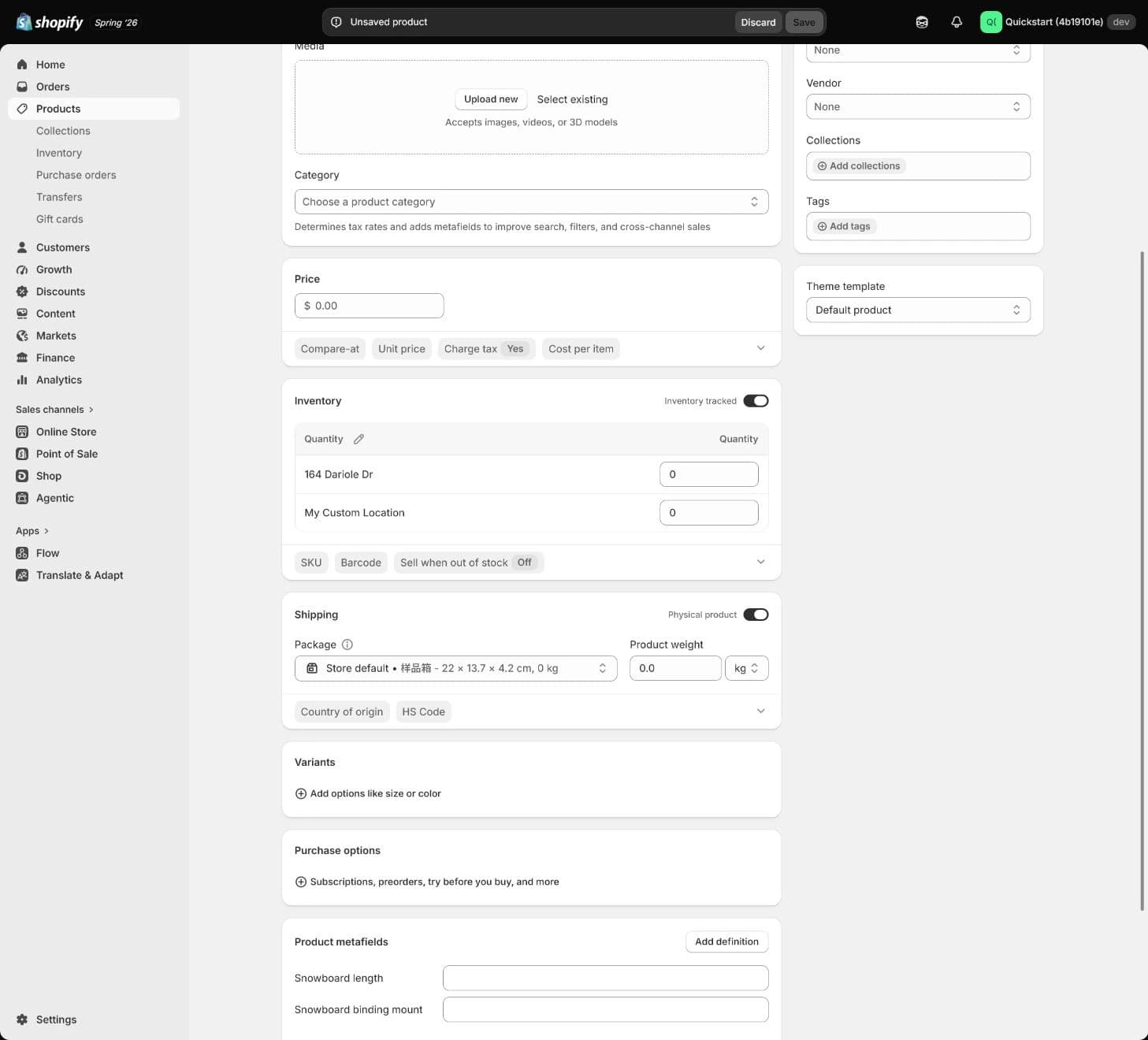
Historical screenshot: find the option entry, then inspect each actual variant separately. No configured Color option, SKU or barcode is shown.
Step 5: connect stock, Location and shipping
A Location identifies where inventory is held and whether it can fulfill relevant orders. The two colors' total stock is not the selected color's stock. Stock at a location that does not fulfill online orders also cannot establish Online Store availability. Confirm real, sellable stock and location setup before entering quantities.
Count what can actually be fulfilled
Configure inventory, location and shipping data
Enable Track quantity for these stocked physical variants. At the actual fulfillment location, enter each color's available quantity and inspect the inventory states. Keep Continue selling when out of stock off for this launch unless an approved preorder process includes a real delivery plan. Confirm Physical product, measured weight with the correct unit, package dimensions and the appropriate Shipping profile.
How to confirm
Save and reopen both variants. Record Location, quantity/state, tracking, out-of-stock policy, weight/unit and shipping attributes. Verify applicable checkout shipping and, through the authorized test-order process, inventory reservation/decrement and sold-out behavior.If it goes wrong
If a color is unavailable or shipping is wrong, check product/variant publication, market, online-fulfilling Location, inventory policy, weight units, package and Shipping profile. Retest the same variant after repair. Do not overwrite stock or rates simply to obtain a desirable checkout result.
In the classroom opening state, Tan and Olive each have 120 available units: 120 + 120 = 240 across both colors. A Tan order still draws from Tan's 120, not the combined total.
Inventory states explain what a number can prove. Available is sellable stock. Committed is set aside for orders or applicable reservations. Unavailable covers stock held out of sale, such as damaged or quality-control units. On hand is Available + Committed + Unavailable; Incoming is stock on its way and is not available until received. With no unavailable stock, a hypothetical unfulfilled order for 1 Tan changes Available to 120 − 1 = 119, Committed to 1, and leaves On hand at 120. That reservation does not mean the package has shipped. Record actual test behavior, including cancellation/restocking where relevant, rather than assuming the example occurred.
For tracked Online Store inventory, disabling overselling normally prevents purchase at zero or below. It is not a universal stop across every sales surface: Shopify POS can allow staff to sell below zero with a warning. A preorder exception needs customer-facing delivery expectations and an operating process, not just a checked box. Reconcile actual warehouse stock and fulfillment responsibility separately from the admin count.
Step 6: organize, publish and inspect the buying path
Product category uses Shopify's taxonomy; product type is the store's own classification. Vendor, collections and a small, stable tag set support a maintainable catalog. They do different jobs from sales-channel publication and market/catalog availability. Choose them intentionally so later navigation and filters can use stable fields.
A sales channel is where the product is offered, such as Online Store. Check the intended customer market separately. If the store uses a product catalog for that selling context, check its included products and prices too. Inclusion in a collection does not publish a product to every channel or catalog.
Release only the prepared buying path
Complete organization, channels and SEO, then publish
Check category, vendor, product type, collections and tags. Review the search engine listing's URL handle, SEO title and description. When the product is ready for an authorized release, check its status and publish only to the prepared Online Store channel and selected launch markets/catalogs. Check each variant's publishing scope too; current Shopify supports variant-level channel/catalog availability.
How to confirm
The parent product and selected variant must both be available to the relevant channel/catalog. Open the customer-facing product URL in the intended market and test desktop/mobile color selection and add-to-cart. Keep status, channel, market, handle, SEO fields, URL, time and actual results.If it goes wrong
For a missing product, inspect Status, product and variant publication, market/catalog, collection conditions and navigation. If price, image or availability disagrees with admin, hold the affected publication, repair the variant/Location/theme relationship and repeat the test before reopening sales.
Draft is the appropriate status while building an incomplete product. Saving Draft preserves work without establishing public availability. Active and a published channel establish configuration states; neither proves that customers can find the intended collection link, select the correct color or receive a shippable order. A preview and a search listing edit cannot establish search-engine indexing either.
The lower historical view below reaches Search engine listing. It still shows blank/default product data, a collapsed Variants entry and unrelated metafields. It does not show a completed SEO edit, publication result or customer page; the top Publishing area appears in the first image.
Admin path: Products › Add product › lower form / Search engine listing
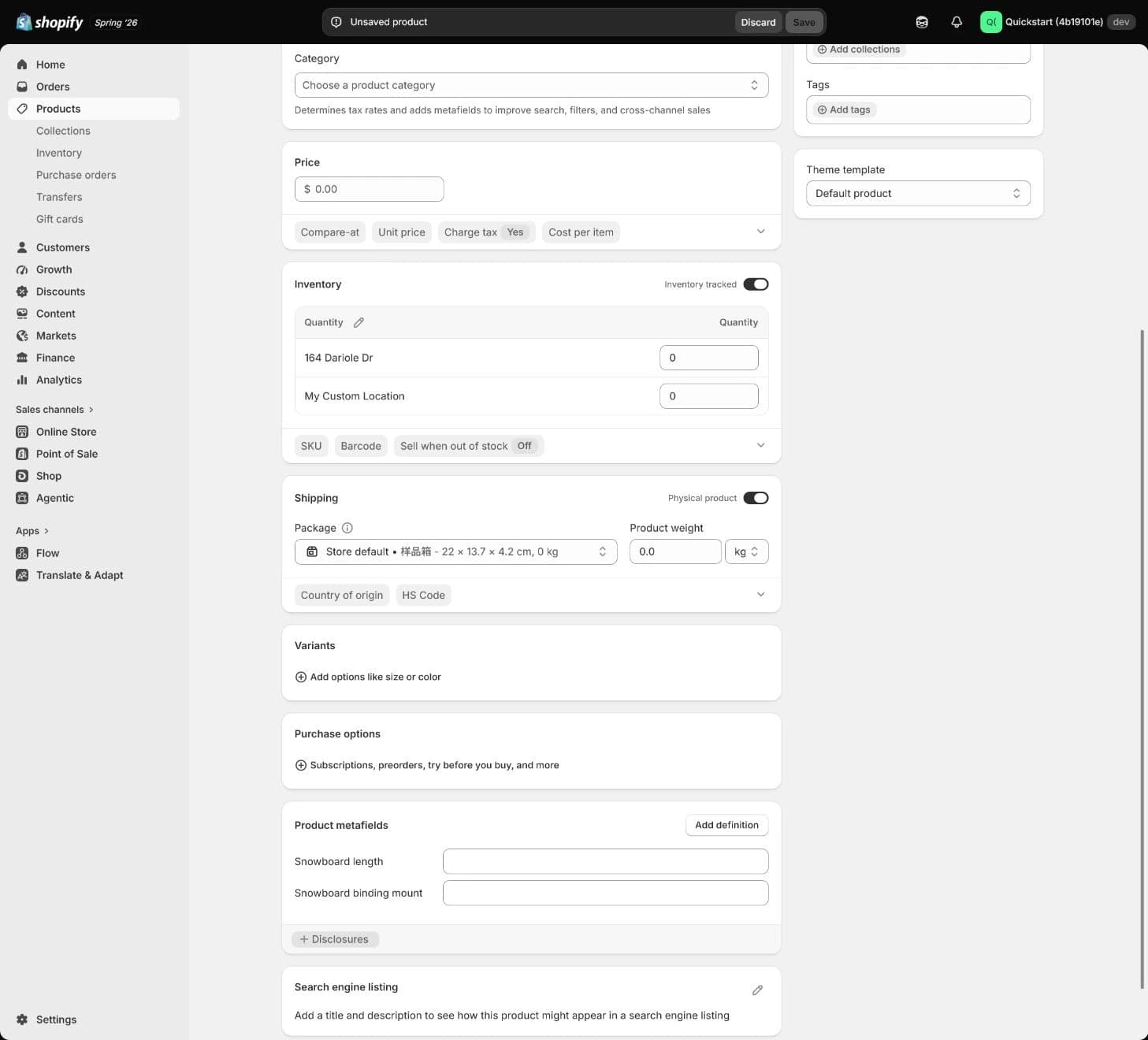
Historical screenshot: locate the search-listing entry. It contains no saved SEO values, configured variants or successful storefront purchase path.
Check the selected variant, not just the total
On desktop and mobile, select Tan and then Olive. Compare the selected variant name, image, price, availability and cart line with the saved variant record. Equal prices and equal quantities can be correct; the order must still identify the chosen color and SKU. Use the appropriate controlled checkout/test-order process for shipping and inventory behavior. Keep customer addresses, order identifiers and internal stock details out of public evidence.
Two colors share an SKU and the image does not change
Self-check not answered
The choice records your judgment without changing Shopify. Tick the following only after checking actual values and results.
Also retain checks for correct weight, shipping attributes and inventory location, plus passing variant selection and add-to-cart on desktop and mobile. These extra results are not established by the three ticks. Fields being entered does not establish tax treatment, channel synchronization or an actual fulfillable order.
Conditions for continuing the catalog
| Done when | Stop if |
|---|---|
Each variant has matching image, SKU, price/cost basis, inventory, Location, weight and channel/market state, with reviewable desktop/mobile selection, add-to-cart and applicable shipping checks. | Different variants share an incorrect SKU, weight or Location is missing, the wrong image/cart item remains after selection, or storefront price and availability disagree with the intended variant. |
| Evidence Reopened product/variant values, actual inventory records and controlled storefront/test results with owner and time. Admin fields alone do not prove physical stock, tax, fulfillment or future channel behavior. | |
Retain the model and the next action
Keep the full variant evidence table in your controlled product-data record. Use a non-sensitive summary here for decisions, unresolved items, owners, dates and evidence locations. Choices, checks and notes save automatically in this browser; export or copy before changing devices. Keep credentials, customer details and private order records elsewhere.
Product and variant check record
The 1 items marked Required need an answer. Start with item 1; your choices in the exercises above are carried over.
Summarize variant evidence, weights/units, Locations, channel/market, desktop/mobile and shipping checks; name blockers, owner, date and controlled evidence location.
Not saved yet.
Kept in this browser only. Switching device or clearing browser data removes it; download a copy.
What this record establishes
Hold
Judge the variant problem first
Repair the model before continuing
Actual product checks remain
Decision and checks recorded
Once product fields and variant relationships are stable, use category, product type, vendor and tags to build Collections and a maintainable catalog structure. Resolve failed rows before repeating the model across more products.
Copyable lesson notes
Product, variant and inventory decision
- Admin path:
Products > Add product. - Variant decision: (to fill in)
- Items checked: (to fill in)
- Record: (to fill in)
- Current result: Judge the variant problem first
- Continue: each variant's media, SKU, price, inventory, Location, weight and channel agree with actual storefront/cart checks.
- Pause: incorrect shared SKU, missing weight/location, or mismatched image, price, availability or cart variant.
- Next: use stable product fields to build Collections and catalog structure; verify fulfillment and launch conditions separately.
No checkpoint finished in this lesson yet. Start with “Go to the exercise”.
Self-check not answered
Your work
- Record · Retain the model and the next actionNot saved
- Note · Retain the model and the next actionNot copied
Kept in this browser only. Switching device or clearing browser data removes it; download a copy.
FAQ
- Can two color variants share one SKU?
- Shopify does not require every product to have an SKU, but this course uses a unique SKU for each independently sold and stocked variant so orders, inventory and warehouse picking can reconcile. Keep the same variant's SKU the same across locations and record quantities by Location.
- Does recorded inventory mean the product is ready to publish?
- No. Media, price, identifiers, weight, shipping, product/variant channel availability, markets, SEO and actual desktop/mobile selection and cart behavior still need checking. A total count can hide missing stock for one color or an ineligible fulfillment location.
- Can the SKU simply be copied into Barcode?
- Do not use it as a GTIN. A valid GTIN must be legitimately assigned to that item. Current Shopify also supports Custom barcodes, but a custom internal code has a different purpose and cannot satisfy a channel's GTIN requirement. Record its type and source; do not invent a barcode for appearances.
- What is the difference between an SKU and a GTIN?
- An SKU follows your internal stock-keeping rule, such as ORG-TAN. A GTIN identifies a trade item under a global standard; UPC/EAN are examples. Record them separately so a warehouse identifier is not presented as an assigned global identifier.
- Should colors be separate products or variants?
- Variants suit items with the same core buying promise and content where Color is the customer's selection. Substantially different use, positioning or product content can justify separate products. Test that the choice produces the correct image, item and cart line.
- Must Cost per item be entered?
- It is optional in Shopify, but a current, traceable cost supports product profit and margin reporting. Keep its source and effective date. That gross margin is not complete contribution profit after shipping, payment fees, advertising and returns.