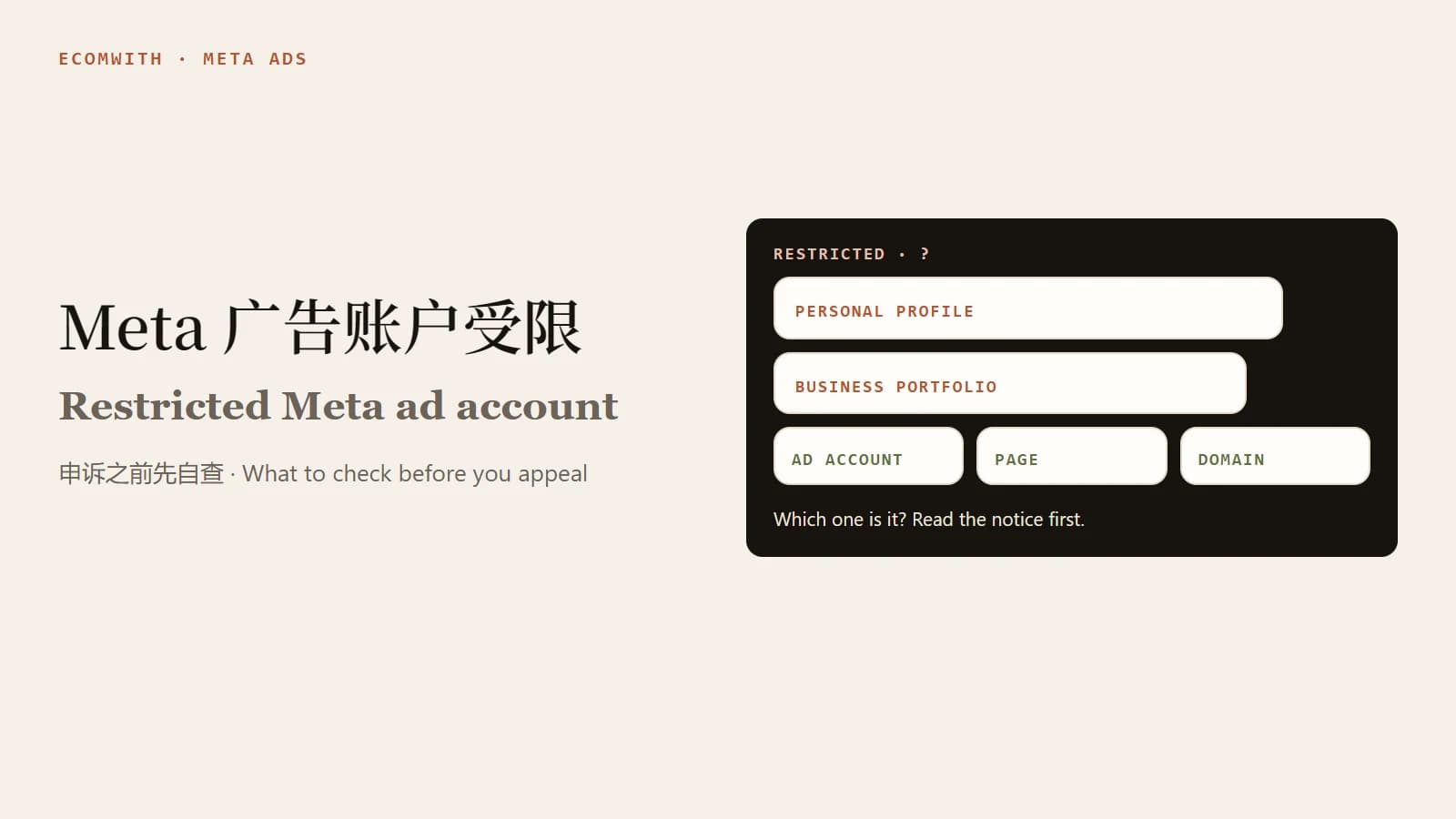
When Meta tells you an account is restricted, hold off on the appeal for a few minutes. First find out which asset is restricted: your personal profile, the business portfolio, the ad account, a Page, or a single ad. Then compare the stated reason with your ads, landing pages, payment setup and login security. Only after that, request a review through the route your own interface shows (Meta's pages name Business Support Home or Account Quality) and say what you changed. Meta's own page says a review of a restricted account is typically completed in 48 hours, can take longer, and the decision arrives by email.
Read the notice first: which layer is restricted
Meta's Advertising Standards say that an ad, an ad account, a user account, a Page or a Business Account can be rejected or restricted. Once an asset is restricted, "that account or asset can't be used to advertise" across Meta's technologies. The same words, "my account is restricted", therefore call for different work depending on the layer.
| Restricted item | Where you usually see it | What to check first |
|---|---|---|
| A single rejected ad | The link in Meta's email, and the ad's status in Ads Manager | The ad's copy, creative and landing page. Meta says you can edit the ad or create a new one, and either is reviewed as a new ad |
| Ad account | Account status in Business Support Home or Account Quality, plus email and in-app notices | The reason in the notice, every live ad in the account, and billing status |
| Business portfolio (formerly Business Manager) | Select the portfolio itself in Business Support Home or Account Quality | Who has admin rights, whether any shared assets have unclear origin, whether domain and Page details agree |
| Personal profile | A security check or restriction prompt at login | Login devices, two-factor authentication, signs of someone else logging in |
| Page | Page status and Business Support Home or Account Quality | Page name, content and admins |
| Domain, pixel | Usually not flagged with a "restricted" notice of their own | Treat these as audit items: is the domain verified in the portfolio, and does the pixel belong to your own portfolio |
Do three small things while you read the notice. Screenshot the full notice with its time. Write down the Business ID, ad account ID, Page and domain involved. Confirm you opened the notice from Meta's own interface and not from an email link whose address you could not read.
Self-check before you appeal
Work through the six items in order and keep a screenshot or one line of notes for each.
- Do the ads and the landing page say the same thing? Export the ads that were running before the restriction and compare each with its landing page: price, discount, results claims, shipping time, return policy, contact details. Meta's ad review can look at images, video, text and targeting, and it also looks at where the ad points. An ad that says free shipping above a page that charges for it is a problem on its own. The answer page on landing page message match covers the basics.
- Which policy category does the product fall into? Compare against the categories in the Advertising Standards: restricted goods and services (health and wellness, financial and insurance products, cryptocurrency, drugs and pharmaceuticals and others), objectionable content, third-party intellectual property infringement (brand names, logos or images you do not own), misinformation, and account integrity and inauthentic behavior. For cross-border stores, health claims and the source of brand names and images are the usual places to look.
- Payment. Open billing and payment settings in Ads Manager and look for failed charges or a payment restriction. Payment problems and policy problems run on separate tracks, and a policy appeal does not clear a failed charge.
- Logins and permissions. List everyone with admin rights and every partner. Remove former staff, old agencies and external accounts you no longer work with. Meta lists managing business assets connected to abusive assets as one reason for restriction, so check where shared Pages and accounts came from.
- Identity and verification. If Meta asks you to verify, complete it through the official flow. Meta states that when signals of misrepresentation or inauthentic behavior appear, you may be required to complete a verification process. Keeping the company name, domain and payer consistent saves trouble.
- What changed in the last 14 days. A new domain, a new pixel, a new payment method, a new agency, a budget that suddenly doubled, a new product category. Write them all down. The cause is often on this list.
Do not restart ads until the creative and landing pages are checked. For the pre-launch basics, see policy pages before paid traffic and the product page trust audit.
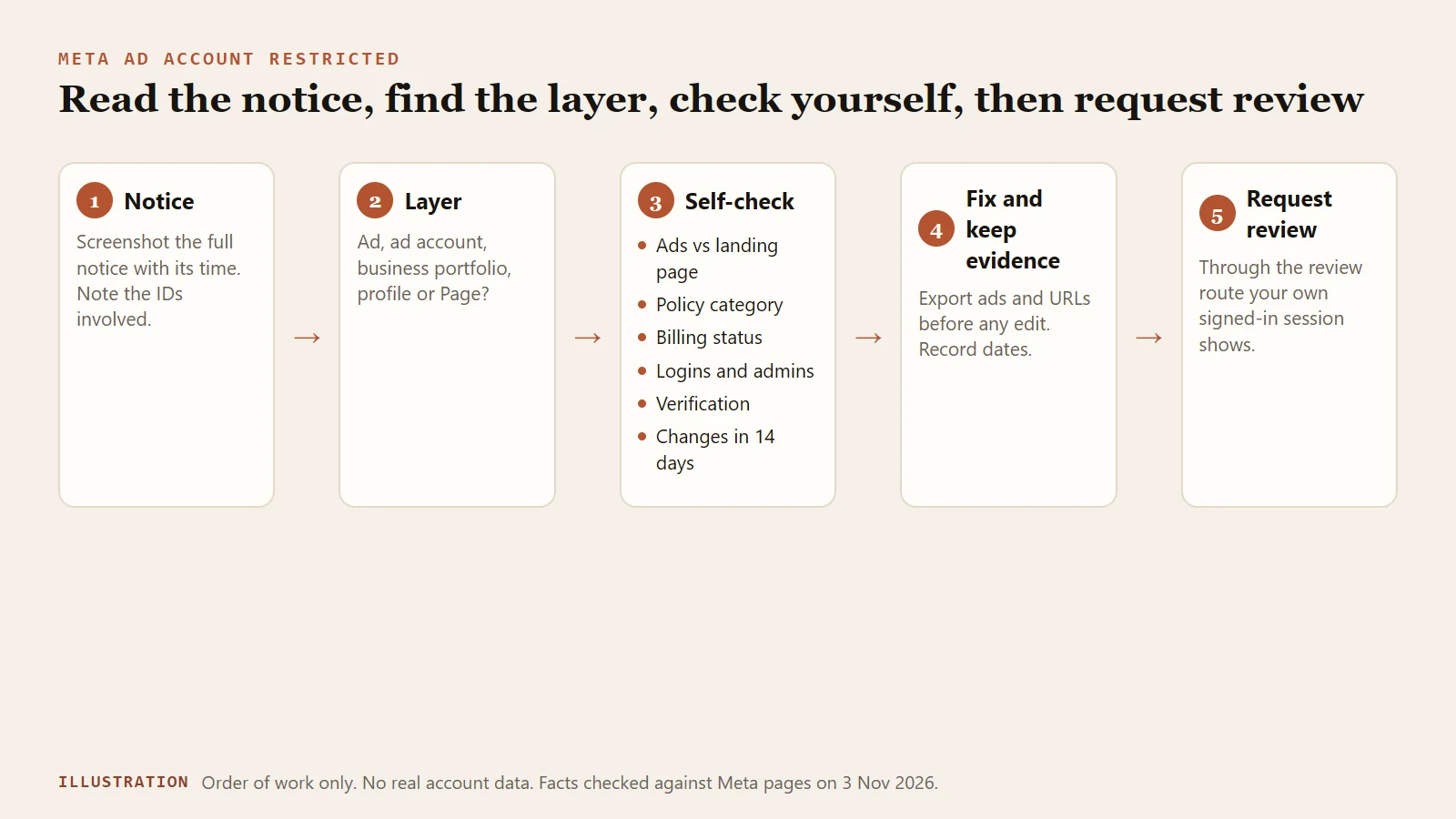
Figure 1: The order from notice to review. Illustration only, no real account data.
The official appeal path and what to attach
Meta's pages name the review route as Business Support Home (review policy) or Account Quality (Advertising Standards). Use whichever your own interface shows. If you believe your ad account, user account, Page or Business Account was restricted by mistake, you can request a review there.
- Open the review route your interface shows, Business Support Home or Account Quality, from your own signed-in session and select the restricted asset.
- If the page offers Request review, follow the prompts. Not every status shows the button. When there is none, Meta's pages name no other route, so do not go looking for a back channel.
- In the explanation field, give facts: asset IDs, the likely cause you found, what you changed, the dates of the changes, and how you will prevent a repeat. Meta publishes no fixed template or length, so this part is our recommendation.
- Attach things that can be checked: the notice screenshot, before and after pictures of the ad and landing page, links to your policy pages, payment records if billing is involved, and a screenshot of the admin list and two-factor status. Do not upload identity documents unless Meta asks through its official verification flow.
On timing, the page says ad review is typically completed within 24 hours but may take longer, and that a review of a restricted account is typically completed in 48 hours, again with longer cases. The decision comes by email. If the review finds no violation, the account is reinstated and you can advertise again. The page does not say what happens after a denial, so rely on the actions your account shows at that point.
What not to do
- Do not delete or edit ads in bulk first. Export the copy, creative and final URLs and keep them. Meta says edited ads are reviewed as new ads, so the version that was flagged will no longer be visible. Save it first.
- Do not open a new account or portfolio to get around the restriction. The Advertising Standards prohibit helping anyone evade or circumvent enforcement, and they prohibit selling, renting, buying or exchanging site privileges such as admin access. Evading review is itself on Meta's list of reasons for restriction. Running the same problem creative from a fresh account makes the situation worse.
- Do not buy, rent or borrow accounts, or hand access to a stranger who offers to "handle it". The same rule applies.
- Do not resubmit identical appeal text. Without a new change or new evidence there is nothing new to review.
- Do not keep swapping payment methods. Frequent changes make a payment problem harder to trace.
- Do not click unfamiliar appeal links in email. Appeal only through the review route in your own signed-in session.
Prevention
- Keep admins few, but at least two people you trust. If one leaves or is locked out, the other can still act.
- Turn on two-factor authentication and check login devices from time to time. Check your portfolio's two-factor authentication setting; the exact location depends on your portfolio settings.
- Verify the domain. Meta's developer documentation says domain verification claims ownership of a domain in the business account and lets you control who can edit link descriptions on ads that point to it. You need to upload an HTML file to the web root or edit DNS TXT records.
- Connect only assets you own or are clearly authorized to use. Pages, pixels, domains and catalogs should each have an origin you can explain. At agency handover, write down which permissions are removed and when.
- Make the pages real before launch. Policy pages, contact details and a test order come before paid traffic. The Shopify launch checklist is a good reference.
A deeper version of this self-check, with evidence logs for each restriction type and a restart rule for the first week after recovery, is in the member tutorial Meta Ad Account Restrictions: Appeals, Billing, and Recovery Evidence.
FAQ
How long does a Meta ad account appeal take?
Meta's page says a review of a restricted account is typically completed in 48 hours, although some cases take longer, and the decision is sent by email. Ad review for a new ad is typically completed within 24 hours. Actual times depend on your case, and waiting past that window is not a reason to resubmit.
Is a rejected ad the same as a restricted account?
No. A rejected ad concerns one ad. You can edit it and resubmit, or create a new ad, and either is reviewed as a new ad. If you think the rejection is wrong you can request a review. A restricted account or asset cannot advertise at all while the restriction lasts, and the way back is a review through the route your interface shows, Business Support Home or Account Quality.
Why is there no Request review button on my restricted page?
Not every status offers it. Meta's pages say only that when you believe an asset was restricted by mistake you can request a review, and they name the route as Business Support Home (review policy) or Account Quality (Advertising Standards). If you see no button, confirm you are signed in with an account that has access, check which layer the notice names, and do not look for ways around the interface.
Can I open a new ad account after a denied appeal?
You should not. Meta prohibits circumventing enforcement, and evading review is listed as a reason for restriction. Work out why the review was denied, fix the real problem, and follow the actions your account shows.
Is there a standard template for the appeal text?
Meta publishes none. Use facts: asset IDs, the cause you found, what you changed and when, how you will prevent it, with screenshots to match.
Next step
Fill in the first table: which layer is restricted, the notice text and time, the IDs involved. Go through the six checks and record what you find, then submit the review. To turn the evidence into a reusable log, see the member tutorial Meta Ad Account Restrictions: Appeals, Billing, and Recovery Evidence. To look for obvious launch gaps in the store itself, use the store launch readiness scanner.
Sources
Last verified: 2026-11-03. Some Meta Business Help Center pages only display fully after sign-in, so the facts in this article come only from pages that could be read in full. Review entry points and button names change with account status; trust your own interface.
- Meta ads review policy: ad review timing, review timing for restricted accounts, reasons for restriction and the review route (named there as Business Support Home), verified 2026-11-03.
- Introduction to the Meta Advertising Standards: assets that can be restricted, policy categories, review requests (named there as Account Quality), the ban on evading enforcement and the verification requirement, verified 2026-11-03.
- Meta Advertising Standards: Account Integrity: scope of the account integrity policy, verified 2026-11-03.
- Meta for Developers: Domain Verification: what domain verification does and what it requires, verified 2026-11-03.