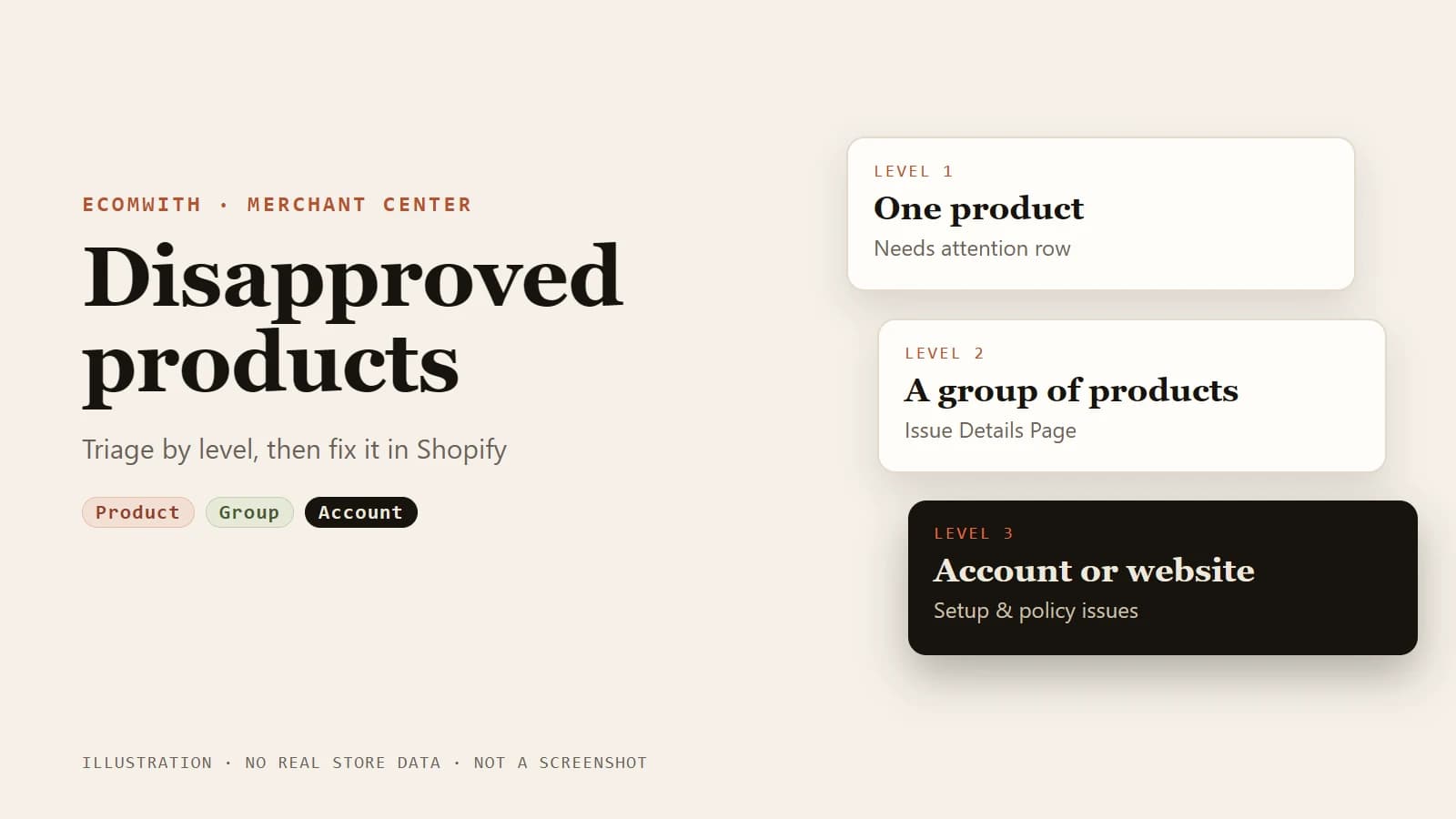
When products are disapproved in Google Merchant Center, do not start by editing products one by one. First decide which level the problem sits on: a single product, a field shared by a group of products, or the whole account or website. Product-level reasons are readable on the Needs attention tab. Account-level problems (contact details, return policy, checkout) affect every product in the account. For a Shopify store, your fix then travels through the Google & YouTube channel, and account-level issues also need a review request from you. Google and Shopify do not state review times the same way, so this guide lists each figure and suggests you plan around the longest.
This guide covers the order of diagnosis and the Shopify side of each fix. The details of missing GTINs and the Barcode field have their own posts on this site, linked where they matter.
Triage first: product, group of products, or account
Google splits issues into product-level issues, which affect specific products, and setup and policy issues, which affect all products in the account. Mismatches between your site and your data show up as product-level issues; Google's help page does not list "website" as a third level. In practice it helps to split the product level again into "one product" and "a group of products".
| Level | What it looks like | Where to read it | Where to fix it |
|---|---|---|---|
| One product | One or two products disapproved, reason shown on the product row | Merchant Center Products > Needs attention; in Shopify, the product's Sales channels > Google | That product's own fields |
| A group of products | The same reason on many products: promotional text on images, all-caps titles, missing brand | Needs attention, then the Issue Details Page for that issue (impact, example products, suggested fixes) | The source: Vendor, barcodes, an image template, a title rule. Do not patch row by row |
| Price or availability mismatch | "Mismatched value" notices or preemptive item disapproval | Same place; the account may carry a warning too | Product data, landing page, checkout and structured data together, then request a review |
| Account or website | A warning email; missing contact details or return policy, checkout that does not work, a site that looks unfinished | View setup and policy issues above the Needs attention summary, or the banner at the top | The website and account settings, then request a review yourself |
A note on names: you may see "Diagnostics" in older articles. Google's current issues page lists Products > Needs attention, the account banner and the Issue Details Page as the entry points. Use whatever your interface calls it; the logic is the same.
Severity matters too. A product-level warning means the product still shows, with possibly limited performance, and an unresolved warning can turn into a disapproval. A disapproved product stops showing across Google. An account-level warning comes with a deadline during which products may keep showing with limited visibility; if the issue is still open when the period ends, the account may be suspended. Severe violations can lead to suspension with no warning.
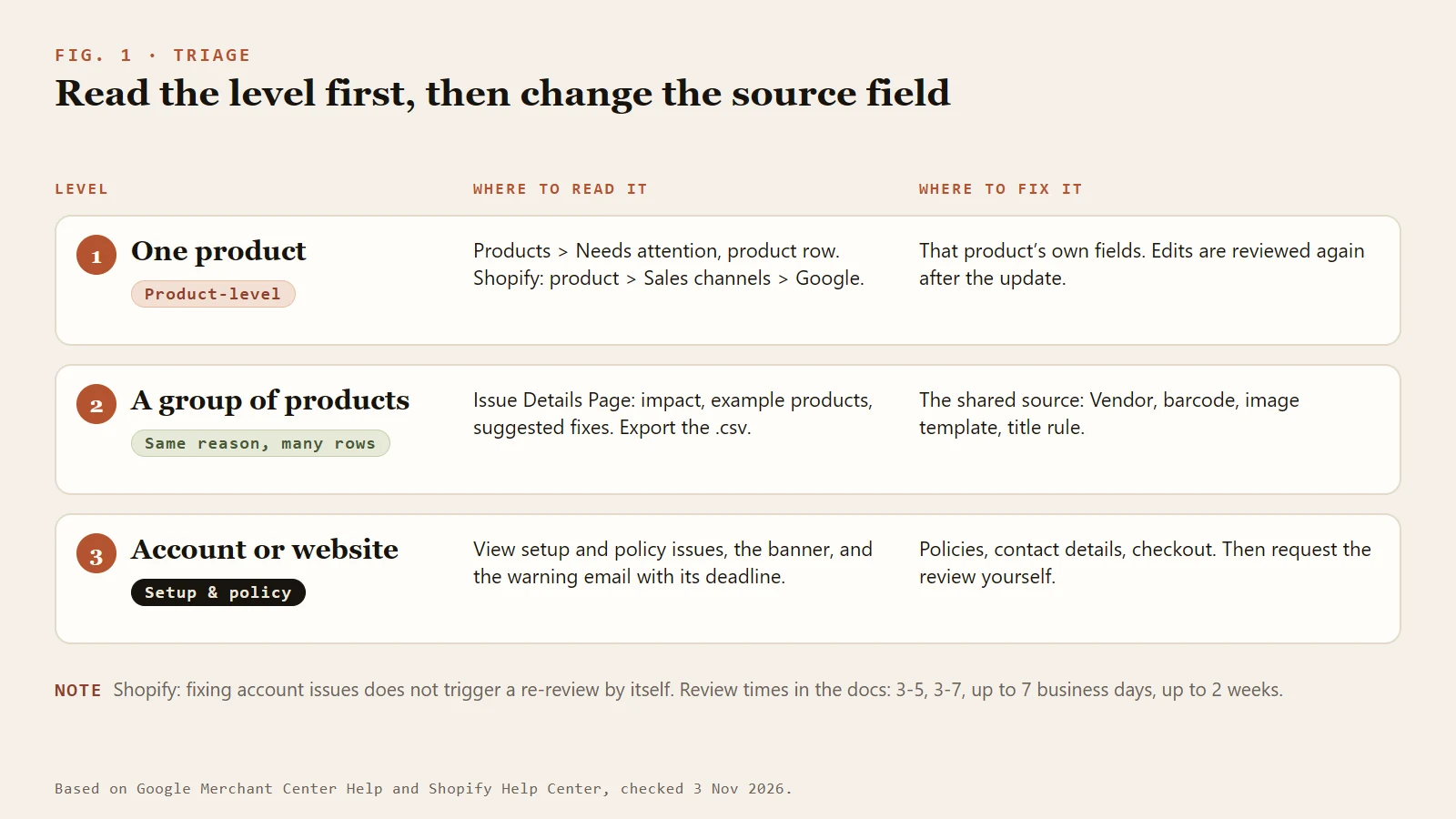
Figure 1: read the level first, then change the source field.
Step one: read the exact reason
Until you have the reason, every change is a guess. Read it in this order:
- In Merchant Center open Products and the Needs attention tab. All product-level issues are in the "All products that need attention" table.
- Use the filter icon to filter by issue impact, labels, status, title or what needs attention. The download icon exports a full .csv, which is useful for a group of products.
- The Prioritized fixes toggle shows only medium and high impact issues when on. Turn it off to see everything.
- Open the Issue Details Page for an issue to see the business impact, example products and the resolution steps.
- Click View setup and policy issues to see whether the account has problems and whether the review button is available.
- In the Shopify admin open the product, find Sales channels and click Google to see the channel's own sync errors. Compare both sides.
Google sends warnings by email with the issue, how to fix it and a deadline. Check the inbox as well as the dashboard; the email states the deadline.
Work through it by reason: what to change in Shopify
The table below comes from Google's product data quality page and Shopify's sync page. It lists only fixes that the documents support.
| Reason | What to change in Shopify | Notes |
|---|---|---|
| Missing or invalid GTIN | Fill Barcode in the variant's inventory section. For products with no barcode, add brand and MPN in the Google & YouTube channel | Google says products with a missing or invalid GTIN are not synced and are disapproved. Custom-made or handmade products can have Custom product set to True under the channel's Manage Products. Never invent a number to pass review |
| Wrong brand | Put the brand in the product's Vendor field | Avoid values such as N/A, Generic or No brand. If you make the product yourself or it has no brand, Google suggests your store name or the manufacturer or supplier name |
| Image rejected (generic image, promotional overlay) | Use a clean product image with no text, call to action, store logo or watermark | Non-apparel images need at least 100 x 100 pixels and apparel 250 x 250; no more than 64 megapixels or 16 MB; the product should fill roughly 75% to 90% of the frame. Google's page also says you can turn on image improvements to fix images automatically |
| All-caps title, missing description, missing image | Change an all-caps title to sentence or title case, add a description, add at least one image | The channel's Settings tab shows the title and description it sends |
| Unavailable landing page | Make the product available to both the Online Store and Google & YouTube sales channels | A common Shopify channel sync error |
| Invalid Google product category | Use the numeric ID or the full category path | The last segment alone is not accepted; the channel lets you set a category |
| Missing apparel attributes | Add gender, size, color and age group | Size and color can be left out if they already exist as variants |
| Price or stock differs from the landing page | See the next section | Triggers preemptive item disapproval and needs a review |
| Missing contact details or return policy | Add a return policy and contact information in the Shopify admin and link them in the footer | Account-level; needs a review request |
| Shipping or tax settings | See "Shipping and tax" | Only the General shipping profile syncs |
Price and availability mismatches
Google compares the price and availability in your data with the landing page. For price, Google's troubleshooter has you check: the price in Final Attributes against the landing page; the sale price against the landing page; tax or VAT settings for each target country; whether the structured data price matches the page; and whether the feed was last uploaded more than 48 hours ago. For availability, Google says the landing page, checkout page, structured data and data source must agree, and a mismatch in any one of them can cause a disapproval.
Typical causes: a sold-out item still shown as in stock; preorders and backorders not labeled; a page that pre-selects a variant that is out of stock; and hiding products during site maintenance with an out-of-stock status. For the last case Google recommends an excluded-destination setting instead of marking items out of stock.
The order of work: correct price, stock and variant status in Shopify; confirm that the product page, the checkout price and the page's structured data agree; wait for Shopify to sync (see below); then request a review. Google's availability page says review crawls usually finish within 24 to 48 hours after your fixes are live.
Shipping and tax
Shopify's requirements page says only rates from the General shipping profile sync to Merchant Center. Custom shipping profiles cause incorrect syncing and errors, and you need a shipping zone for the target country. Carrier-calculated rates are supported only for certain carriers in Australia, Germany and the United States; otherwise use custom flat rates or set shipping manually in Merchant Center. In certain countries offers without shipping costs on ads and free listings are disapproved. Tax settings sync to Google when you connect an existing Merchant Center account.
Contact details, policies and checkout
Most account-level problems start here. Google's policy-warning page lists these common items: a return and refund policy that is missing or unclear (say so if you do not accept returns); a legal business name, physical address, phone number and email that are easy to find and match your Merchant Center settings; and, for "Misrepresentation" or "Website needs improvement" warnings, consistent business information, clearly linked shipping, refund and privacy policies, no placeholder text or broken links, and a checkout that works fully over HTTPS. Shopify adds that the store cannot be in private mode and needs a valid payment provider.
For the wording of those pages, compare with policy pages to fix before paid traffic.
After the fix: how data reaches Google
Shopify's help pages give these times: the first sync can take up to 24 hours and later changes usually sync within a few hours; Google applies a 30-day expiry to synced data and the channel updates products within that period; Google reviews new products within 3 to 5 business days after the initial sync.
A few things cause sync errors, so rule them out before changing data:
- Connecting an existing Merchant Center account overwrites the existing product feed, and changes you make in Merchant Center can affect the channel. Edit each field in one place only.
- A multi-client Merchant Center account cannot sync.
- Product options, including variants, must be in English to sync.
- Changing product information in Shopify can give products that synced fine new errors or warnings. Recheck the channel after each edit.
For who owns product data and which system wins, see the members' lesson on product data ownership.
Requesting a review: when to click
Product level. Find the product in Needs attention, click Fix, and under What needs attention choose Request website check, or I disagree with the issue if you think it is wrong. Google says review can take 3 to 5 business days after you update product data.
Account level. There are two entry points. In Merchant Center go to Needs attention, click View setup and policy issues, choose I fixed the issue or I disagree with the issue for each item, then click Request review. In Shopify go to Sales channels > Google & YouTube > Settings, choose Request review under your Google account, and submit the form.
Points to keep in mind:
- Shopify states that fixing issues does not automatically trigger a re-review, and that all account issues must be resolved before you request one.
- You get one courtesy review during the warning period, and Google also reviews automatically when the period ends. Shopify notes that deadline extensions are not granted.
- The review button can stay inactive until merchant verification is done or until the data source contains at least one product.
- If issues are still unresolved at the second review attempt, Google says a one-week cool-down may begin, and it may lengthen after each further unsuccessful review. During it the review button is greyed out and Google support cannot shorten it. The end date is under View setup and policy issues.
- A disagree appeal may be a single chance, you may be asked for more information about the store, products or business, and you may still need to fix the issue afterwards.
- Identity verification (government ID, business documents) may have to be completed first, especially for Misrepresentation suspensions.
Nothing here is a way around review. If an account is suspended for Misrepresentation, the only path is an honest fix and appeal.
How long to wait: what the documents say
| Situation | Time stated | Source |
|---|---|---|
| Review after updating product data | 3 to 5 business days | Google product data quality page |
| Review of new products after first sync | 3 to 5 business days | Shopify syncing page |
| Account-level review | 3 to 7 business days; two other pages say up to 7 days | Google policy warnings page; Google issues page and Shopify |
| General note on the review request page | Up to 2 weeks | Google review request page |
| Review of a "disagree" appeal | Up to 7 business days | Google review request page |
| Review crawl after an availability fix | Usually 24 to 48 hours | Google availability page |
| Showing after approval | Within 24 hours | Google review request page |
These figures do not fully agree and none is a guarantee. Plan around the longest: after requesting a review, allow two weeks before you chase it.
Common mistakes
- Patching every row when a whole group is disapproved. Open the Issue Details Page and find the shared source field.
- Fixing price and stock on the Shopify product but not checking structured data and checkout.
- Inventing a GTIN to get through. Shopify warns that incorrect identifiers can prevent products from being published and can lead to account suspension.
- Requesting a review before the issues are all fixed, failing, and risking a cool-down.
- Editing the same field in both Merchant Center and the Shopify channel so that one overwrites the other.
FAQ
How long until disapproved products come back?
The documents give ranges and no guarantee: up to 3 to 5 business days after a product data update, 3 to 7 business days for account-level review (and up to about 7 days elsewhere), and up to 2 weeks in the review request page's general note. Availability review crawls usually take 24 to 48 hours. Plan your ad schedule around the longest.
I fixed it in Shopify but Merchant Center still shows it as disapproved. What now?
First confirm the sync finished: up to 24 hours for the first sync, a few hours for later changes. Then check the channel page for new sync errors. Account-level issues are not re-reviewed automatically after a fix, so request the review yourself. Product-level issues wait for Google's next review, normally a few business days.
What if my product has no GTIN?
Check whether the product really has one. If it does, put it in the variant's Barcode. For products that truly have no barcode, add brand and MPN in the channel; for custom-made or handmade products set Custom product to True. Never guess or invent a number. The details are in the Missing GTIN warning guide.
I did not change the price. Why does Google report a mismatch?
Google's troubleshooter points to several checks: whether the sale price matches the landing page, tax settings for each country, the price in structured data, and whether the feed is more than 48 hours old. Stores with discounts or multi-currency display should check the final displayed price.
What is the difference between an account warning and a disapproved product?
A disapproved product affects only that product. An account warning affects every product and carries a deadline: products may keep showing with limited visibility during it, and the account may be suspended if the issue is still open when it ends. Request the review before the deadline; Shopify states that extensions are not granted.
Keep reading
- The identifier itself: What is a GTIN, the GTIN tool and the GTIN and product data topic
- Filling the fields: GTIN, UPC and EAN in Shopify
- Checks before you submit: Product feed QA for title, GTIN, price and availability
- Disapprovals after a product edit: Product feed disapprovals after a Shopify edit
- A deeper lesson: Feed debugging (members)
Sources
Last verified 2026-11-03. Google and Shopify update their help pages, so check the current version before you act. This is general guidance and does not guarantee that any product or account will be approved.
- Google Merchant Center Help: Fixing Merchant Center disapprovals for product data quality violations
- Google Merchant Center Help: Issues in Merchant Center
- Google Merchant Center Help: Request a review of your issues
- Google Merchant Center Help: How to fix: Product page unavailable
- Google Merchant Center Help: Fixing Merchant Center disapprovals for product data quality violations (Shopify steps for Vendor, Custom product and Google product category)
- Google Merchant Center Help: Fix Merchant Center policy warnings and issues
- Google Merchant Center Help: How to fix: Inaccurate availability status due to inconsistency between feed and landing page
- Google Merchant Center Help: I need help fixing my price issue
- Shopify Help Center: Syncing your products
- Shopify Help Center: Product disapprovals and warnings
- Shopify Help Center: Google & YouTube channel requirements
- Shopify Help Center: Connect and troubleshoot the Google & YouTube channel