Store Inspector is a Chrome extension that reads the public pages of an online store and writes down what it can see: the platform, the theme, clues about apps and technology, and a sample of products with their public prices. Each finding keeps its source and a confidence label, so you can tell a solid reading from a guess. You open a store in your browser, run a scan, and decide what to keep.
It helps three kinds of people. Store owners use it to check their own site the way a stranger sees it. People doing competitor research use it to see how another shop is built and how it prices. Agencies and consultants use it to take stock of a client's theme and apps before they quote or redesign.
This guide covers what the extension reads and cannot tell you, a first scan from install to export, how to read each block of a result, three workflows, the privacy boundary and the version 0.6 features that are announced but not released. The figures use a fictional "Example Store" and invented numbers. They show the layout of a record, not a real store.
What Store Inspector is, and who it is for
The extension is listed in the Chrome Web Store and needs Google Chrome 116 or later. It works on the storefront tab you have open. It does not crawl the web, it does not run in the background, and it does not watch a store for you. You click, it scans the page in front of you, and it shows what it found.
The result is a record with a capture time, the page it came from, and the scan mode. A light scan reads the page you opened. A deep scan is a bounded, manual scan you start when you want more product samples. A record carries four kinds of findings: platform, theme, app and technology clues, and a product and price sample.
Here is how the three audiences tend to use it.
Store owners open their own storefront and compare what the extension reports against what they think they built. It is most useful before a launch, after a redesign and after installing an app that changes the storefront.
Competitor researchers use it to see which platform and theme a competitor runs, which technology clues show up, and what a slice of the catalog looks like, with prices in the currency visitors see. They get a CSV they can sort. They do not get the competitor's sales, traffic or margins, and the tool does not pretend to.
Agencies and consultants use it as a fast first pass on a client's stack. A record with sources and confidence labels can go to a developer for verification and be re-run after the work is done.
What it reads from a public store page
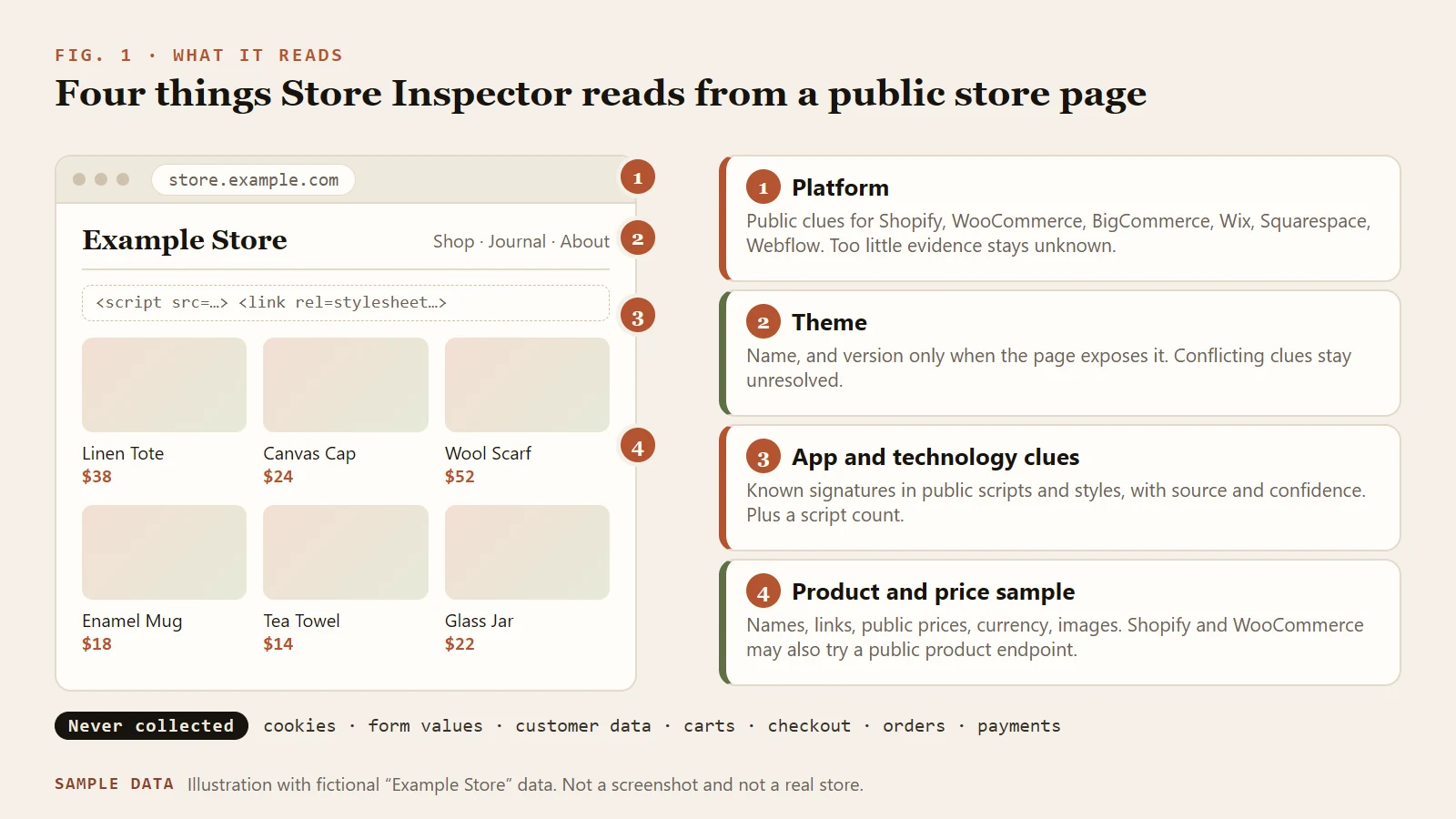
Figure 1. Four things Store Inspector reads from a public store page. The store is fictional.
The extension looks at what the page already exposes to any visitor's browser.
Platform. It looks for public clues that identify Shopify, WooCommerce, BigCommerce, Wix, Squarespace or Webflow, and attaches a confidence label. When the evidence is thin it reports the platform as unknown. A custom-built storefront also lands in this "unknown or custom" territory, which is a result and not an error.
Theme. On Shopify it reads the theme information the page exposes. On WooCommerce pages it reads the WordPress theme asset paths. A version appears only when the page exposes one. If several theme clues disagree, the extension leaves the current theme unresolved instead of picking one.
App and technology clues. It matches known technology signatures in the public scripts and stylesheets a page loads, and shows the source and a confidence label for each match. It also counts the script elements on the page. This is a list of clues the page left behind, and it is not an inventory of what the store has installed.
Product and price sample. It collects product names, links, public prices, currency and image links. On Shopify and WooCommerce it can also try the public product endpoint that those platforms expose. Where a field is unavailable, it stays empty.
What it does not read matters as much. It does not collect cookies, form values, customer data, carts, checkout, orders or payment data. The privacy section below covers the boundary in detail.
What it can and cannot tell you
The easiest way to misuse an inspection tool is to ask it a question it cannot answer. Read this table before your first scan.
| You want to know | Store Inspector can say | It cannot say |
|---|---|---|
| Which platform the store runs on | A platform, with a confidence label and the evidence behind it | Anything about the plan, the account or the hosting contract |
| Which theme is live | A theme name, and a version when the page exposes one | That the theme is unmodified, or who customized it |
| Which apps are installed | Clues for known technologies that load public scripts or styles | The full list of installed apps; apps that leave no public trace are invisible |
| What the store sells and at what price | A sample of products with public prices and currency at capture time | The full catalog, current prices after capture, discounts shown only at checkout |
| How well the store performs commercially | Nothing | Sales, traffic, conversion or profit |
| Whether the store is fast | A count of script elements | A speed verdict. Script count alone does not prove a performance problem |
Two rules keep you out of trouble. First, "not detected" means "not seen on this page in this scan", never "not present". Second, a clue is a lead for you to confirm. If you are about to pay for something, promise something to a client or put a claim in a report, confirm it with a second source such as the page source, the admin or the store owner.
Walkthrough: install, scan, read, save
- Install the extension from the Chrome Web Store listing. The Store Inspector tool page links to it and describes the current features.
- Open a public storefront page. A home page, a collection page or a product page all work. A representative page gives a representative record.
- Run a light scan. The extension reads the open page and shows the platform, theme, technology clues and any products it captured.
- Run a deep scan when you need more products. It is manual and bounded. Use it on a collection page when you want a bigger sample for pricing work. If no products were captured, the saved record tells you to try a deep scan on a public product or collection page.
- Decide what to keep. You can save the record locally in the extension or export it as JSON. Nothing is uploaded unless you choose to send it.
- Optionally send it to Ecomwith. Sign in to Ecomwith, create a pairing token in your store archive, paste it into the extension settings, then choose Send to Ecomwith. Signing in does not scan pages or upload browsing history, and pairing does not change that.
- Review and export in your store archive. Each delivery is its own record. Open one to see the capture time, products and evidence, and download full JSON, a products CSV or an evidence CSV.
A new capture of the same store becomes a separate record and never overwrites an earlier one, so you can compare scans yourself.
How to read one record
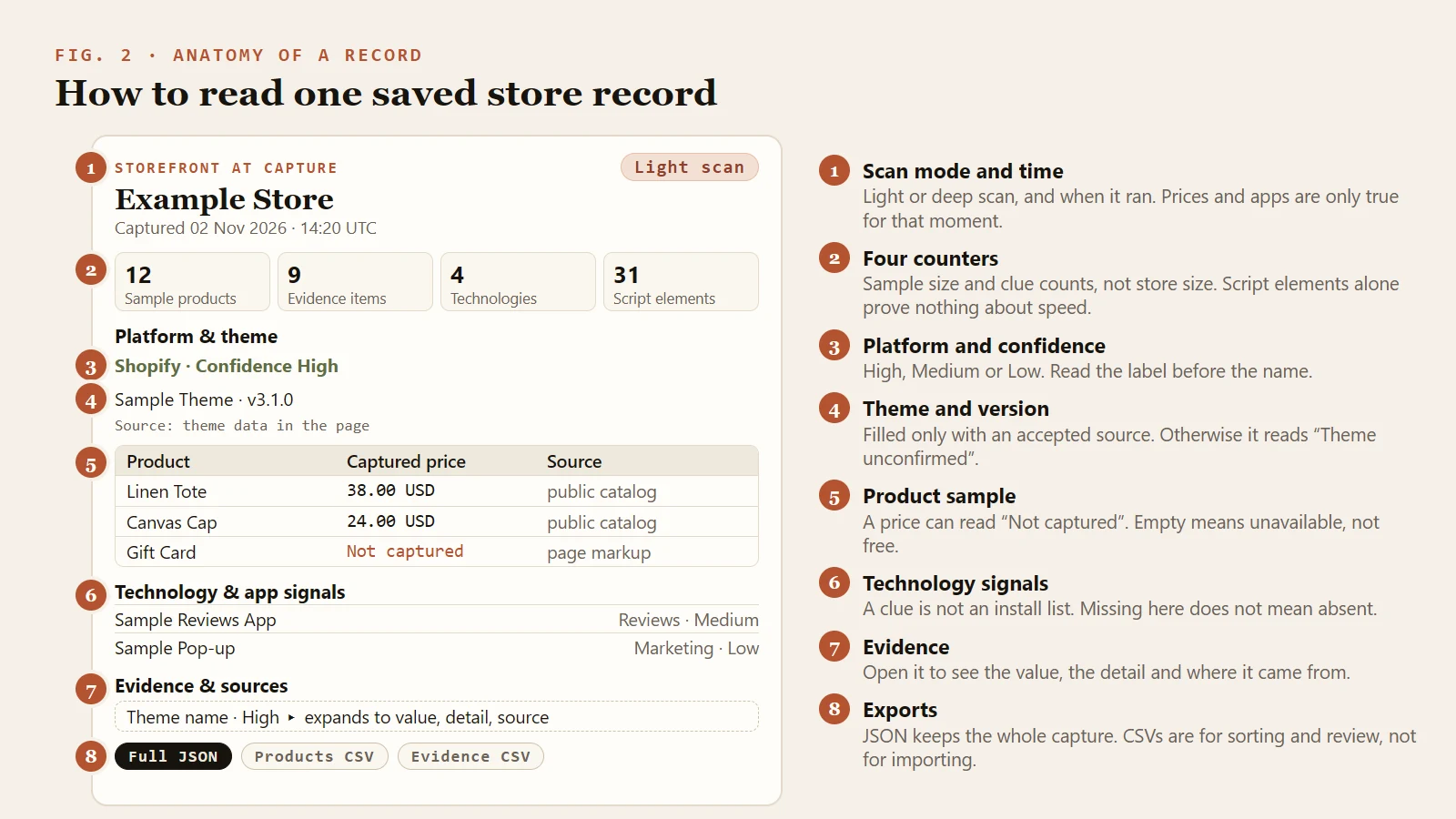
Figure 2. The parts of a saved record, with fictional data. It is a schematic of the fields, not a screenshot.
A record is built in the same order every time, which makes it quick to read once you know the parts. The four counters at the top are sample products, evidence items, technologies and script elements. Treat them as measures of the sample and of the clues, not of the store. Twelve sample products does not mean a twelve-product store.
Platform and confidence
Read the confidence label before the name. The extension labels each finding High, Medium or Low, and keeps the evidence and its source so you can open it.
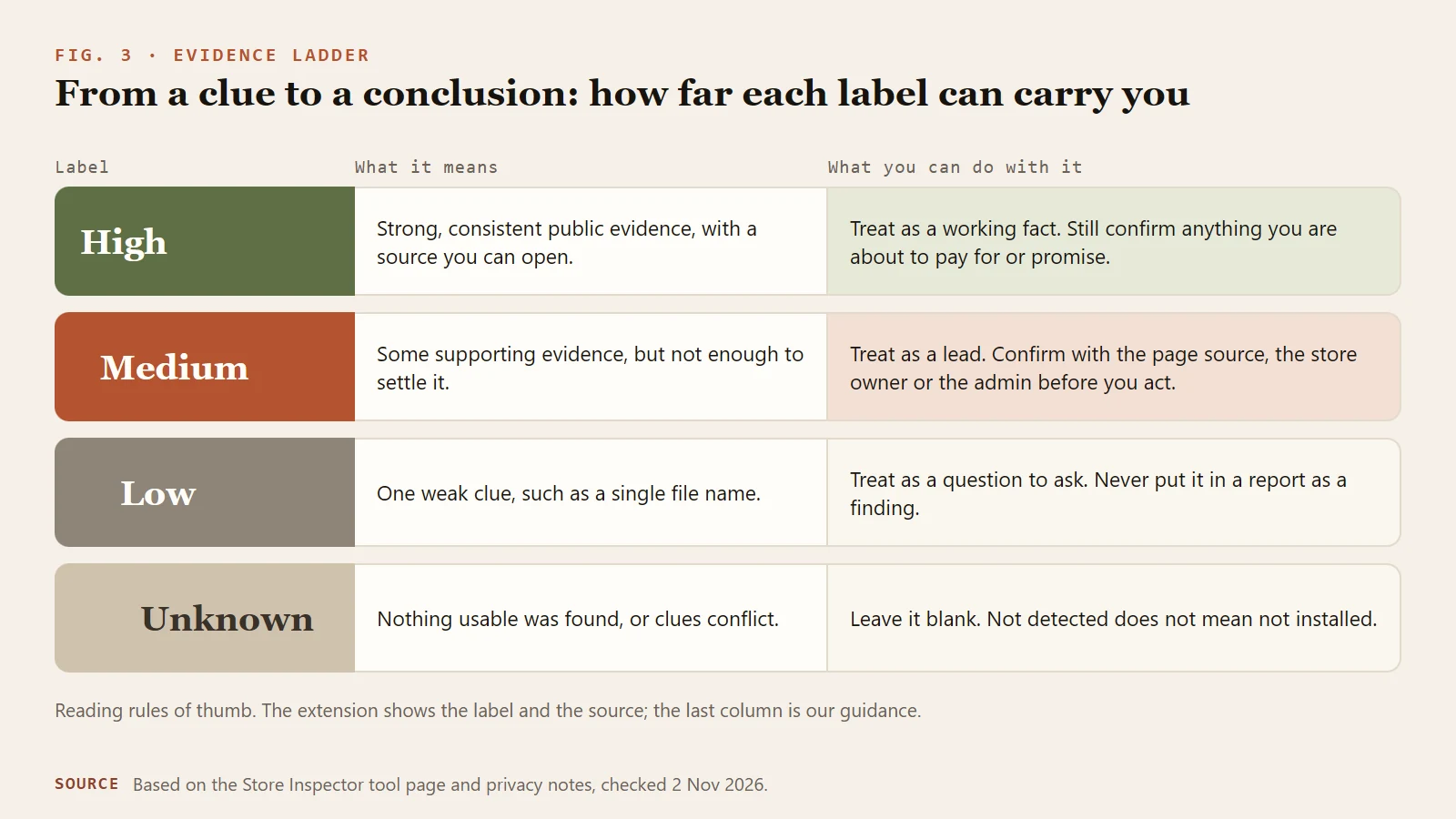
Figure 3. How far each label can carry you. The extension shows the label and the source. The reading rules in the last column are our own guidance.
As a working rule, a High reading is safe to treat as a working fact, with one condition: confirm it before you pay for something or promise something on the strength of it. A Medium reading is a lead. Confirm it with the page source, the owner or the admin before you act. A Low reading is a question to ask, and it does not belong in a report as a finding. An Unknown result should stay blank. A platform shown as unknown does not mean the store runs on nothing. It means the public evidence did not support a name.
Theme and version
The theme line is filled in only when the extension has an accepted source for it. Otherwise the record reads "Theme unconfirmed". That wording is deliberate. When two theme clues point in different directions, an honest "unconfirmed" is more useful than a confident wrong answer.
A theme name tells you what the storefront was built from, not how heavily it was customized. A version number appears only when the page exposes one, so a missing version is normal and not a sign of a failed scan.
Technology and app clues
Each entry shows a name, a category, a confidence label and its evidence. Read the category first. A reviews widget, an email pop-up and a payment script are different decisions to a store owner, even though all three add a script to the page.
Three habits keep this block honest. The list is incomplete by nature, because an app that loads nothing publicly never appears. An entry does not prove the app is active, paid for or configured well. And the script count is not a performance score. If a count worries you, hand the evidence CSV to a developer and have them measure.
Product sample and prices
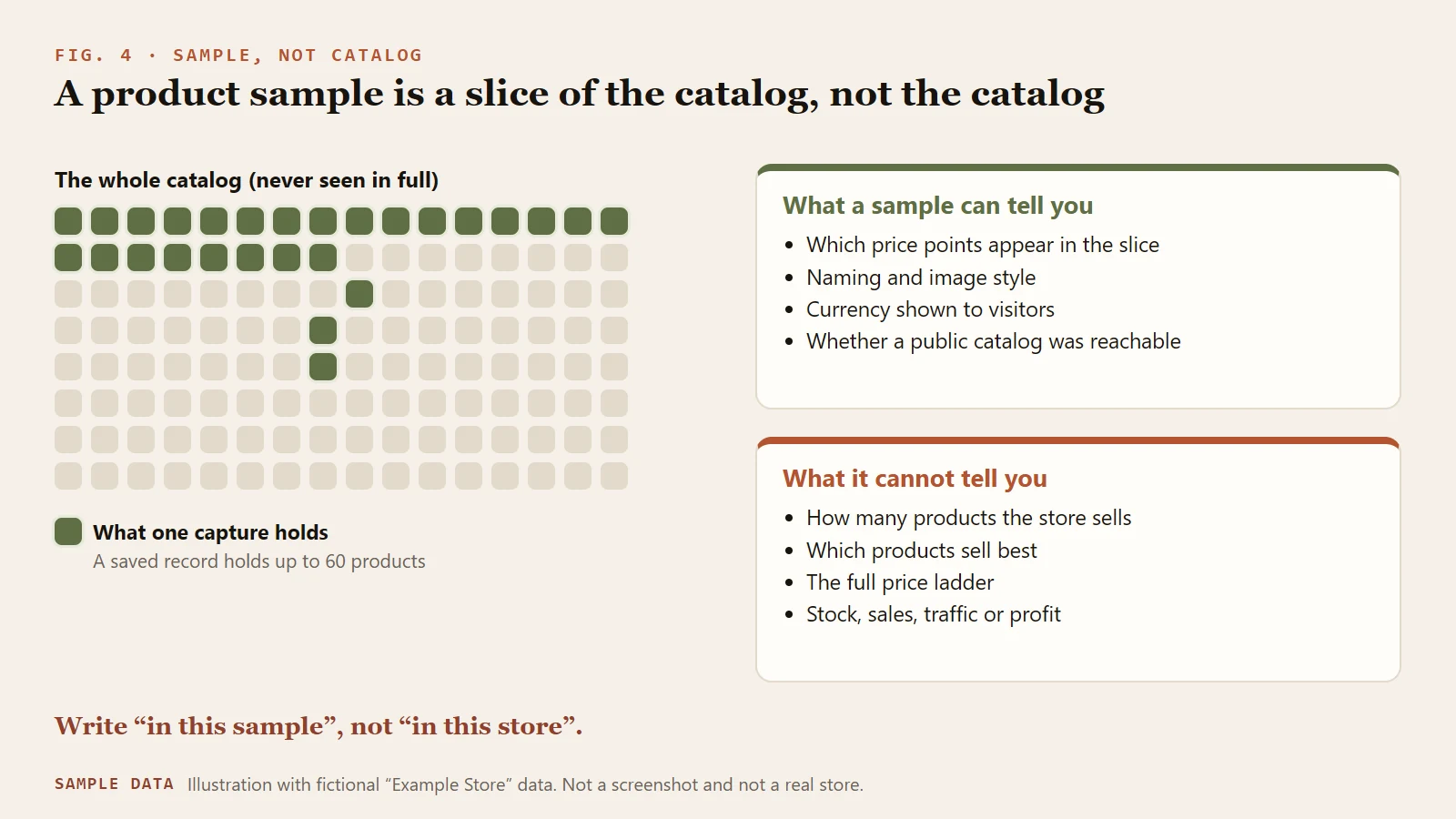
Figure 4. A product sample is a slice of the catalog. The squares are illustrative.
The product table lists each captured product with a link, a price at the time of capture, and the source and evidence for the row. A price can read "Not captured". That means the page did not expose a price to the scan. It does not mean the product is free.
The sample is bounded. A saved record holds up to 60 products, and a light scan may capture fewer. Which products appear depends on the page you scanned and on what the public endpoint returned. Use the sample to read the shape of a range: the price points that show up, how products are named, how images are styled and which currency visitors see. Do not use it to count the catalog, to guess bestsellers or to claim that a store "only sells products between X and Y". Write "in this sample", not "in this store".
Three workflows
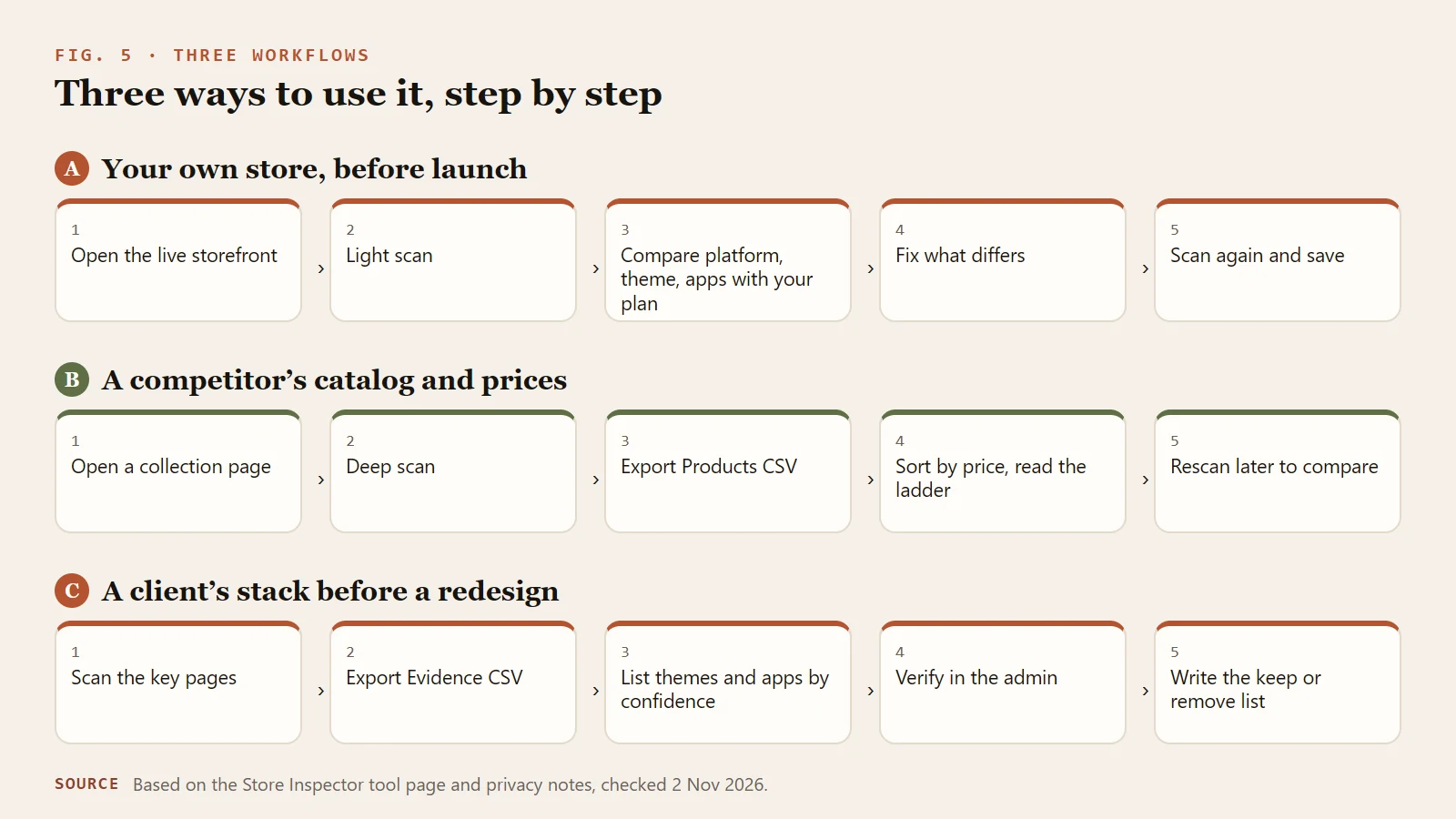
Figure 5. Three ways to use the extension, step by step. The store in each workflow is hypothetical.
Workflow 1: check your own store before launch
An owner is about to point paid traffic at a new Shopify store and wants to see it as a visitor's browser sees it.
- Open the live storefront in a clean browser window and run a light scan on the home page.
- Compare the platform and theme against your plan. If you bought a named theme, does the record show it, and is the version what you expect?
- Read the technology clues. For every entry, ask whether you installed it on purpose. If you removed an app earlier, check that it no longer appears. Note the Low and Medium entries as questions, not findings.
- Open a product page, run another scan and check that the captured price and currency match what you intend visitors to see.
- Fix what differs, scan again and save the second record next to the first.
Then run the broader checks. The Store Launch Readiness Scanner covers launch readiness, and the Shopify store launch checklist covers the preparation work that a public scan cannot see, such as payment tests and policy pages. Store Inspector shows the storefront. It does not replace those.
Workflow 2: study a competitor's catalog and pricing ladder
You sell home textiles and want to see how a competitor structures its range and prices. The question is narrow: what price points does a slice of their range occupy?
- Open one of the competitor's collection pages, not the home page. A collection page gives you a coherent set of products.
- Run a deep scan to get a larger sample.
- Open the record in your store archive and download the products CSV. It keeps the capture time and the source of each row, so you can still defend the numbers later.
- Sort by price. Look at the clusters. Do products bunch at a few price points? Is there a clear entry product, a middle tier and a premium tier? Do the names follow a pattern?
- Repeat on a second collection and write down "in this sample" next to every conclusion.
The result is a picture of a pricing ladder in one part of the range. It is not their bestseller list, and it does not say how well anything sells. If the research feeds a product decision, put it next to your own demand, margin and fulfillment checks, such as the product research tutorial. The CSV is for sorting and review, not a platform import file.
Workflow 3: audit a client's theme and apps before a redesign
An agency has been asked to quote a redesign. Before the call, someone needs a defensible picture of what is running.
- Scan the pages that matter: home page, a collection page and a product page. Different templates can load different scripts.
- Export the evidence CSV from each record.
- Build one table with the theme, the version if shown, and every technology clue grouped by category, with its confidence label beside it.
- Take the Medium and Low rows to the client. Ask for admin access or ask the client directly. Verify each one.
- Write the keep, replace or remove list, and mark every item as confirmed or unconfirmed.
The confidence column is the part a client can rely on. You show the client which statements are solid and which are still questions. When the redesign ships, scan again and compare the two records.
Privacy and data boundaries in plain language
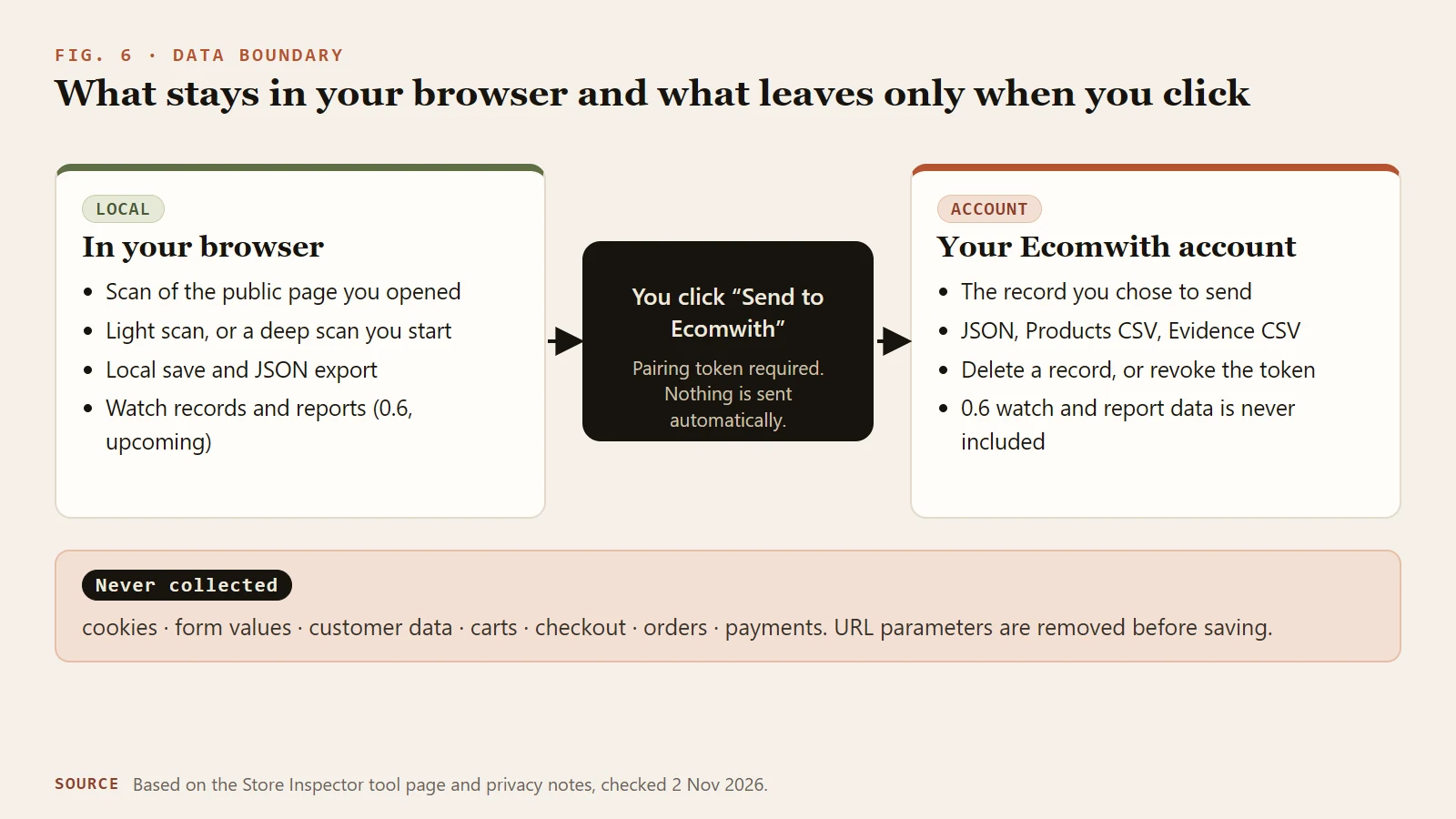
Figure 6. What stays in your browser and what leaves only when you click.
The extension runs on the page you choose to inspect. It does not run persistent background scans and it does not collect browsing history.
- What it reads. Public page identity, public platform and theme evidence, public product and image information, and public catalog responses from the store's own domain.
- What it never collects. Cookies, credentials, form values, customer data, carts, checkout, orders and payment data. URL query strings and fragments are removed before a record is saved.
- What stays local. A light or deep scan, a local save and a JSON export live in your browser or in a file you downloaded.
- What leaves, and when. A record reaches your Ecomwith account only if you configured a pairing token and clicked Send to Ecomwith. The raw token is shown once and stored as a hash on the server. You can revoke the token and delete any saved record.
Ecomwith's receiving side adds its own filter and rejects records from cart, checkout, account, order or admin paths and from private-network addresses. The safer habit is still simple: inspect public storefront pages. The full text is in the privacy policy.
What is coming in version 0.6 (not released yet)
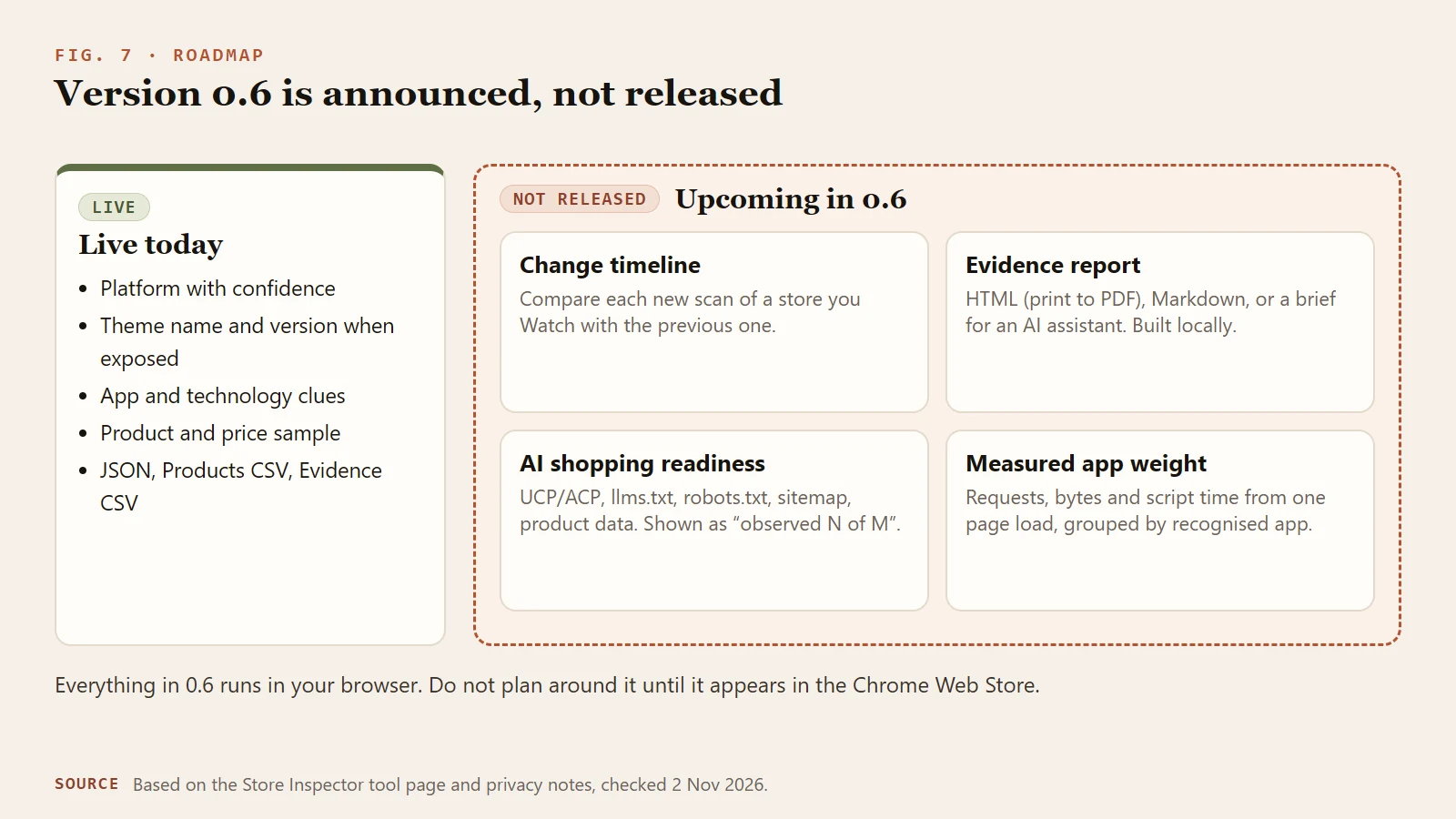
Figure 7. Version 0.6 is announced. It is not yet released, so do not plan around it.
Version 0.6 is announced and has not been released. Until it appears in the Chrome Web Store, treat the following as direction, not as features you can use. According to the tool page, all of them run in your browser.
- Change timeline. For a store you choose to Watch, the extension would keep a compact record in the browser and compare each later scan with the previous one: theme, apps, published product count, same-currency prices and genuinely new products. Products moving in or out of the sample would only be a hint. There is no background checking. It updates when you open the store and scan again.
- Evidence report. An HTML report you can print to PDF, a Markdown file, or a brief to paste into an AI assistant, built locally and never uploaded, with each finding carrying its confidence and source.
- AI shopping readiness. A check of the public signals that AI shopping assistants can see: UCP and ACP profiles, llms.txt, the robots.txt rules for AI crawlers, a sitemap and complete product markup. It would show "observed N of M" and never a score. Not observed does not mean unsupported.
- Measured app weight. The performance data your browser recorded for one page load, with requests, measurable bytes and main-thread script time assigned to the apps the extension recognized. It is not a speed score, not a long-term average, and not an estimate of price or sales.
Watch records and reports would stay in the browser and would not travel with a snapshot you send to Ecomwith. The AI readiness guide does not depend on the extension version. You can read Can AI shopping assistants find and read your store? today, and apply it by hand.
Frequently asked questions
Does Store Inspector show a store's sales or traffic?
No. It reads public page evidence: the platform, the theme, technology clues and a product sample. Page signals do not establish sales, traffic or profit, and the tool does not estimate them.
Can it list every app a store has installed?
No. It matches known signatures in public scripts and stylesheets, so it finds the apps that leave a public trace. An installed app that loads nothing visible will not appear, and "not detected" never means "not installed".
Is the product list the full catalog?
No. It is a bounded sample taken from the page you scanned, and a saved record holds up to 60 products. Use a deep scan on a collection page for a larger sample, and describe results as "in this sample".
Does it upload what I scan?
Not automatically. Scans stay in your browser. A record reaches your Ecomwith account only when you have configured a pairing token and choose Send to Ecomwith, and you can delete any saved record afterward.
Which platforms does it recognize?
Shopify, WooCommerce, BigCommerce, Wix, Squarespace and Webflow. When the evidence is not enough, or the store is custom-built, the result stays unknown or custom. Public product endpoints are tried only for Shopify and WooCommerce.
Can I use it on my own admin, cart or checkout pages?
It is built for public storefront pages. It does not collect cart, checkout, order, payment or customer data, and Ecomwith's receiver rejects records that come from those paths. Scan the pages a visitor can open.
Is it fine to inspect a competitor's store with it?
It reads only what a page already exposes to any visitor's browser, and it does not log in or use credentials. What you do with the findings is still your decision, and product images stay linked to their source, so the right to reuse them is a separate question.
Is version 0.6 available?
Not yet. Version 0.6, with the change timeline, evidence report, AI shopping readiness check and measured app weight, is announced and not released. The tool page shows its status.
Next step
Install the extension from the Store Inspector tool page, scan your own storefront first, and read the record against Figures 2 and 3. If you want to understand the AI shopping signals the 0.6 check will report, read the AI shopping readiness guide now. It explains each signal and how to change it on Shopify and WooCommerce.
For adjacent work, the launch checklist covers what a public scan cannot see, ecommerce SEO and AI search visibility covers the search side, and the product schema answer explains the markup behind product data.
Sources
- Store Inspector tool page, checked 2026-11-02.
- AI shopping readiness guide, checked 2026-11-02.
- Ecomwith privacy policy, section on the Store Inspector extension, checked 2026-11-02.