Text version of this lessonExpand
Phase 2 Products and storefront structure
Choose and preview a theme, create a pre-edit backup, understand Sections, Blocks, Theme settings, and Templates, then accept home, collection, and product pages on mobile.
Online Store > Themes > Edit theme90 minutes
Phase 2 Products and storefront structure
Why this lesson comes now
Theme work easily turns into endless color and animation changes while page order, mobile first view, and purchase path remain unresolved. Editing the live theme without a backup adds another risk. This lesson focuses on structure that affects understanding, trust, and add-to-cart rather than completing every visual detail.
What you should have at the end
A dated theme backup, template inventory, home and product-page structure map, mobile screenshots, and a rollback method for every change.
Prepare before opening the admin
- At least one product and collection are ready for preview.
- Prepare logo, typography rules, primary and secondary colors, and real product images rather than launching with placeholders.
- Write the five questions home and product pages must answer before moving sections.
Follow the English admin step by step
After each step, refresh the admin or verify the storefront. A saved state in admin does not automatically prove the customer-facing result.
Choose and preview the theme
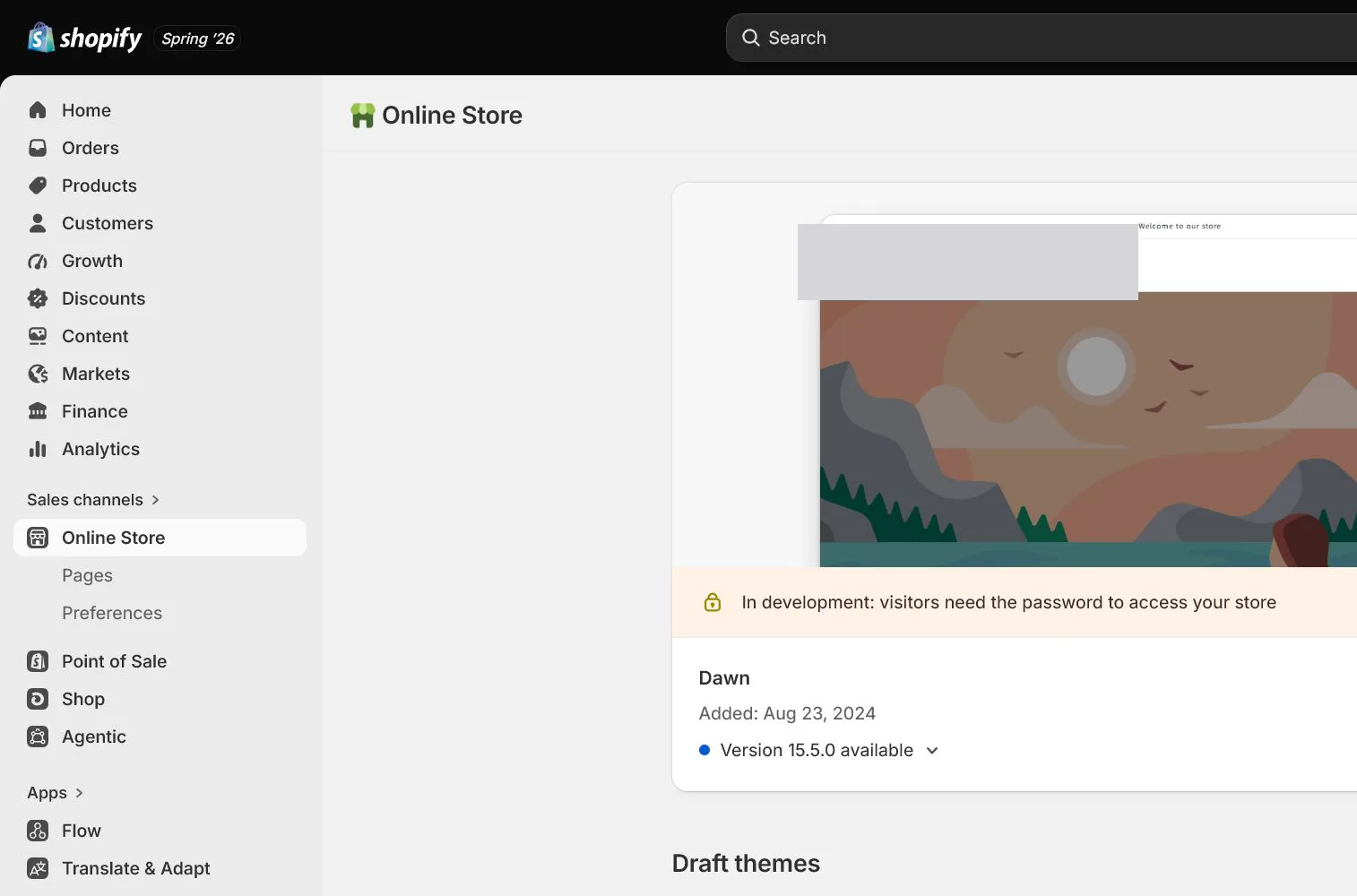
Open Online Store > Themes and review the current theme or Theme Store options. Preview product, collection, menu, search, cart, and mobile behavior instead of judging only the demo homepage.
Duplicate and name a backup
Duplicate the current theme and name it with date and purpose, such as 2026-08-01-before-launch. Perform changes on the copy and record who changed what and when.
Understand Sections, Blocks, and Theme settings
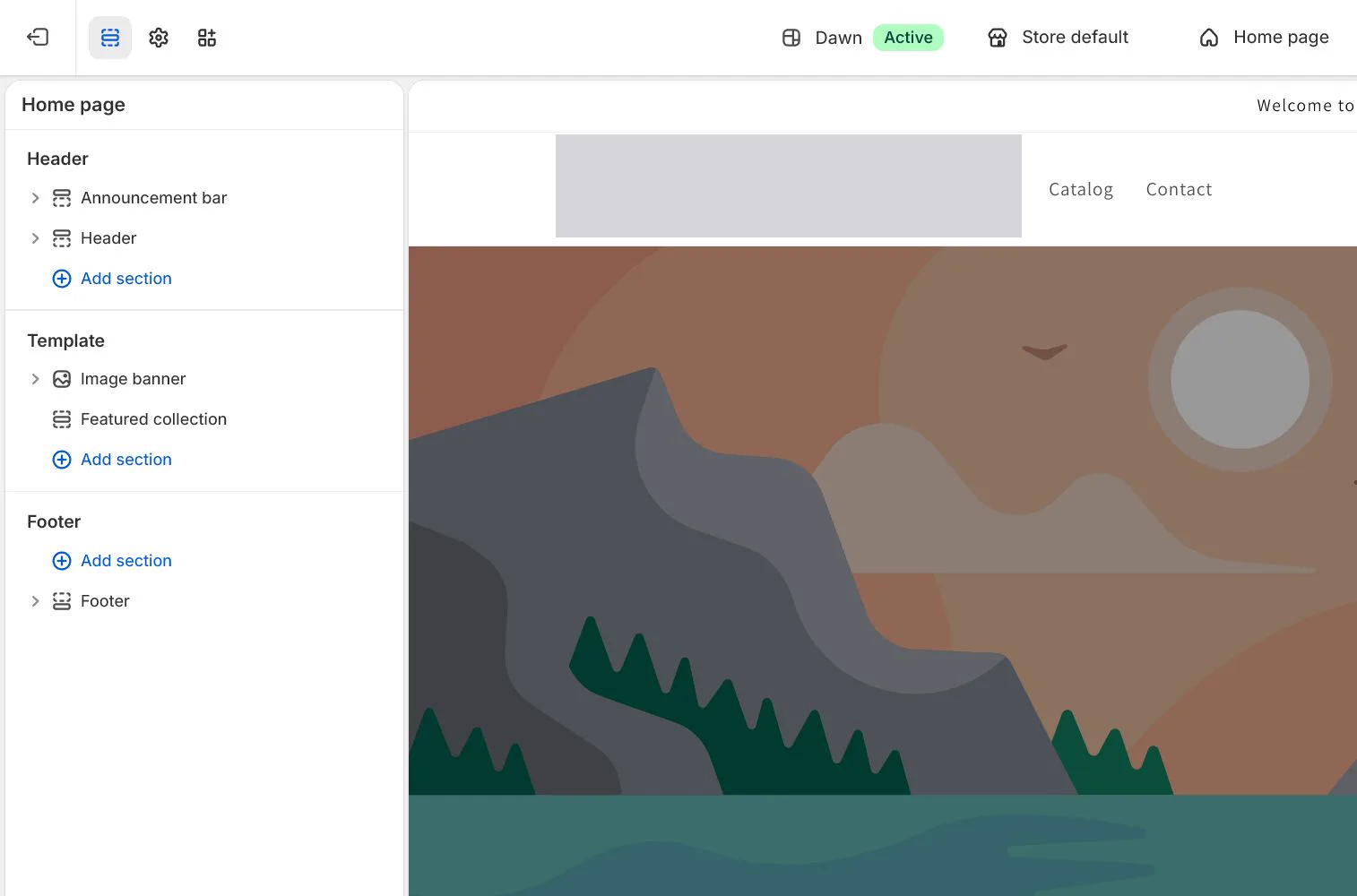
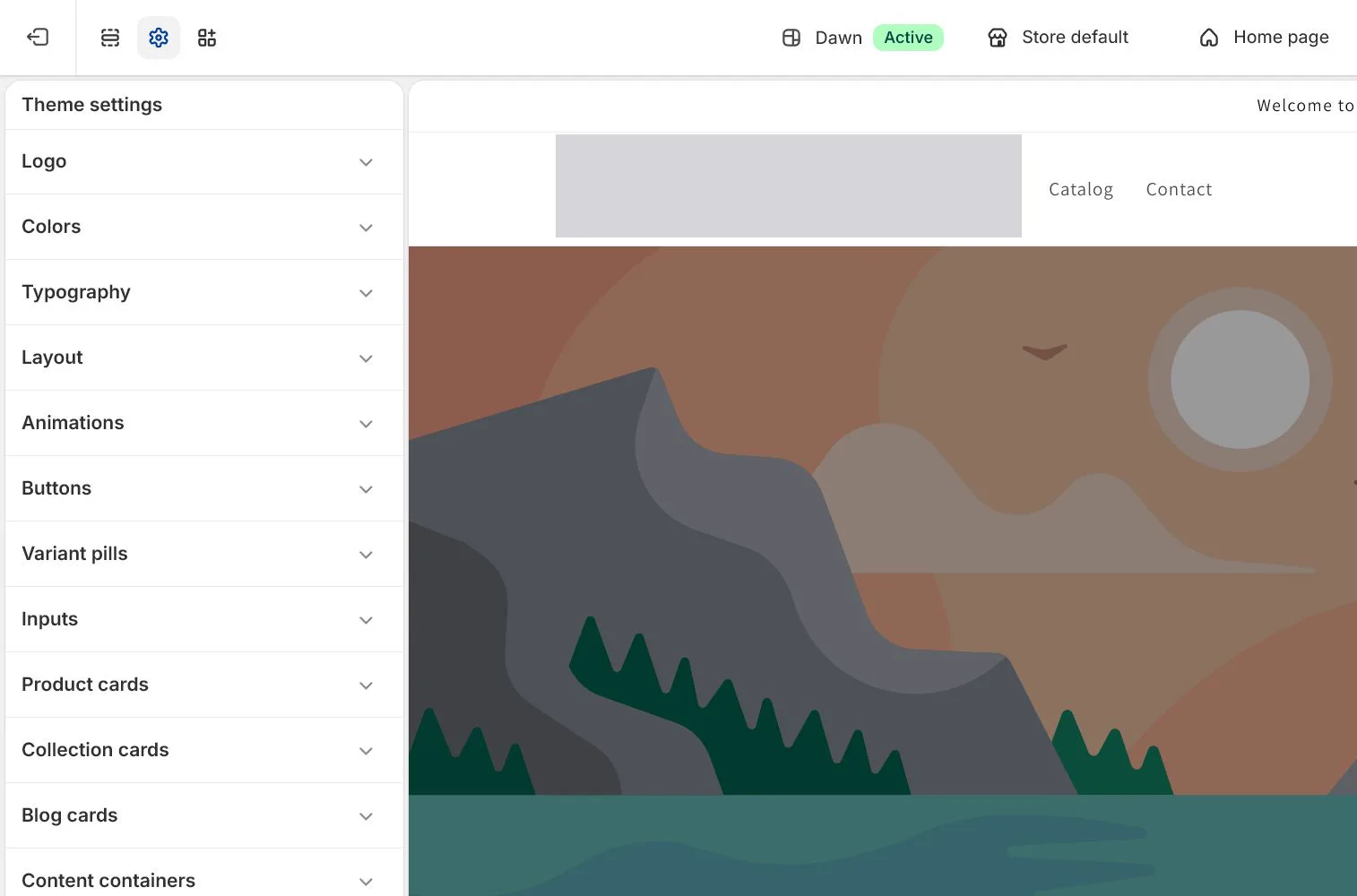
Open Edit theme. A Section is a page module, a Block is an element inside it, and Theme settings control global color, typography, buttons, and layout. Set global rules first to avoid repeated local fixes.
Organize homepage information order
The first view explains what is sold, for whom, and the next action. Follow with core benefits, featured products, trust, use cases, FAQ, and email signup. Give each section one job and remove default modules without information value.
Create product and collection templates
Create a separate template only when a materially different layout is needed, not for every SKU. Assign the template back to the product or collection and verify dynamic sources read the current item.
Complete preview, publish, and rollback record
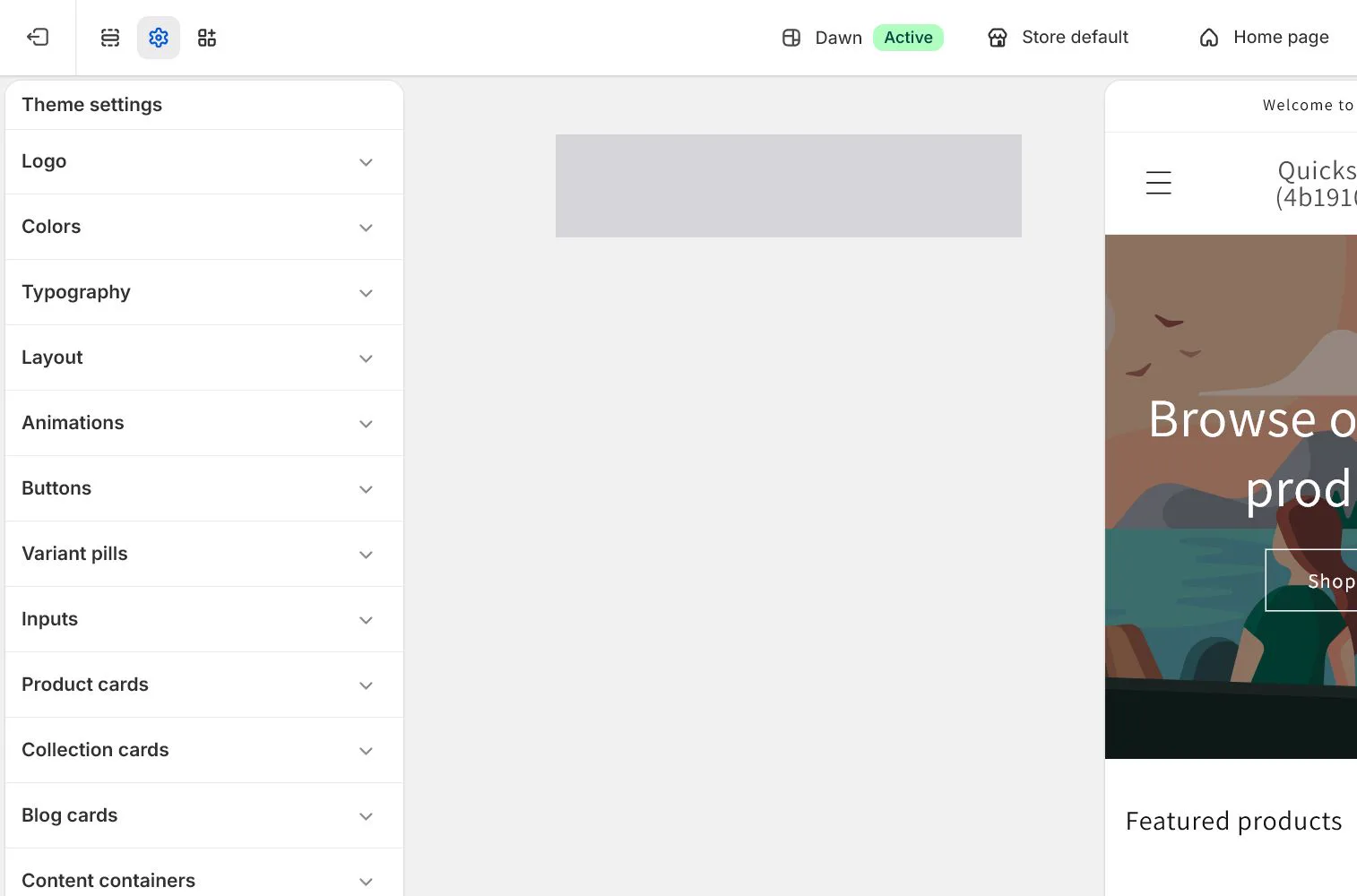
Preview home, collection, product, cart, and search on desktop and mobile. Check buttons, text, image ratios, and sticky elements for overlap. Capture evidence before publishing the copy and retain the previous theme for rollback.
How North & Pine configures it
North & Pine duplicates Dawn or the current lightweight theme, sets global typography, buttons, and colors, then organizes the homepage. The product page keeps a clear order for media, title and price, color, add-to-cart, delivery promise, details, and FAQ. A 390px mobile viewport is checked before publication.
Decisions to make in this lesson
| Decision | Recommended setting | Why |
|---|---|---|
| Change environment | Theme duplicate | Avoid breaking the live version |
| Homepage hero | One promise and primary action | Help a new visitor understand the store |
| Template count | By page job | Split only for materially different page jobs |
| Publish condition | Five page types pass on both devices | Desktop homepage alone is not enough |
Do not change these blindly
- Do not experiment directly in the live theme.
- Do not keep carousels, animation, or decoration without a page job.
- Do not create many templates with trivial differences.
Completion standard
The lesson is complete only when every item below has evidence. Saying that the page was reviewed is not acceptance.
- A working duplicate and previous rollback theme exist.
- Global styles and page-section jobs are separated.
- Home, collection, product, cart, and search pass desktop and mobile preview.
- Templates are correctly assigned to products or collections.
- Publisher, time, changes, and rollback steps are recorded.
Common failures and fixes
| Symptom | What to do |
|---|---|
| A new template is not visible | Assign it in the product or collection Theme template field and confirm the published theme contains it. |
| Mobile text or buttons are covered | Inspect section spacing, fixed or sticky elements, app embeds, and safe areas rather than merely shrinking text. |
| The storefront reverted after publish | Confirm the correct duplicate was published, review theme history and saved customization, and roll back if needed. |
Frequently asked questions
Should I always duplicate a theme before editing?
It is strongly recommended. A duplicate supports preview, comparison, rollback, and reduces risk from multiple people editing the live theme.
What is the difference between Sections and Blocks?
A Section is a complete page module and a Block is a configurable or repeatable element within it. Exact capabilities vary by theme.
When should I create a product template?
Create one when a product group needs a materially different page job or module set. Different images and copy alone usually belong in the same template with dynamic content.
Official sources
Admin labels and rules change. These official pages are the maintenance baseline, and every screenshot must be checked against the current English admin.