Text version of this lessonExpand
Phase 2 Products and storefront structure
Create About, Contact, and FAQ pages, build main, footer, and customer menus under Content > Menus, and handle links, hierarchy, mobile behavior, and URL redirects correctly.
Online Store > Pages and Content > Menus70 minutes
Phase 2 Products and storefront structure
Why this lesson comes now
A page can exist without being discoverable, and a menu label can point to the wrong place. Current Shopify admin manages menus under Content > Menus, which can differ from older tutorials. Pasted URLs also break after handle changes. Link directly to Shopify objects when possible and give main and footer navigation separate jobs.
What you should have at the end
A main navigation no deeper than two levels, complete footer, customer-account entry, direct object links for core pages, mobile acceptance, and a redirect register.
Prepare before opening the admin
- List common paths from home to products, policies, contact, and order lookup.
- Prepare draft copy for About, Contact, FAQ, and required content pages.
- Confirm collection and product URLs are stable before building menus.
Follow the English admin step by step
After each step, refresh the admin or verify the storefront. A saved state in admin does not automatically prove the customer-facing result.
Create core pages
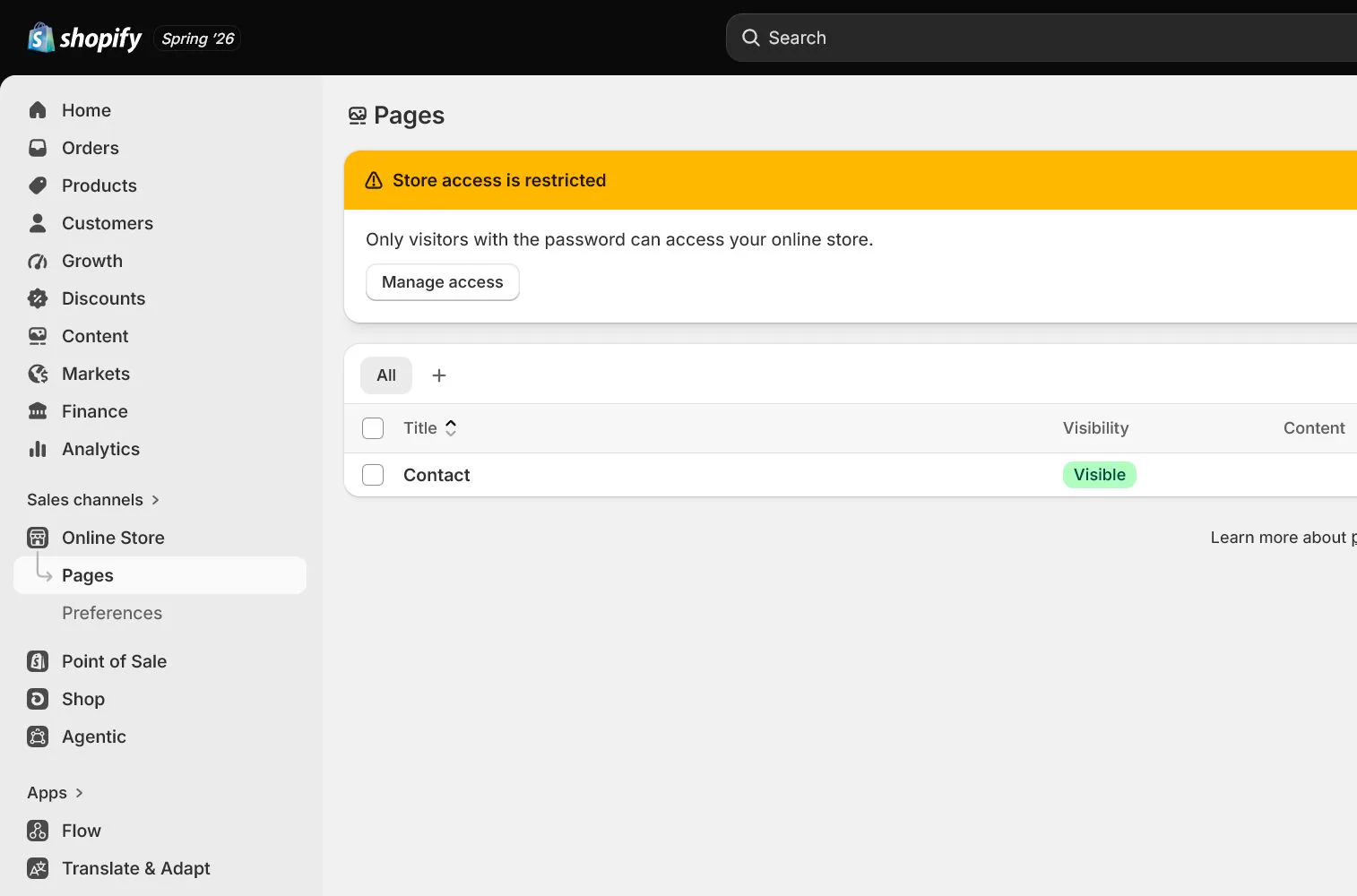
Open Online Store > Pages and create About, Contact, and FAQ. Complete title, body, visibility, template, and search listing. Test that the Contact form reaches the real support inbox.
Define main and footer menu jobs
Use the main menu for shopping and brand understanding. Use the footer for policies, contact, accounts, and support information. Do not place every link in the main menu or repeat the same destination throughout the footer.
Build the main navigation in Content > Menus
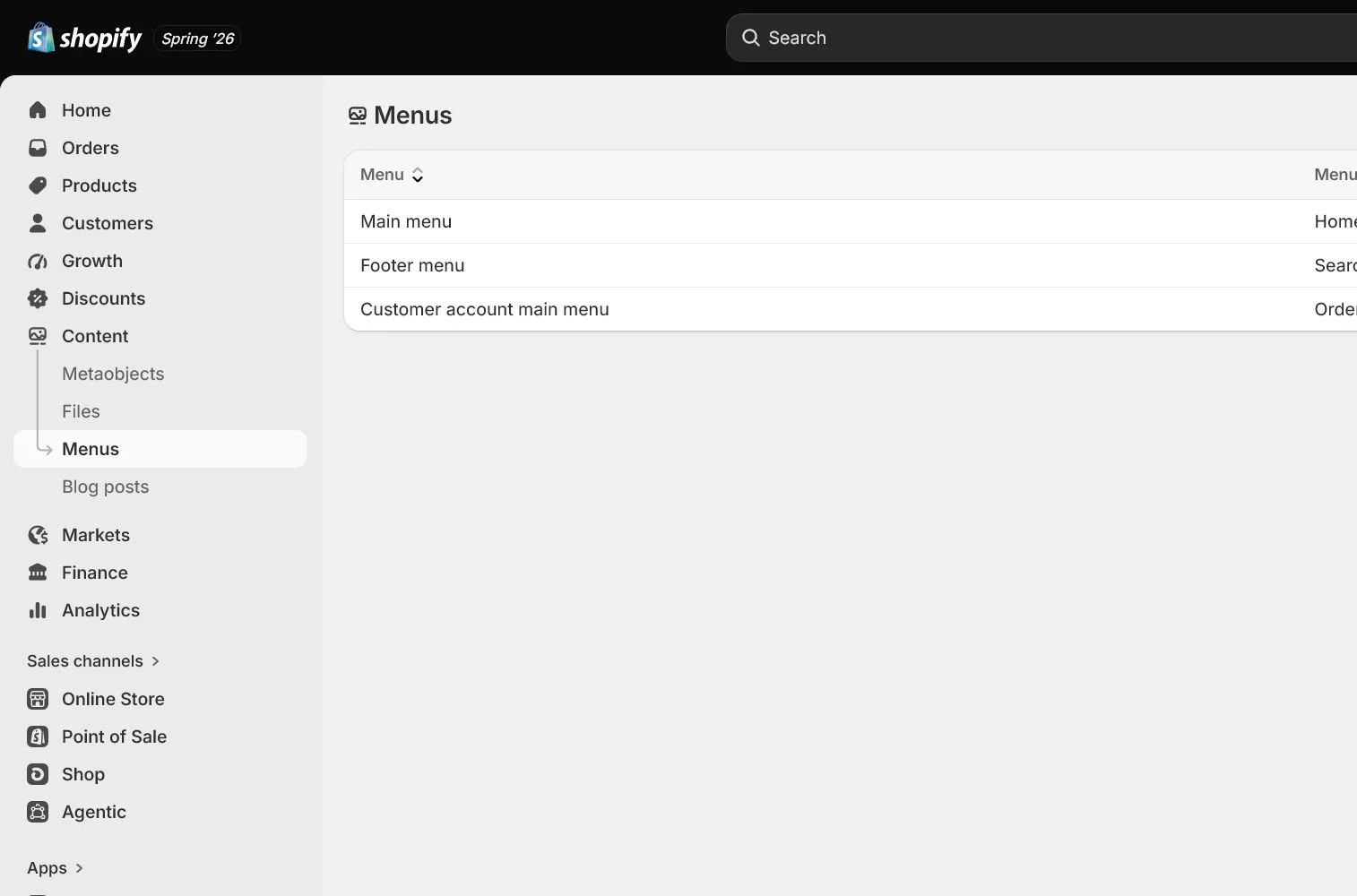
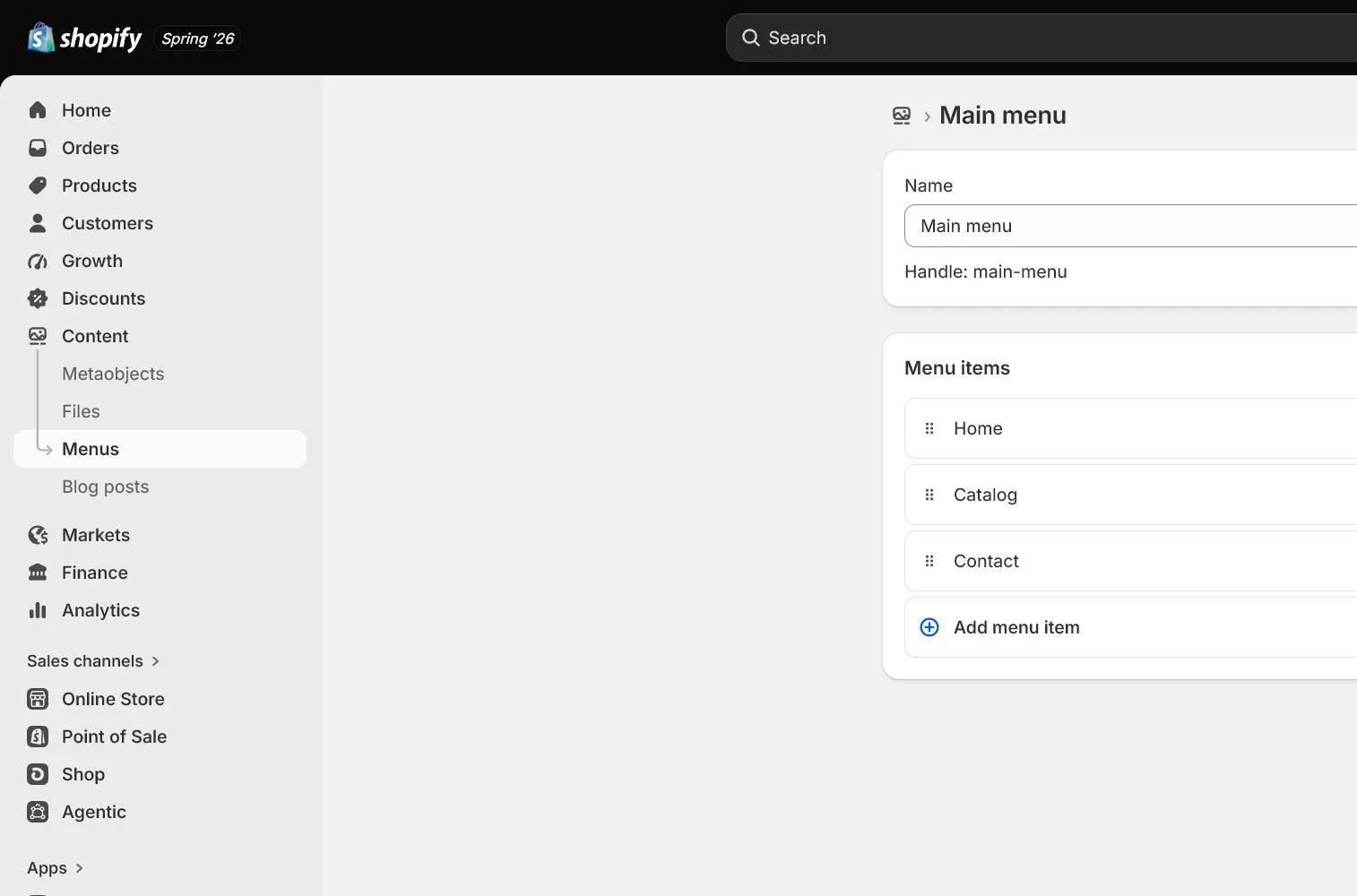
Open Content > Menus and select Main menu. Choose Collections, Products, Pages, or Policies directly instead of pasting full URLs. Use drag and drop for one dropdown level and keep hierarchy to two levels.
Build footer and customer menus
Link Contact, FAQ, Shipping, Returns, Privacy, Terms, and account access in the footer. Current customer accounts can use a separate customer accounts menu, so test it from the storefront while signed in.
Check handles and URL redirects
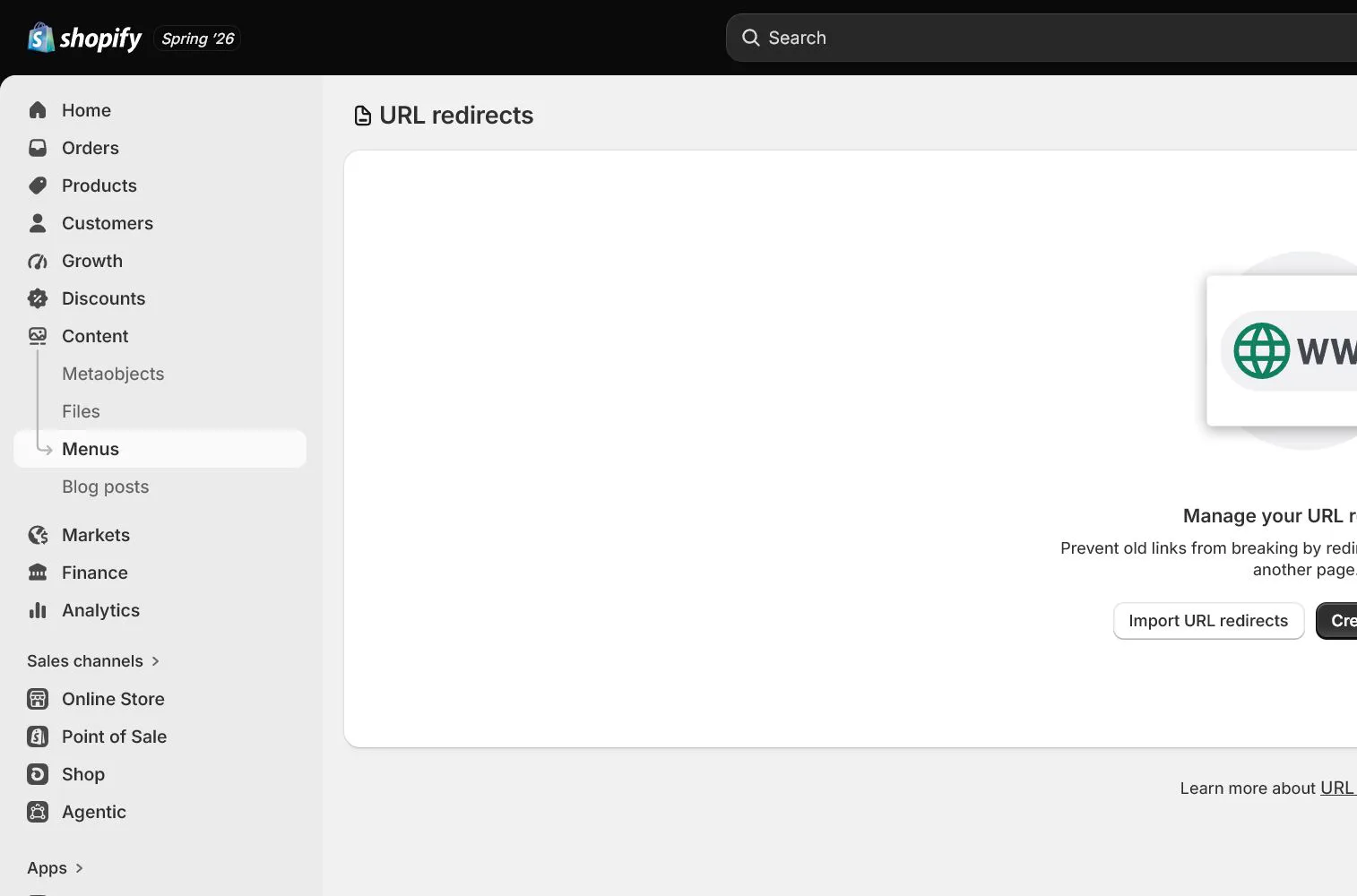
When changing a page, product, collection, or blog handle, confirm Create a URL redirect is enabled. Redirect old URLs one to one rather than sending all traffic to home, and record reason and date.
Complete mobile and keyboard acceptance
Open the menu on mobile and test expand, back, scroll, and close. On desktop, use Tab to check focus order and dropdown operation. Click every main, footer, and account link for 404s, loops, or incorrect market paths.
How North & Pine configures it
North & Pine uses Shop, About, and FAQ in the main menu, with Desk Organization under Shop. The footer contains Contact, Shipping, Returns, Privacy, and Terms. Every link selects a Shopify object. Mobile navigation stays within two levels, and every link is recorded with final URL and status.
Decisions to make in this lesson
| Decision | Recommended setting | Why |
|---|---|---|
| Main navigation depth | Two levels maximum | Easier on mobile and keyboard |
| Link method | Select Shopify objects | More resilient when handles change |
| Policy placement | Footer | Always available without crowding shopping paths |
| Old URLs | One-to-one redirects | Preserve user and search intent |
Do not change these blindly
- Do not rely only on old tutorials that point to Online Store > Navigation; use Content > Menus in the current admin.
- Do not use # or empty links as fake menu headings.
- Do not redirect every changed URL to the homepage.
Completion standard
The lesson is complete only when every item below has evidence. Saying that the page was reviewed is not acceptance.
- About, Contact, and FAQ are published with correct templates.
- Main, Footer, and Customer menus have clear jobs.
- Core links use Shopify objects where possible.
- Old URLs have one-to-one redirect records.
- Mobile, keyboard, and link-click tests pass.
Common failures and fixes
| Symptom | What to do |
|---|---|
| Navigation cannot be found | Open Content > Menus in the current English admin. Shopify can rename areas, so use admin search to confirm. |
| A menu item returns 404 | Edit the item and reselect the Page, Collection, or Product directly, then confirm it is published. |
| Mobile dropdown cannot close | Inspect theme menu behavior, hierarchy depth, app injection, and custom scripts, reproducing first on an unmodified theme copy. |
Frequently asked questions
Where are Shopify menus configured now?
In the current English admin they are generally under Content > Menus. The interface changes, so use admin search for Menus rather than depending entirely on old screenshots.
Why select a Page or Collection instead of pasting a URL?
Object links are less likely to break with domain, locale, or handle changes and reduce copy errors. Full URLs remain appropriate for external destinations.
How many main-menu items should a store have?
There is no fixed number, but each item needs a clear shopping or understanding job. A new store should prefer a small clear menu over many empty categories.
Official sources
Admin labels and rules change. These official pages are the maintenance baseline, and every screenshot must be checked against the current English admin.