Text version of this lessonExpand
Phase 3 Transactions and fulfillment
Configure fulfillment origin, Shipping zones, flat or carrier rates, free-shipping thresholds, packages, and weights from the General shipping profile, then test checkout with multiple addresses.
Settings > Shipping and delivery80 minutes
Phase 3 Transactions and fulfillment
Why this lesson comes now
Shipping is not complete after entering a price. Product weight, package, fulfillment Location, market, shipping profile, zone, and rate conditions jointly determine checkout. A common failure is seeing a US rate in admin while a state or product cannot check out. Every rate needs address and cart tests.
What you should have at the end
A US General shipping profile with a real origin, US zone, USD 12 standard rate, USD 75 free-shipping threshold, package data, displayed timing, and four checkout tests.
Prepare before opening the admin
- Complete product weights, inventory Location, and launch Markets.
- Collect carrier quotes, remote-area rules, package dimensions, and handling time.
- Calculate margin capacity for standard and free-shipping orders.
Follow the English admin step by step
After each step, refresh the admin or verify the storefront. A saved state in admin does not automatically prove the customer-facing result.
Review the General shipping profile
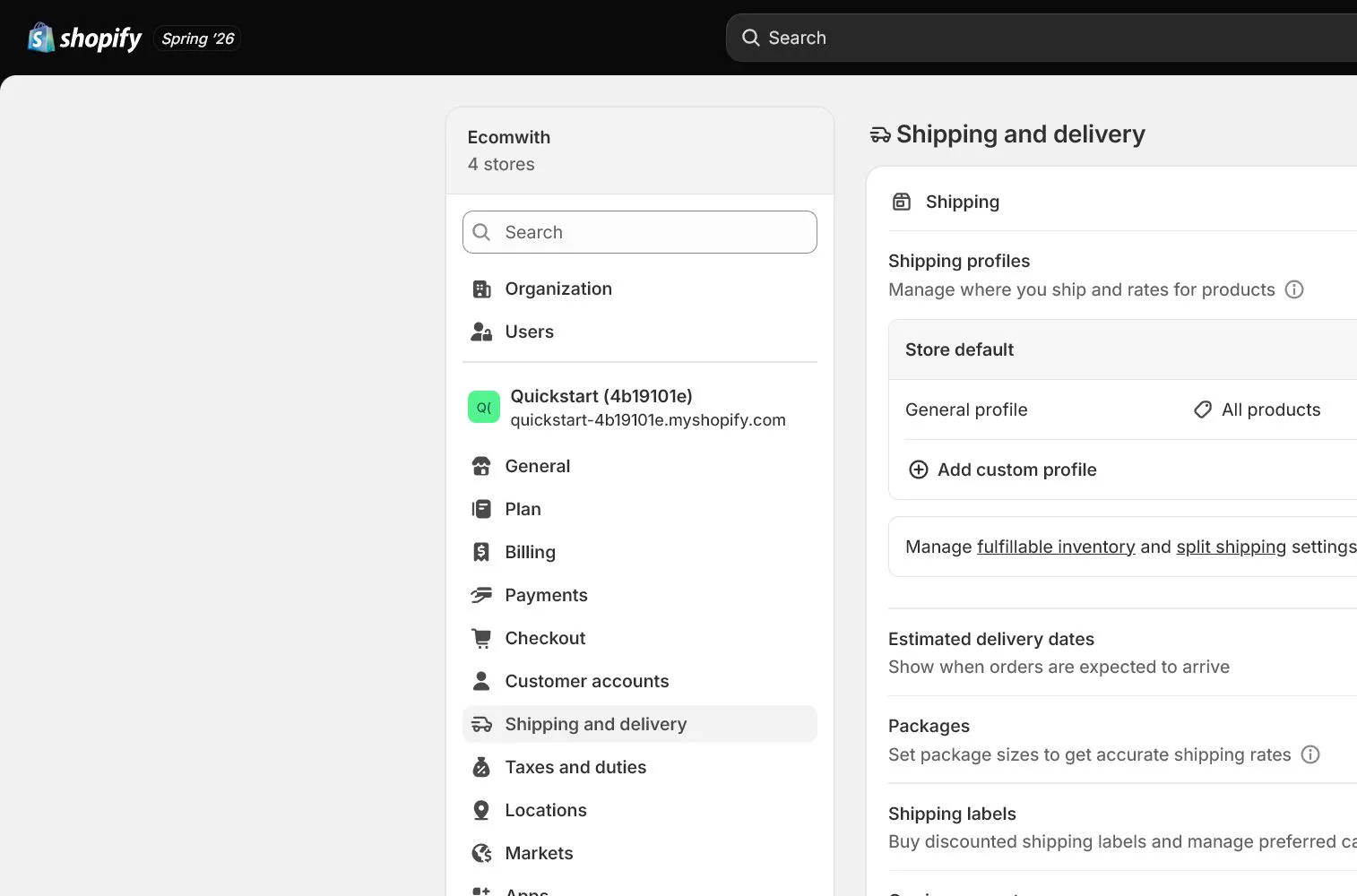
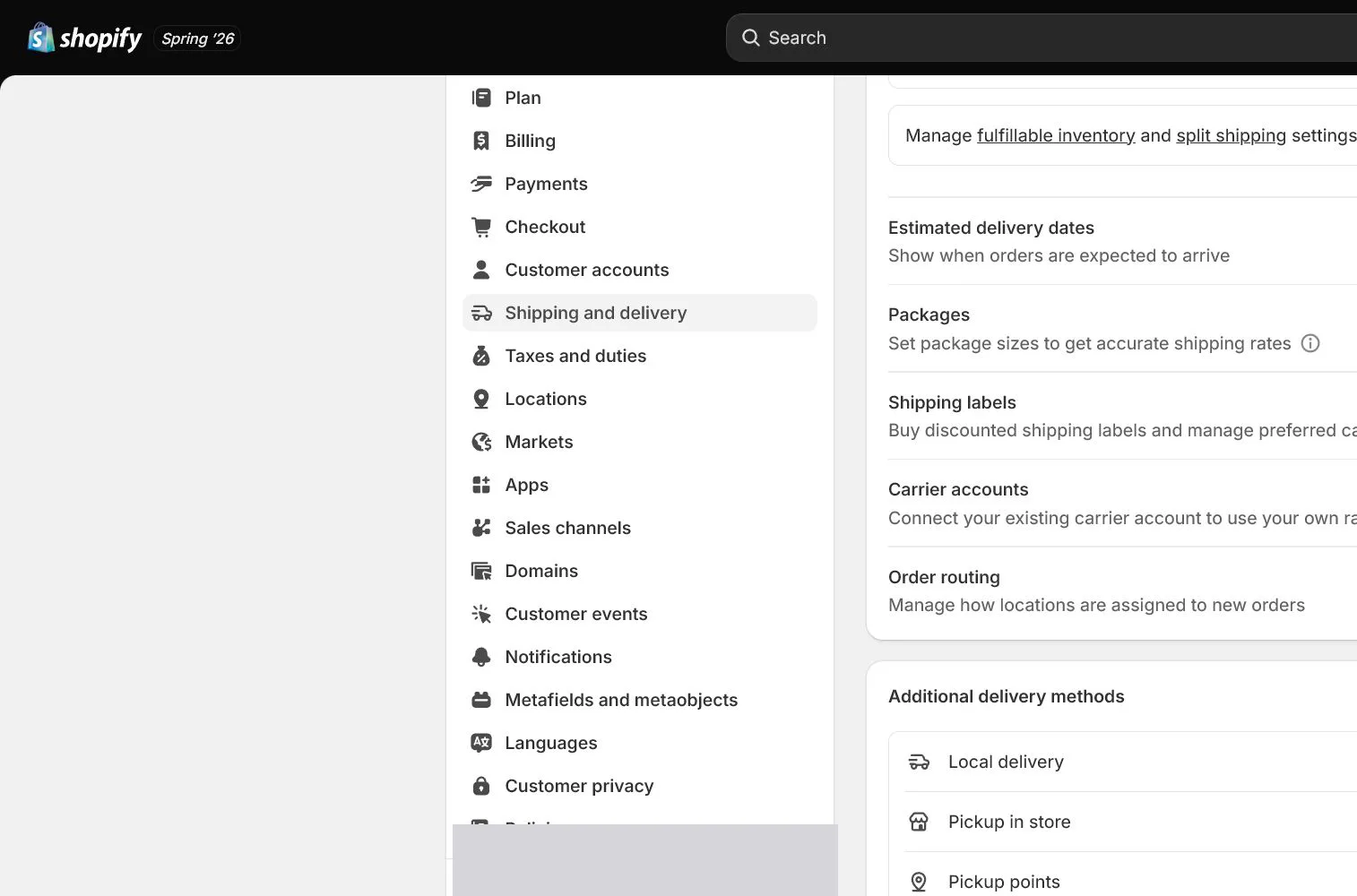
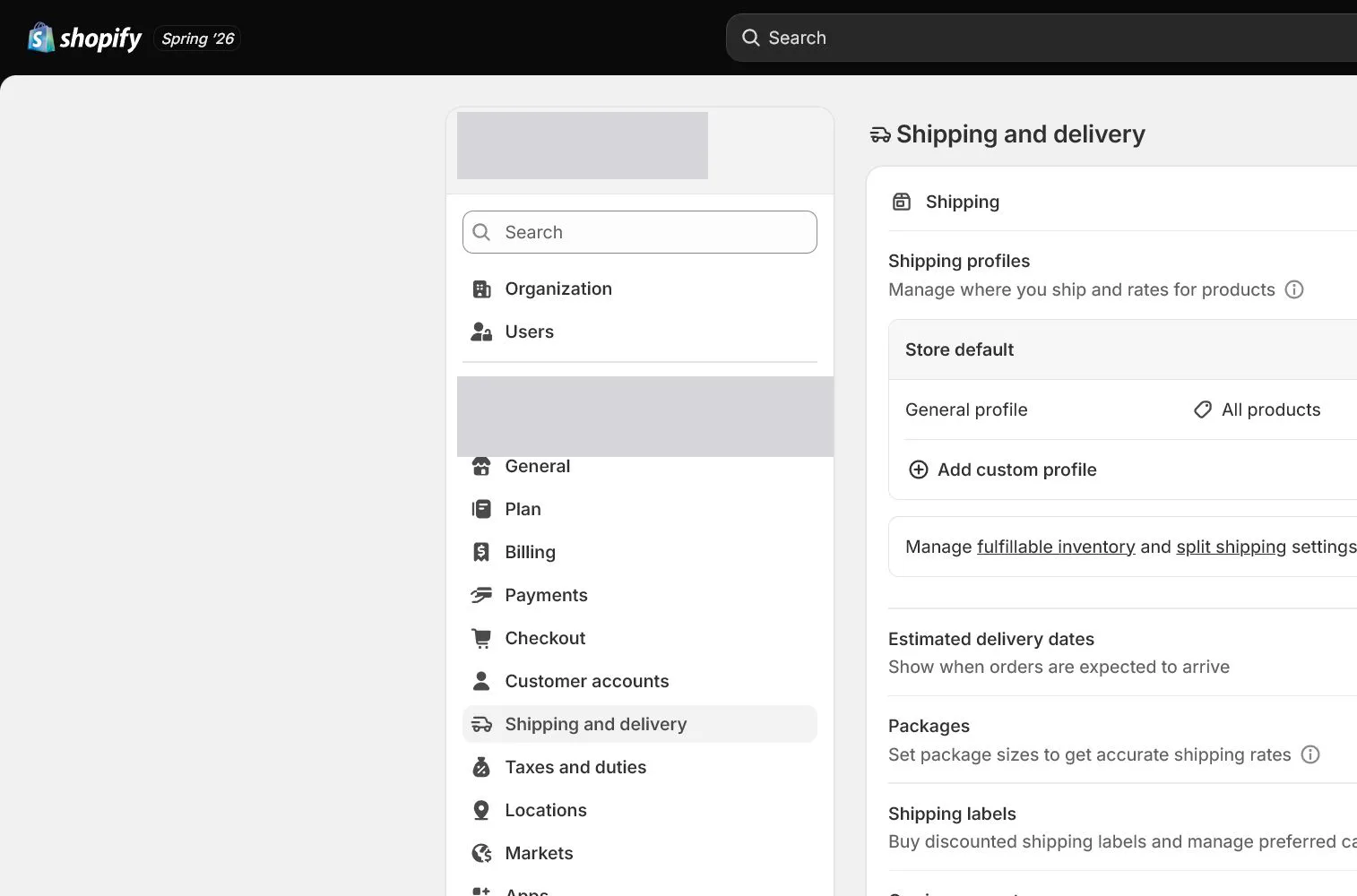
Open Settings > Shipping and delivery and enter General shipping rates. Confirm included products and fulfillment Locations. Create a custom profile only when a product group genuinely needs different rules.
Create the Shipping zone
Create a US zone and align included states or regions with Markets and operating scope. Exclude destinations that cannot be served rather than accepting them in checkout and disclaiming later.
Add the standard rate
North & Pine adds Standard Shipping at USD 12 with an estimated transit time. The rate name is customer-facing, so avoid internal codes. Ensure price and weight conditions do not overlap into duplicate rates.
Add the free-shipping threshold
Add Free Shipping with a minimum price of USD 75. Test how discounts affect the threshold and check carts around USD 74, 75, and 76. Free shipping must be financially supportable, not only promotional copy.
Configure Packages and weights
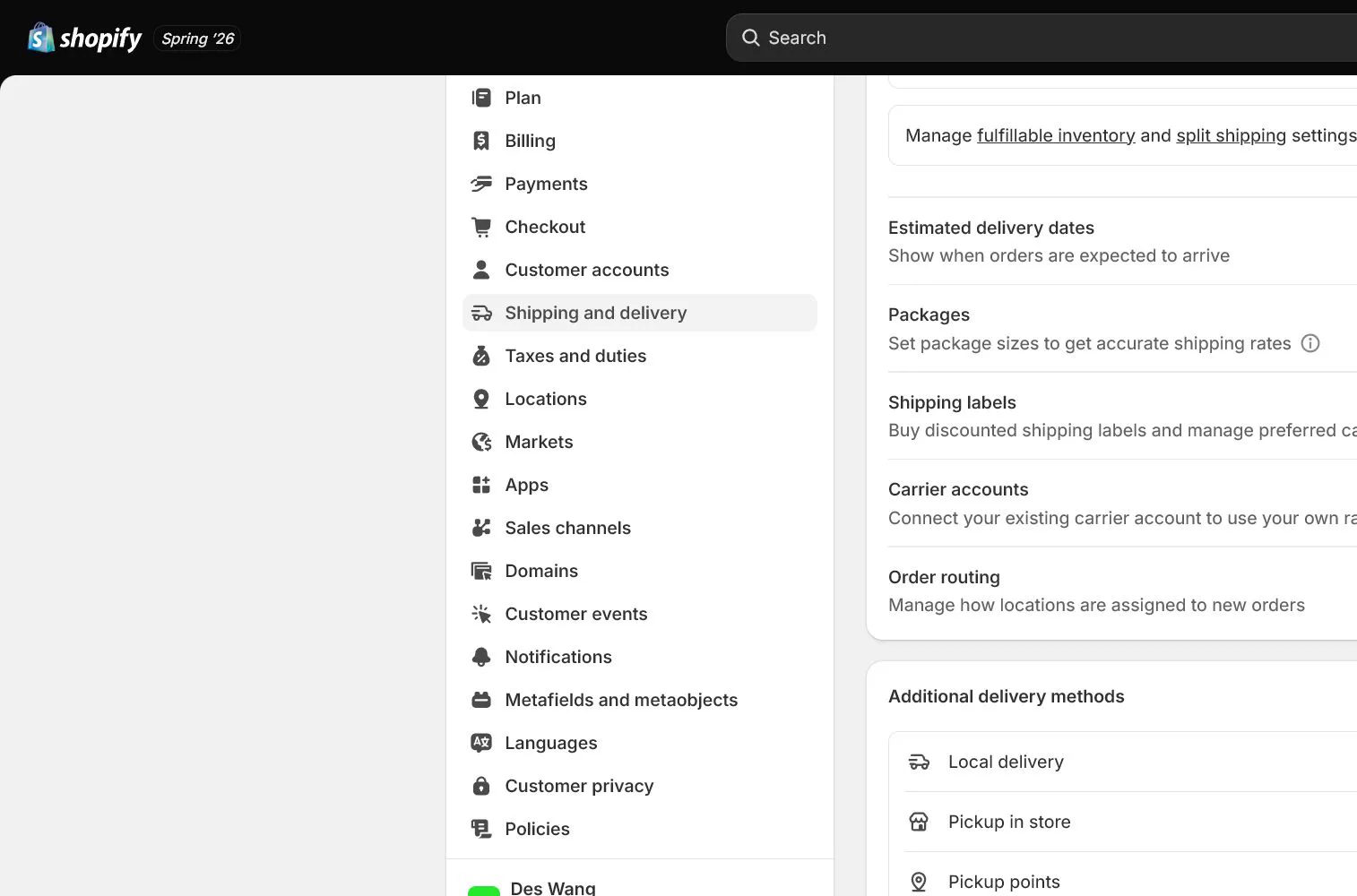
Create a default package with dimensions and empty-package weight. Do not double-count package weight in product weight. For calculated rates, verify carrier account, units, and origin address.
Test four address and cart combinations
Test a core city, a remote state, carts around the free-shipping boundary, and an unsupported address. Record product, discount, address, displayed rate, price, timing, and errors, then repeat a mobile path.
How North & Pine configures it
North & Pine ships from New Jersey with USD 12 standard shipping and free shipping at USD 75. Product and package weight are stored separately. The team tests New York, California, USD 74, USD 75, and an unsupported address, aligning checkout, policy, and product-page delivery promises.
Decisions to make in this lesson
| Decision | Recommended setting | Why |
|---|---|---|
| Standard rate | $12 | Covers baseline fulfillment below the threshold |
| Free-shipping threshold | $75 | Near a two-item cart, supporting AOV and margin |
| Shipping profile | General | Launch products share one rule |
| Unsupported destinations | Exclude in admin | Avoid accepting and cancelling orders |
Do not change these blindly
- Do not place the same product in overlapping shipping profiles.
- Do not test only one familiar ZIP code.
- Do not promise an absolute delivery date you cannot control.
Completion standard
The lesson is complete only when every item below has evidence. Saying that the page was reviewed is not acceptance.
- Product, Location, profile, and zone relationships are correct.
- Standard and free-shipping conditions have no overlap errors.
- Package and product weight are not double-counted.
- Four address and cart combinations have evidence.
- Product, policy, and checkout timing promises match.
Common failures and fixes
| Symptom | What to do |
|---|---|
| Checkout says shipping is unavailable | Check product profile, inventory Location, Shipping zone, Markets, address format, and rate conditions. |
| Free shipping does not appear | Verify cart condition, post-discount amount, currency, rate minimum, and product profile. |
| Two similar rates appear | Inspect overlapping rates, profiles, app rates, and Markets. Remove the duplicate source rather than merely renaming it. |
Frequently asked questions
When should a Shipping profile be split?
Split only when a product group has materially different origin, weight, restrictions, or rates. Use General when launch products share the same rules.
How should a free-shipping threshold be set?
Work backward from margin, items per order, actual shipping cost, and target AOV, then test discount behavior. Do not copy a competitor's number.
Should product weight include packaging?
Normally the product field holds item weight and Packages stores package dimensions and empty weight, avoiding duplication. Test the current carrier configuration.
Official sources
Admin labels and rules change. These official pages are the maintenance baseline, and every screenshot must be checked against the current English admin.