Text version of this lessonExpand
Phase 3 Transactions and fulfillment
Create and activate Locations, assign product inventory, configure online fulfillment and order routing, and verify out-of-stock, transfer, and multi-location boundaries.
Settings > Locations and Settings > Shipping and delivery > Order routing65 minutes
Phase 3 Transactions and fulfillment
Why this lesson comes now
Correct inventory at the wrong Location can still show sold out or send orders to the wrong warehouse. Multi-location routing matters only with two or more active locations, so a new store should not create complexity for appearance. Prove one real fulfillment location before expanding.
What you should have at the end
One fulfillable Location, inventory assignment for each variant, online-order fulfillment status, out-of-stock rules, routing priority when needed, and warehouse-assignment evidence from a test order.
Prepare before opening the admin
- Prepare the real warehouse or shipping-location address, contact, and working hours.
- Define who maintains inventory, update timing, and stock-count process.
- Decide whether multiple independent fulfillment points actually exist.
Follow the English admin step by step
After each step, refresh the admin or verify the storefront. A saved state in admin does not automatically prove the customer-facing result.
Create or verify a Location
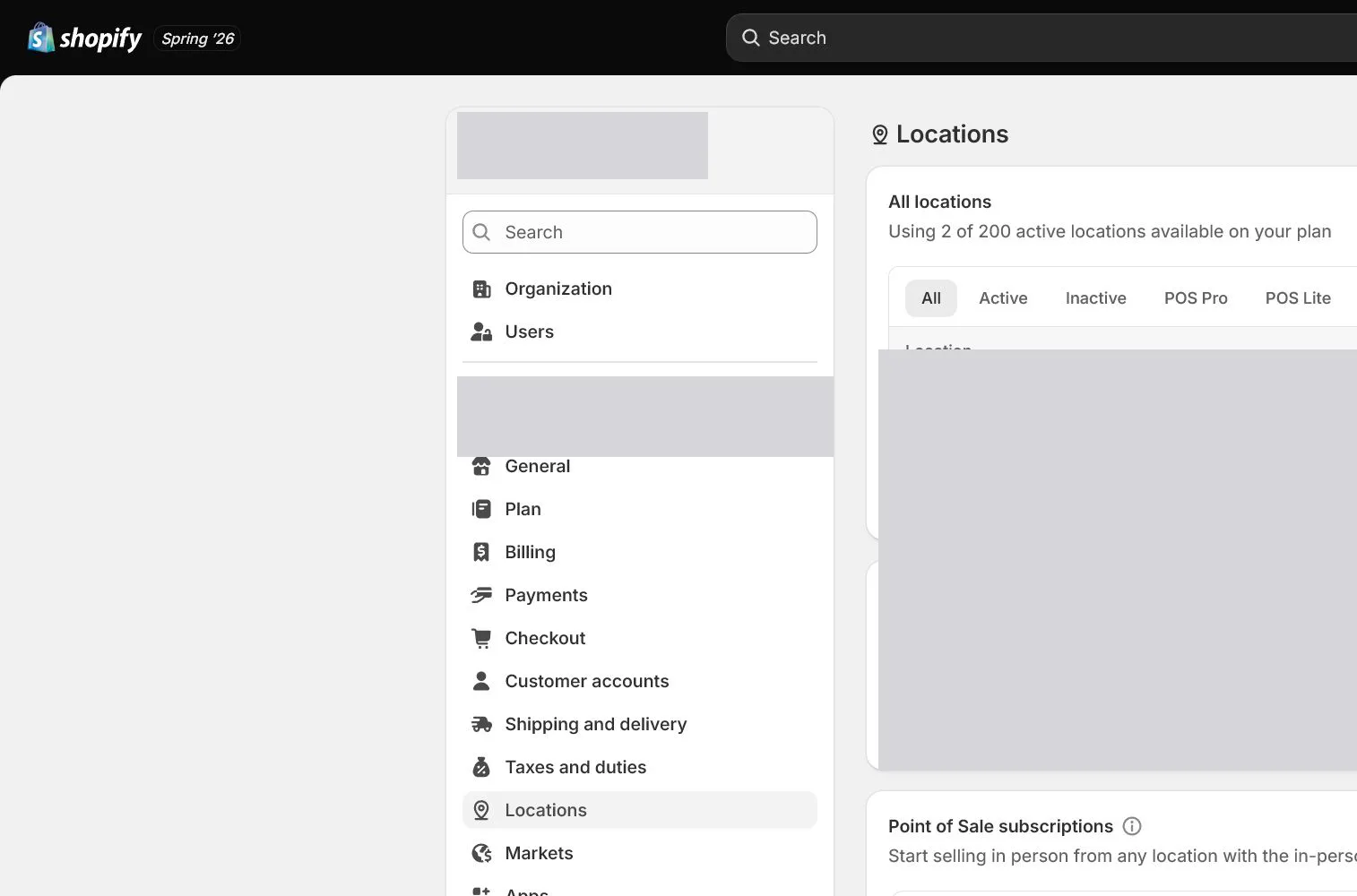
Open Settings > Locations and edit the default or Add location. Name the location by purpose and use an address valid for carrier, tax, and return decisions. Do not combine office, 3PL, and supplier warehouses into one fictional location.
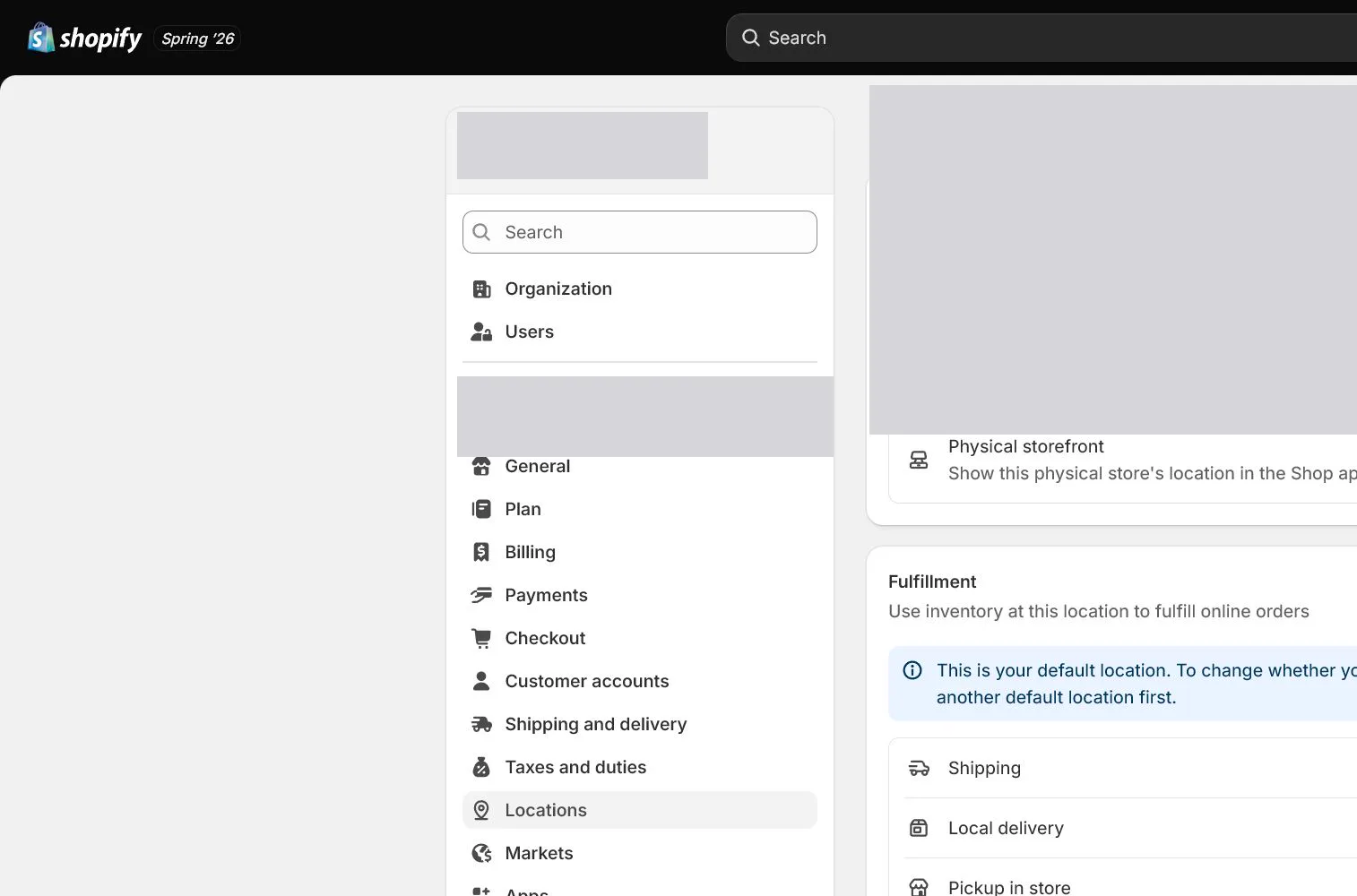
Set online-order fulfillment capability
Confirm whether the Location fulfills online orders. An office holding display samples should not receive orders. If a 3PL app manages inventory, check for an app Location rather than duplicating stock.
Assign variant inventory
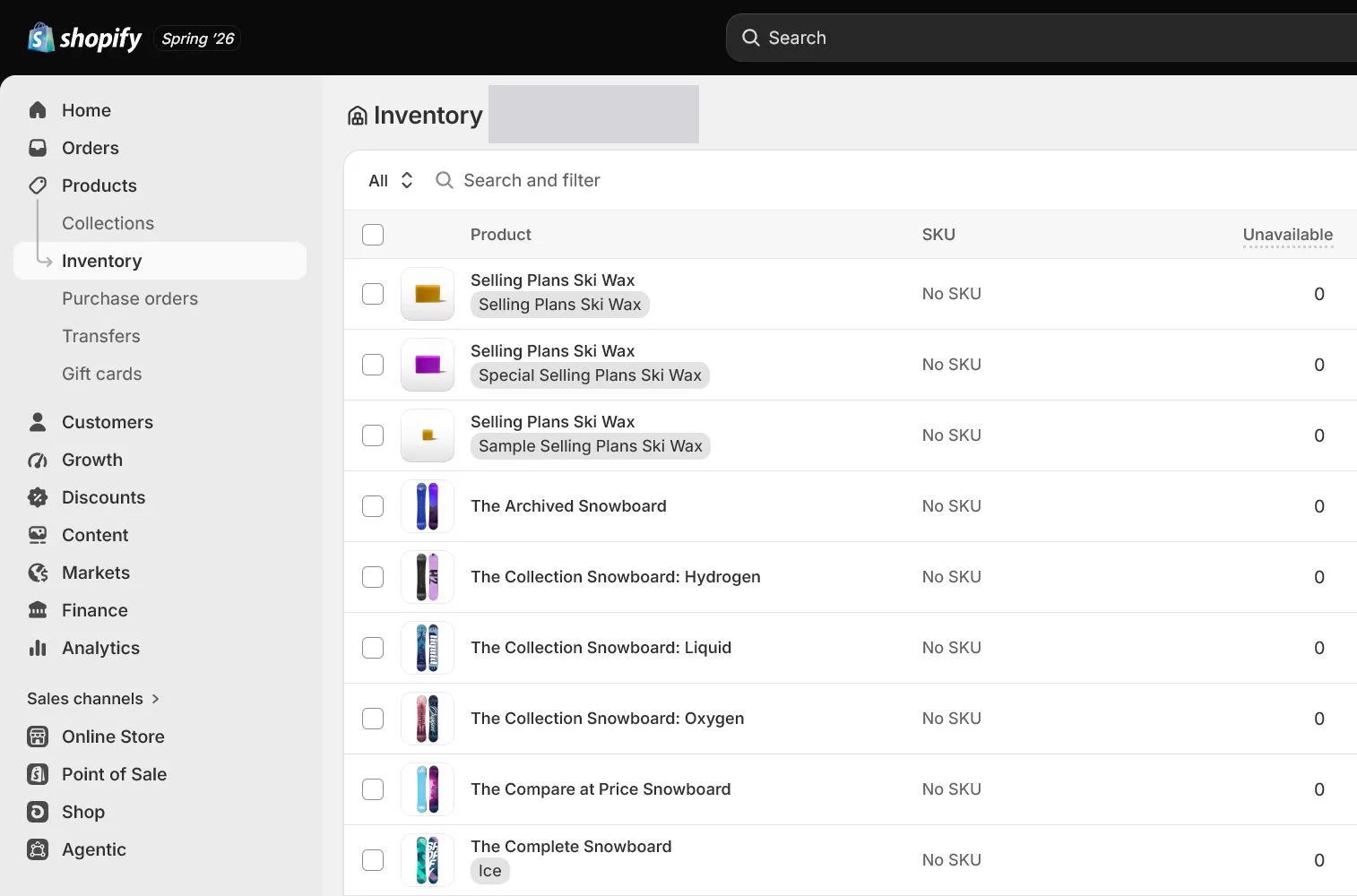
Return to Products > Inventory or variants, assign Tan and Olive to the correct Location, and enter available quantities. Distinguish On hand, Available, Committed, and Incoming rather than using one total.
Set out-of-stock and overselling rules
Keep Continue selling when out of stock off for physical items by default. A preorder needs an arrival date, page disclosure, notifications, and cancellation plan. Test storefront behavior at zero stock.
Configure order routing only when needed
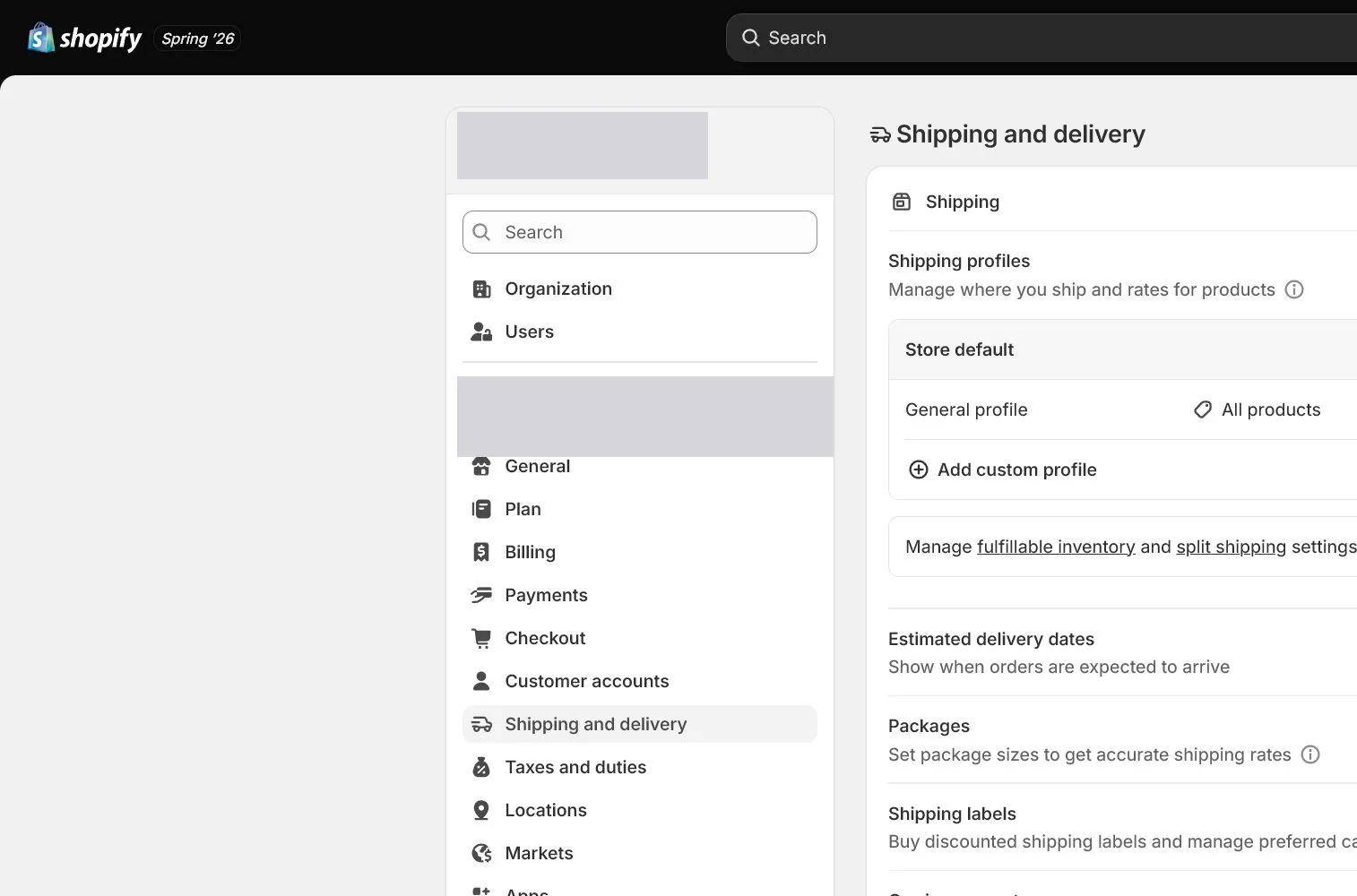
With two or more active Locations, configure routing such as minimizing splits, staying close to customers, or prioritizing a warehouse. Record cost and service impact for each rule. Keep one-location stores simple.
Verify assignment and fulfillment with a test order
Place a test order for an in-stock variant and inspect assigned Location and movement from Available to Committed. Cancel and confirm restock, then test an out-of-stock variant.
How North & Pine configures it
North & Pine launches with one fulfillment Location, New Jersey Warehouse, with 120 units of Tan and Olive. The office does not receive orders. A test order moves stock from Available to Committed, and cancellation with restock restores quantity. Routing waits until a future 3PL is connected.
Decisions to make in this lesson
| Decision | Recommended setting | Why |
|---|---|---|
| Launch Location | One real warehouse | Reduces routing and inventory errors |
| Office | Does not fulfill online orders | Display samples are not sellable stock |
| Out of stock | Stop selling | Do not oversell without a preorder promise |
| Order routing | Configure after multi-location | One warehouse does not need complex rules |
Do not change these blindly
- Do not duplicate the same stock in a manual Location and a 3PL app Location.
- Do not treat On hand as entirely sellable.
- Do not create complex order routing for one warehouse.
Completion standard
The lesson is complete only when every item below has evidence. Saying that the page was reviewed is not acceptance.
- Location address, name, and contact are valid.
- Only real shipping points fulfill online orders.
- Each variant is assigned to the correct Location.
- Out-of-stock and preorder boundaries are tested.
- Test order assignment, commitment, cancellation, and restock pass.
Common failures and fixes
| Symptom | What to do |
|---|---|
| Admin shows stock but storefront is sold out | Check that the inventory Location fulfills online orders, the product is available to the channel and market, and the variant is assigned there. |
| An order is assigned to the wrong warehouse | Inspect active Locations, routing rules, shipping profile, and app fulfillment service, simplifying rules to reproduce. |
| Inventory does not return after cancellation | Check whether restock was selected, whether fulfillment already occurred, and which Location received the adjustment. |
Frequently asked questions
Is a Shopify Location the same as a Shipping zone?
No. A Location is where inventory and fulfillment occur, while a Shipping zone defines destinations and rates. They interact but serve different jobs.
When is Order routing needed?
It is generally relevant with two or more active fulfillment Locations to control splits, distance, or priority. Keep a one-location launch simple.
Can a store continue selling out-of-stock items?
Yes, but it becomes a preorder or backorder promise. A real replenishment date, page disclosure, notifications, and cancellation process are required.
Official sources
Admin labels and rules change. These official pages are the maintenance baseline, and every screenshot must be checked against the current English admin.