Text version of this lessonExpand
Phase 2 Products and storefront structure
Build the first product that can be purchased and fulfilled, covering title, description, media, price, cost, SKU, barcode, variants, inventory, weight, category, publishing, and SEO.
Products > Add product80 minutes
Phase 2 Products and storefront structure
Why this lesson comes now
A product is not finished when images and copy are uploaded. Price affects conversion, cost affects profit reporting, SKU drives warehouse identity, weight affects shipping, variants own inventory, and category can affect channel and tax recommendations. Build the first item completely so later products can copy a proven pattern.
What you should have at the end
North & Pine's Canvas Desk Organizer has Tan and Olive sellable variants, each with a unique SKU, price, cost, weight, inventory location, sales-channel availability, and mobile acceptance evidence.
Prepare before opening the admin
- Prepare the final product name, benefits, material, dimensions, care instructions, and at least four clear images.
- Collect landed cost, selling price, weight, package dimensions, and opening inventory for each color.
- Define an SKU rule. The course uses NP-ORG-TAN and NP-ORG-OLV.
Follow the English admin step by step
After each step, refresh the admin or verify the storefront. A saved state in admin does not automatically prove the customer-facing result.
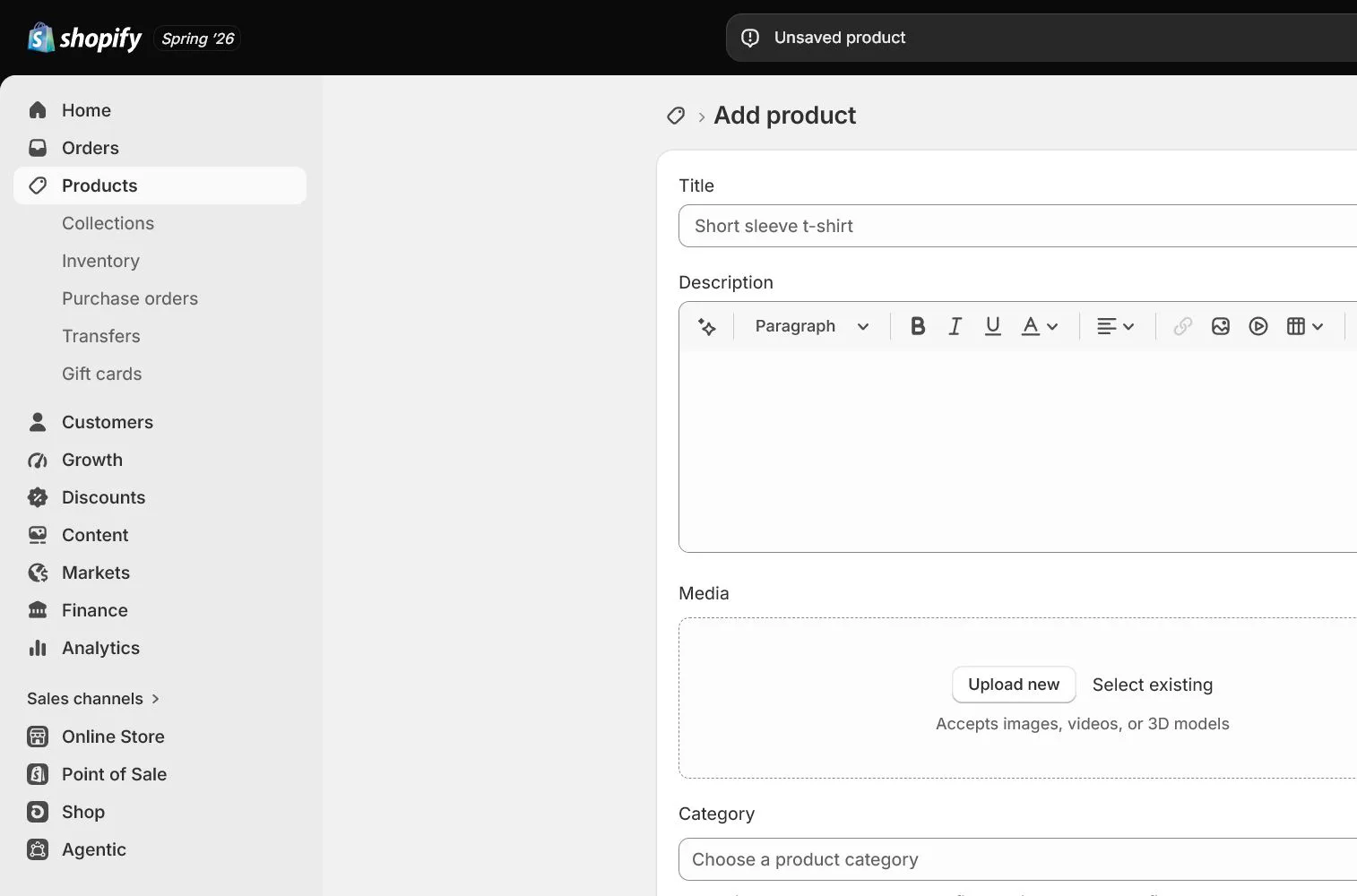
Create the product core
Open Products > Add product. Use a clear category and differentiator in the title without keyword stuffing. Structure the description around use, benefits, materials, dimensions, care, and packaging so it answers pre-purchase questions.
Upload and order media
Use a first image that makes the product understandable, followed by detail, dimensions, use, and packaging. Write accurate alt text for each image instead of repeating a keyword phrase. Preview the first image on mobile for cropping.
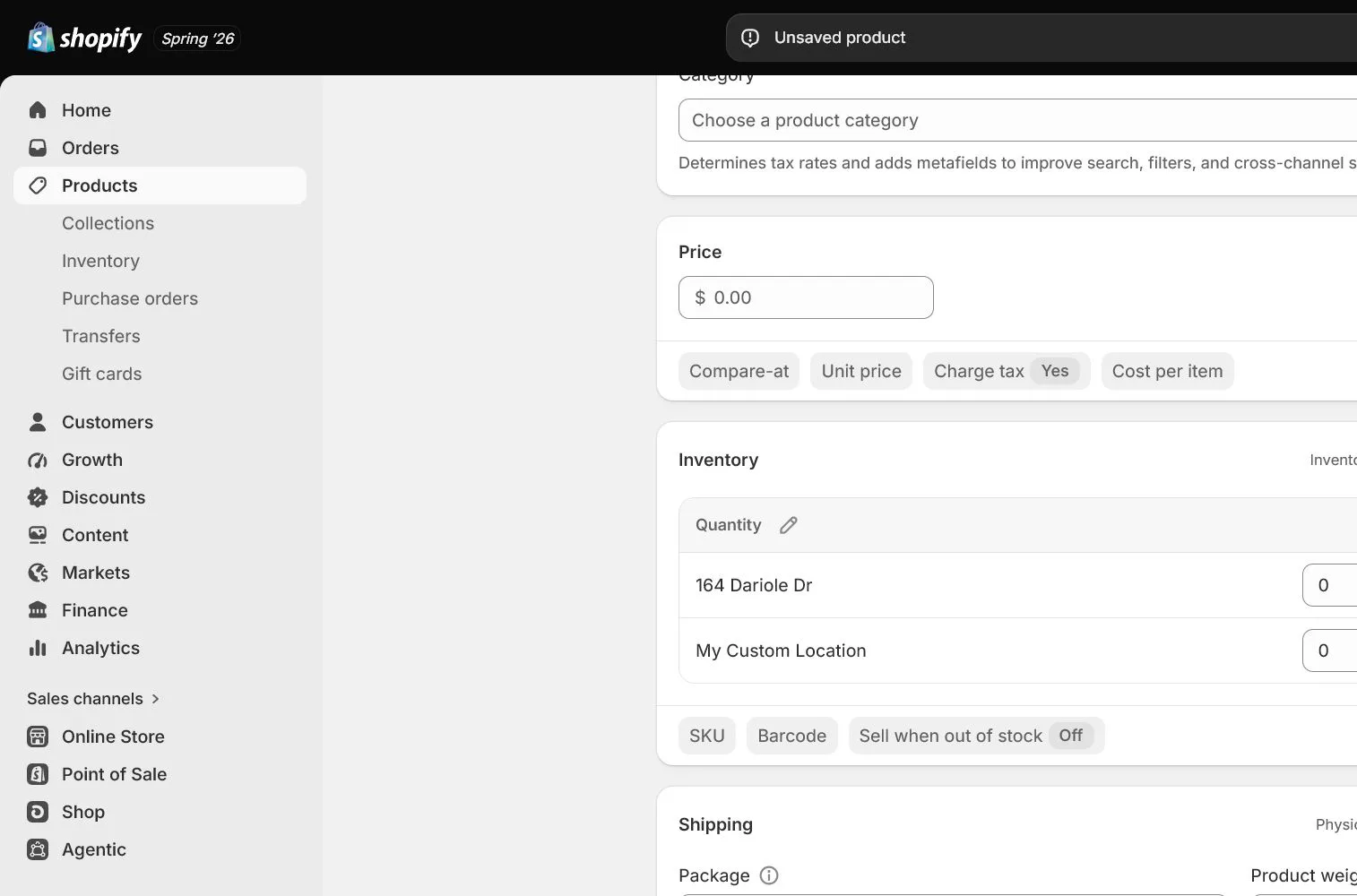
Set price, cost, and tax foundations
Set the price to USD 39. Use Compare-at price only for a genuine reference price. Enter a traceable unit cost and record the effective date when needed. Do not guess tax treatment; choose an accurate product category and review tax later.
Create color variants and unique identifiers
Add Color with Tan and Olive values. Give each variant a unique SKU. Enter only a legitimately assigned GTIN in Barcode rather than copying the SKU. Match variant images and names.
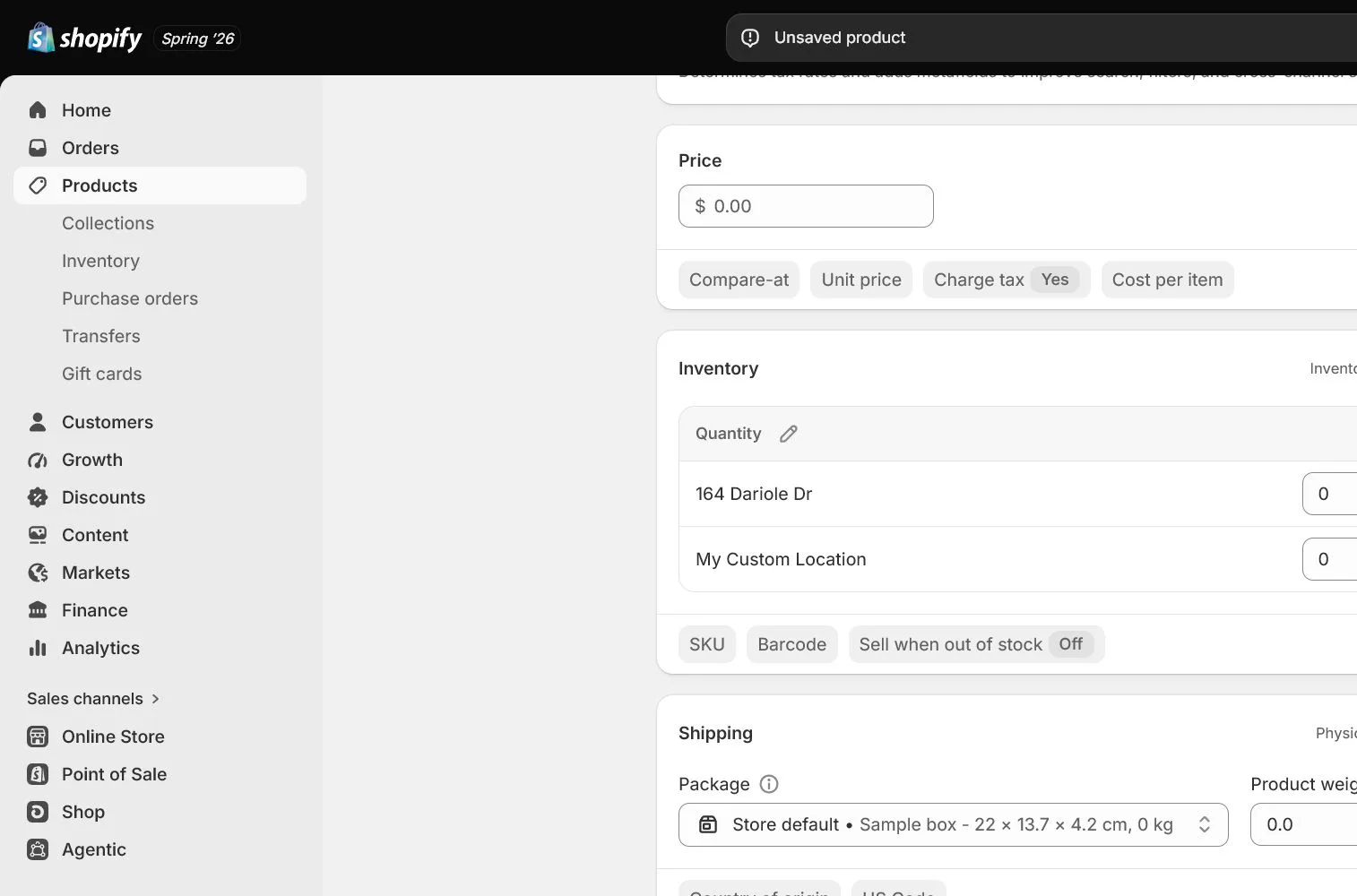
Configure inventory, location, and shipping data
Enable Track quantity and enter stock at the fulfillment location. North & Pine starts with 120 units each. Keep Continue selling when out of stock off unless a real preorder process exists. Enter accurate weight and mark the product as physical.
Complete organization, channels, and SEO, then publish
Set category, vendor, product type, collections, and a small stable tag set. Publish only to the prepared Online Store channel and US market. Edit the search listing, review handle, SEO title, and description, then select each variant and add to cart on the storefront.
How North & Pine configures it
North & Pine keeps the title clear instead of stuffing many keywords. Tan and Olive each have an image, SKU, and 120 units. Compare-at price stays blank because no genuine prior price exists. Both colors are tested on mobile for price, image, inventory, and add-to-cart behavior before the product is accepted.
Decisions to make in this lesson
| Decision | Recommended setting | Why |
|---|---|---|
| Product price | $39 | Aligns with cost, shipping threshold, and launch positioning |
| Variant option | Color | Tan and Olive share one product page |
| Inventory policy | Do not oversell | Prevent unfulfillable orders during launch |
| Barcode | Legitimate GTIN only | An SKU is not a global trade item number |
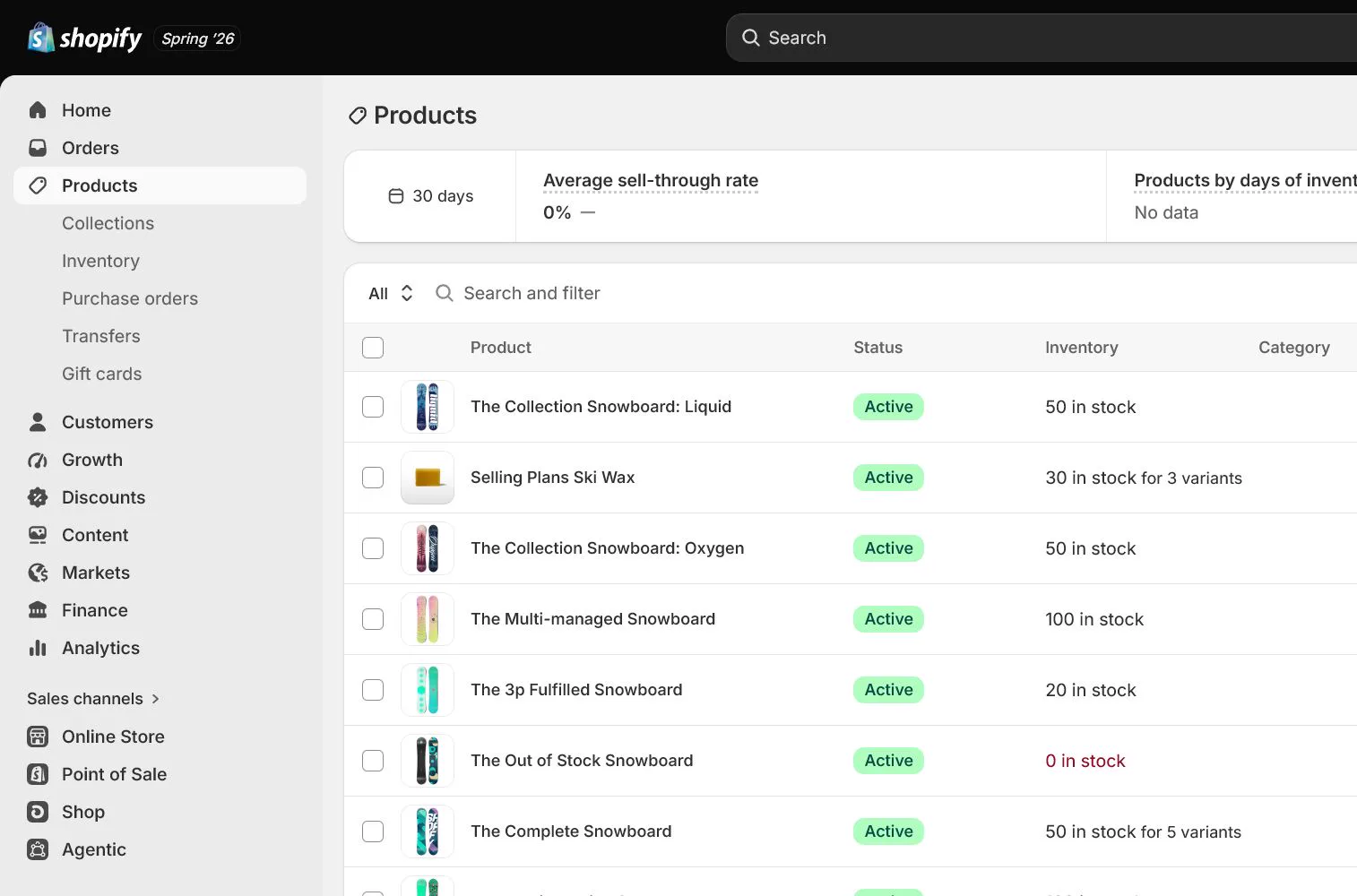
Do not change these blindly
- Do not reuse one SKU across variants.
- Do not invent a Compare-at price to display a discount.
- Do not validate only in admin; select variants and add to cart on mobile.
Completion standard
The lesson is complete only when every item below has evidence. Saying that the page was reviewed is not acceptance.
- Title, description, media, and alt text are complete.
- Price, cost, category, and tax foundation fields are entered.
- Each variant has a unique SKU, image, and inventory.
- Weight, shipping attributes, and inventory location are correct.
- Variant selection and add-to-cart pass on desktop and mobile.
Common failures and fixes
| Symptom | What to do |
|---|---|
| A storefront variant shows sold out | Check inventory at the correct Location and publication to the active channel and market. |
| Shipping is unexpectedly high | Verify product weight, units, default package, and Shipping profile rather than changing the rate blindly. |
| The product exists in admin but not storefront | Check Status, Sales channels, Markets, collection conditions, and navigation links. |
Frequently asked questions
What is the difference between SKU and Barcode?
SKU is an internal store or warehouse identifier that you define. Barcode normally contains a legitimately assigned GTIN, UPC, or EAN and should not be replaced with the SKU.
Should a color be a separate product or a variant?
Use variants when the item, promise, and most content are the same and only color or size changes. Split products when use, positioning, or content is materially different.
Why enter Cost per item?
It supports gross-margin and product analysis, although it is not complete contribution profit. Keep a source and effective date rather than relying on an outdated estimate.
Official sources
Admin labels and rules change. These official pages are the maintenance baseline, and every screenshot must be checked against the current English admin.