Text version of this lessonExpand
Phase 3 Transactions and fulfillment
Check Shopify Payments eligibility, submit entity and beneficial-owner details, connect the payout account, configure PayPal or alternatives, and use test mode to verify payment, refund, and reconciliation boundaries.
Settings > Payments75 minutes plus account review time
Phase 3 Transactions and fulfillment
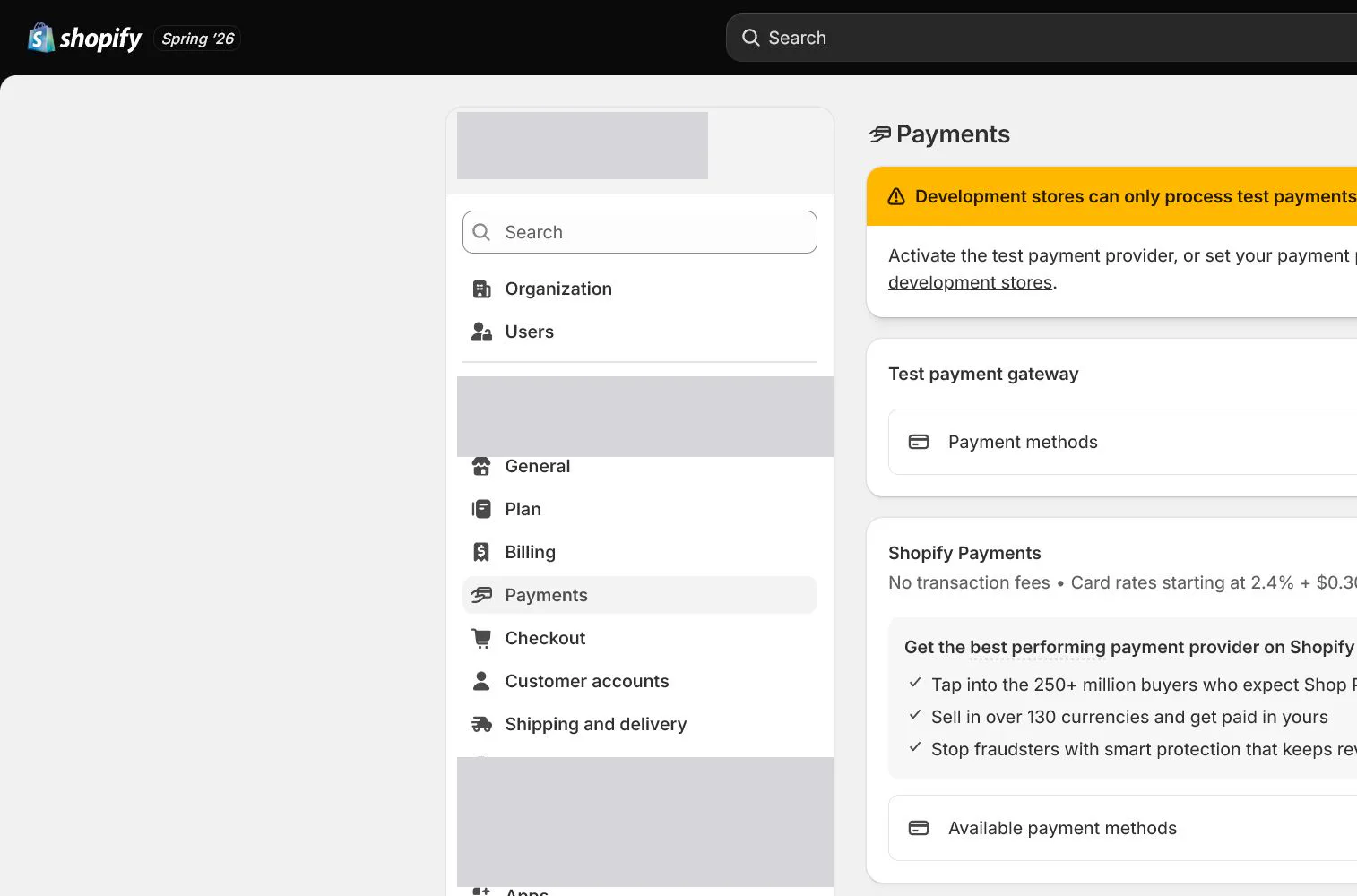
Why this lesson comes now
Payment setup is often reduced to a payment button, but acceptance must cover eligibility, entity, bank account, currencies, payout timing, test mode, refunds, and reconciliation. Shopify Payments availability depends on operating country and business conditions; the presence of a button is not approval. The team also needs a plan for reviews, reserves, and disputes.
What you should have at the end
A payment acceptance sheet with status, entity, settlement currency, payout account, fee source, test result, refund path, dispute owner, and reconciliation evidence for every method.
Prepare before opening the admin
- Prepare business entity, tax details, beneficial-owner information, and representative identity documents.
- Prepare a bank account aligned with the entity and supported settlement currency rather than borrowing an unrelated account.
- The owner and payment-privileged users have enabled 2FA.
Follow the English admin step by step
After each step, refresh the admin or verify the storefront. A saved state in admin does not automatically prove the customer-facing result.
Confirm country and business eligibility first
Before activation, review Shopify Payments supported countries and local requirements. Verify entity country, operating address, product type, and representative details. Never use a false address to bypass regional limits.
Activate Shopify Payments and submit details
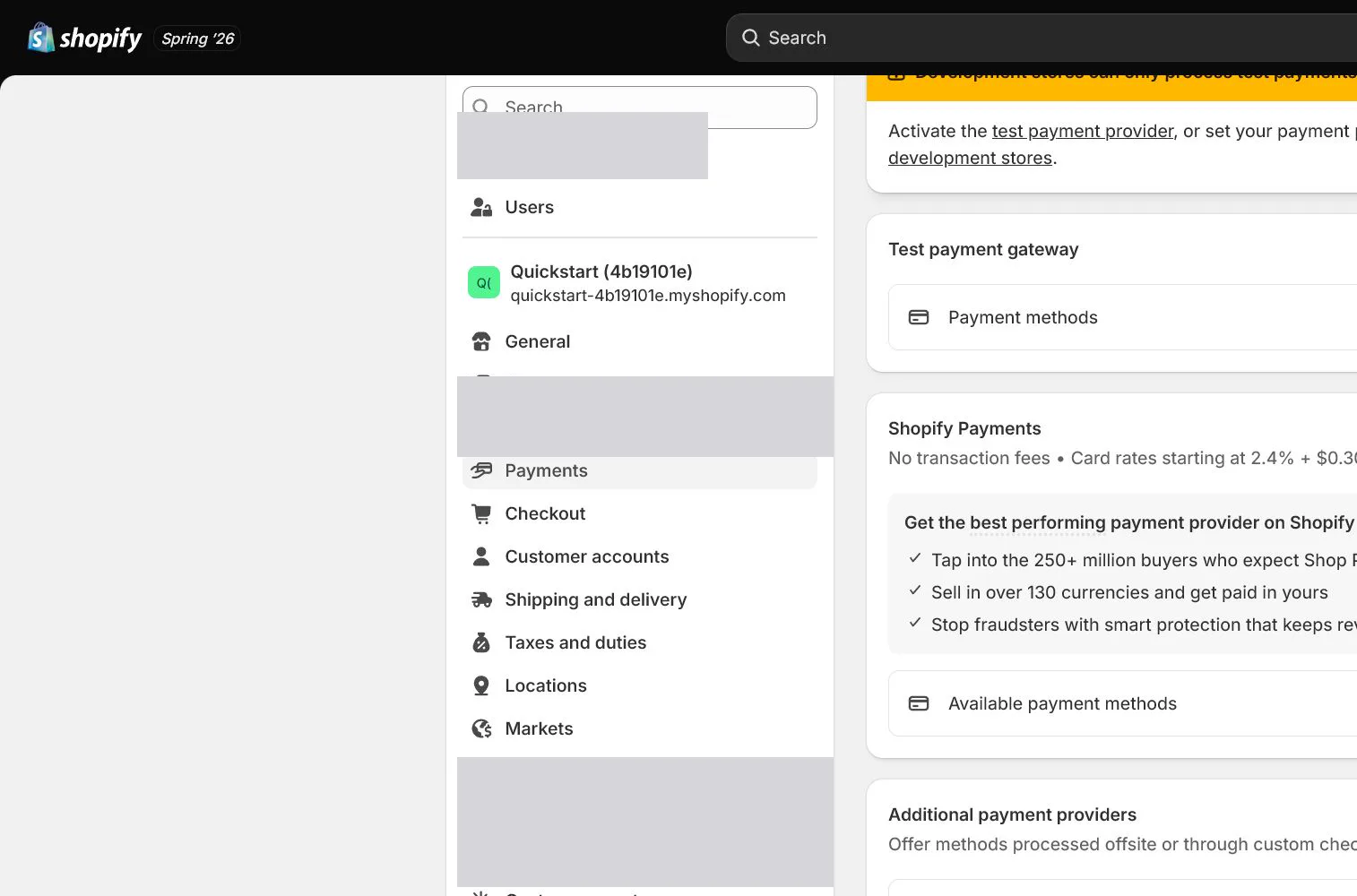
Open Settings > Payments and choose Activate Shopify Payments. Legal name, registration number, address, representative, and beneficial owners must match documents. Record review status and evidence owner rather than creating duplicate accounts.
Connect the payout bank account
Enter a supported payout account and currency and verify account holder. Record payout schedule, minimums, and any review or reserve conditions. A saved account is not the same as a verified account; wait for admin status.
Configure PayPal and alternatives
For PayPal, confirm the receiving email and Business account are claimed and configured. Use manual methods only for real transfer or cash-on-delivery workflows, with clear payment and release rules. Do not enable many low-use methods at launch.
Run complete payment tests
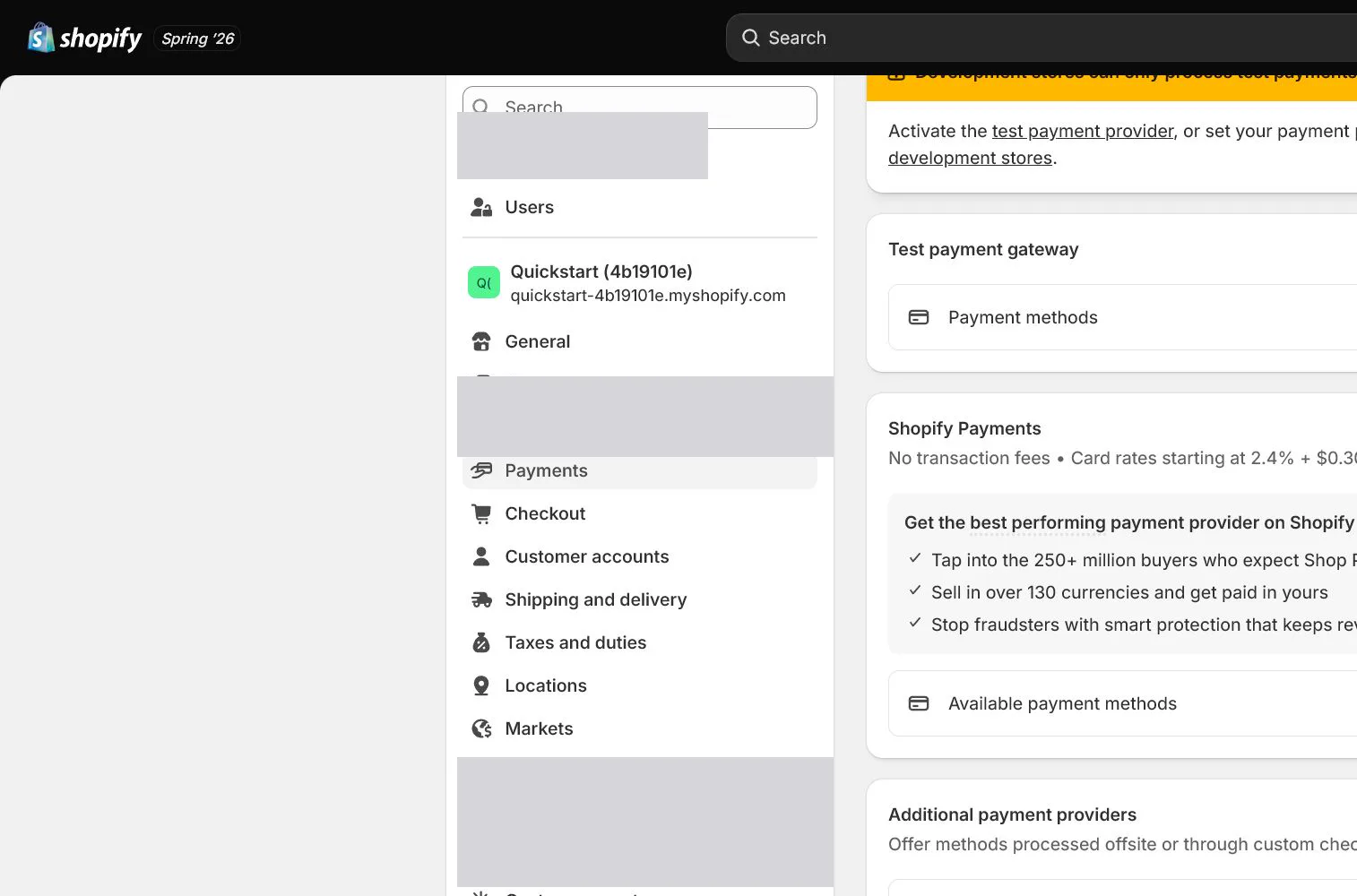
Use Shopify Payments test mode or an official testing method such as Bogus Gateway for success, failure, and cancellation scenarios. Customers cannot complete normal live payments while a provider test mode is active, so use a controlled window and turn it off afterward.
Verify refunds, fees, disputes, and reconciliation
Use a test or controlled small order to inspect authorization, capture, refund, fee, and payout records. Document that Shopify sales, payment transactions, and bank payouts are different ledgers. Dispute evidence should cover order, authentication or payment data, communication, fulfillment, and delivery.
How North & Pine configures it
North & Pine confirms its operating country supports Shopify Payments before submitting entity-matched details. The company controls the USD payout account and PayPal Business is the alternative. While the storefront remains password protected, the team tests success, failure, refund, and notifications, then turns test mode off and reconciles one order to payment transaction and payout records.
Decisions to make in this lesson
| Decision | Recommended setting | Why |
|---|---|---|
| Primary method | Shopify Payments when eligible | Reduces checkout friction and centralizes reconciliation |
| Alternative | PayPal | Provides a common alternative with separate acceptance |
| Payout account | Entity-verifiable account | Verification, tax, and reconciliation point to the same entity |
| Test window | Controlled prelaunch period | Prevents live customers from encountering test mode |
Do not change these blindly
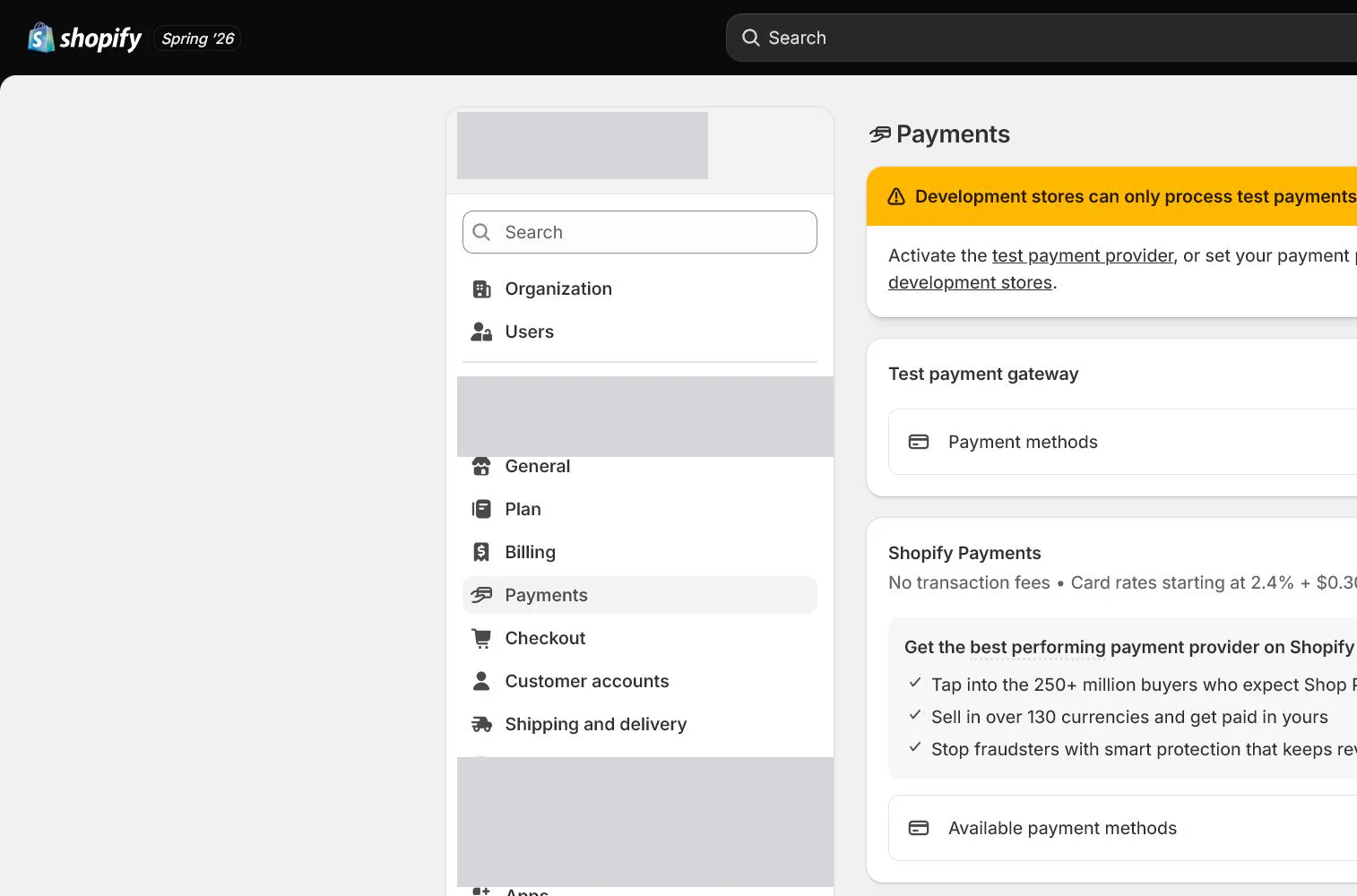
- Do not use false countries, addresses, or entities to bypass eligibility.
- Do not leave test mode active while live traffic enters.
- Do not treat sales, payment balance, and bank settlement as one number.
Completion standard
The lesson is complete only when every item below has evidence. Saying that the page was reviewed is not acceptance.
- Every payment method has a clear status and owner.
- Entity, beneficial owners, and bank details match evidence.
- Success, failure, cancellation, and refund tests are recorded.
- Test mode is off and verified by a second person.
- Order, transaction, fee, and payout reconciliation path is proven.
Common failures and fixes
| Symptom | What to do |
|---|---|
| Payments remains under information review | Open the exact request, submit entity-matched evidence, record the time, and avoid repeatedly changing conflicting versions. |
| A test order cannot take a live payment | Check test mode and test-card use. Turn the mode off after testing and refresh checkout rather than trying a live card in test mode. |
| Payout does not equal order amount | Reconcile date, currency, method, fees, refunds, disputes, and holds rather than equating one order to one bank deposit. |
Frequently asked questions
Does seeing Shopify Payments mean approval is guaranteed?
No. Final eligibility depends on supported country, entity, products, verification, and risk review. Check official requirements before submission.
Does Shopify Payments test mode affect real customers?
Yes. Customers cannot complete normal live payments while test mode is active. Test under password protection or a controlled window, then disable and verify.
What happens to fees and payouts after a refund?
Fee treatment varies by payment method, country, and timing. Inspect the actual transaction, fee, and payout records rather than guessing from the order page.
Official sources
Admin labels and rules change. These official pages are the maintenance baseline, and every screenshot must be checked against the current English admin.