Text version of this lessonExpand
Phase 4 Markets and data
Create app approval, permission, and cost records, audit sales-channel product availability and data sharing, and handle uninstall cleanup for code, webhooks, pixels, and custom apps.
Settings > Apps and sales channels75 minutes
Phase 4 Markets and data
Why this lesson comes now
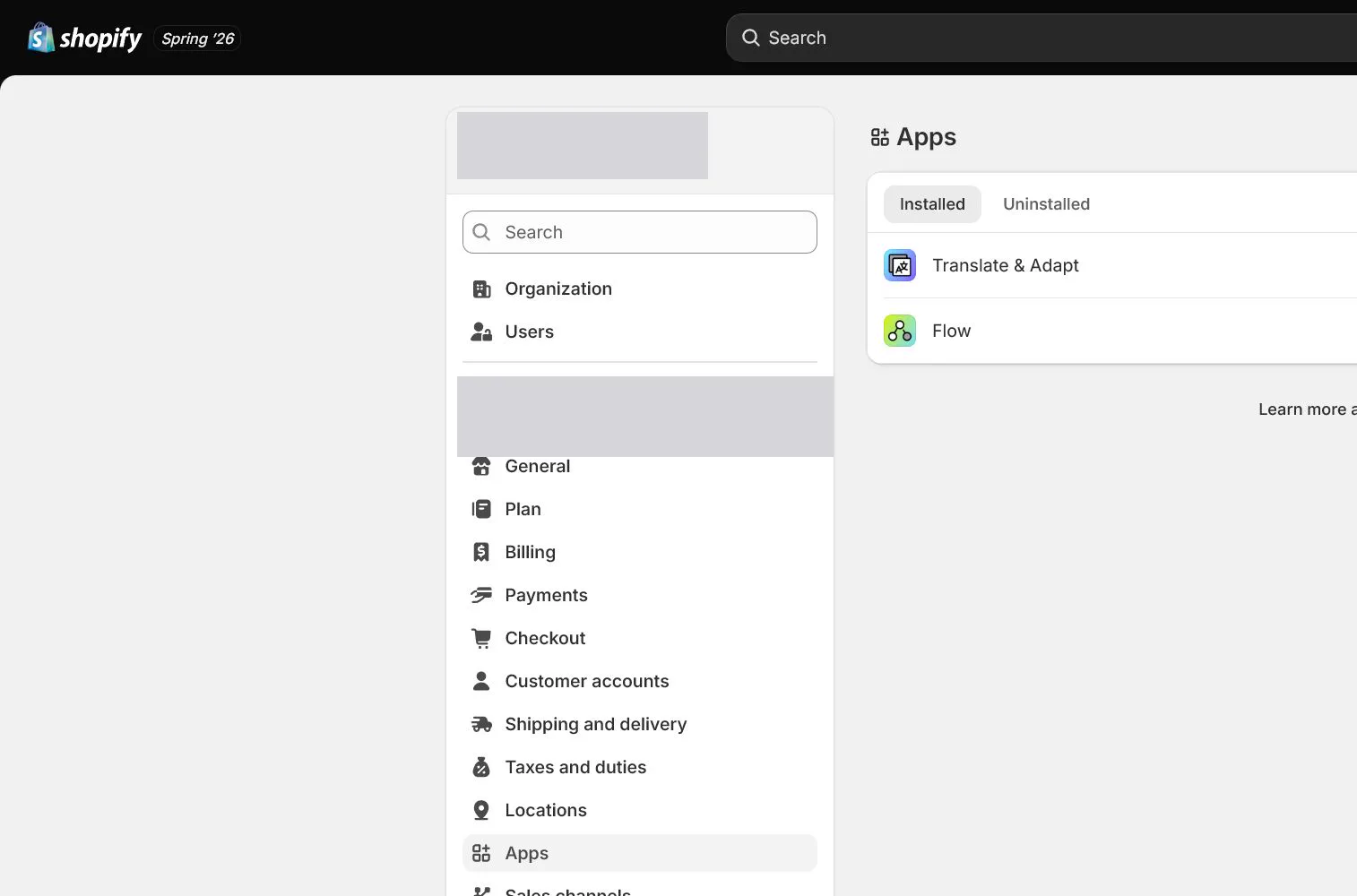
Apps add capability quickly but can also access products, customers, orders, themes, and payment-related data. Uninstalling does not guarantee that theme code, pixels, webhooks, or external data disappear immediately. In 2026, Shopify no longer creates new legacy custom apps in the admin; new custom apps use the Dev Dashboard. Every app needs a business job, permission boundary, and exit plan.
What you should have at the end
An app and channel register with owner, purpose, permissions, data, cost, trial end, published products, pixels, webhooks, privacy impact, uninstall steps, and last review date.
Prepare before opening the admin
- Complete Billing, Users, Customer privacy, and Customer events foundations.
- List installed apps, channels, theme app embeds, and external accounts.
- Define launch-required capabilities and place the rest in a backlog.
Follow the English admin step by step
After each step, refresh the admin or verify the storefront. A saved state in admin does not automatically prove the customer-facing result.
Create a pre-install approval card
For every app, record problem, current alternative, success metric, cost, data types, permissions, owner, trial end, and uninstall condition. Do not install without a defined job.
Read permissions and data access
Review installation permissions, especially Customers, Orders, Products, Themes, Marketing, and store settings. When access exceeds the task, ask the developer or choose an alternative.
Configure sales channels and product availability
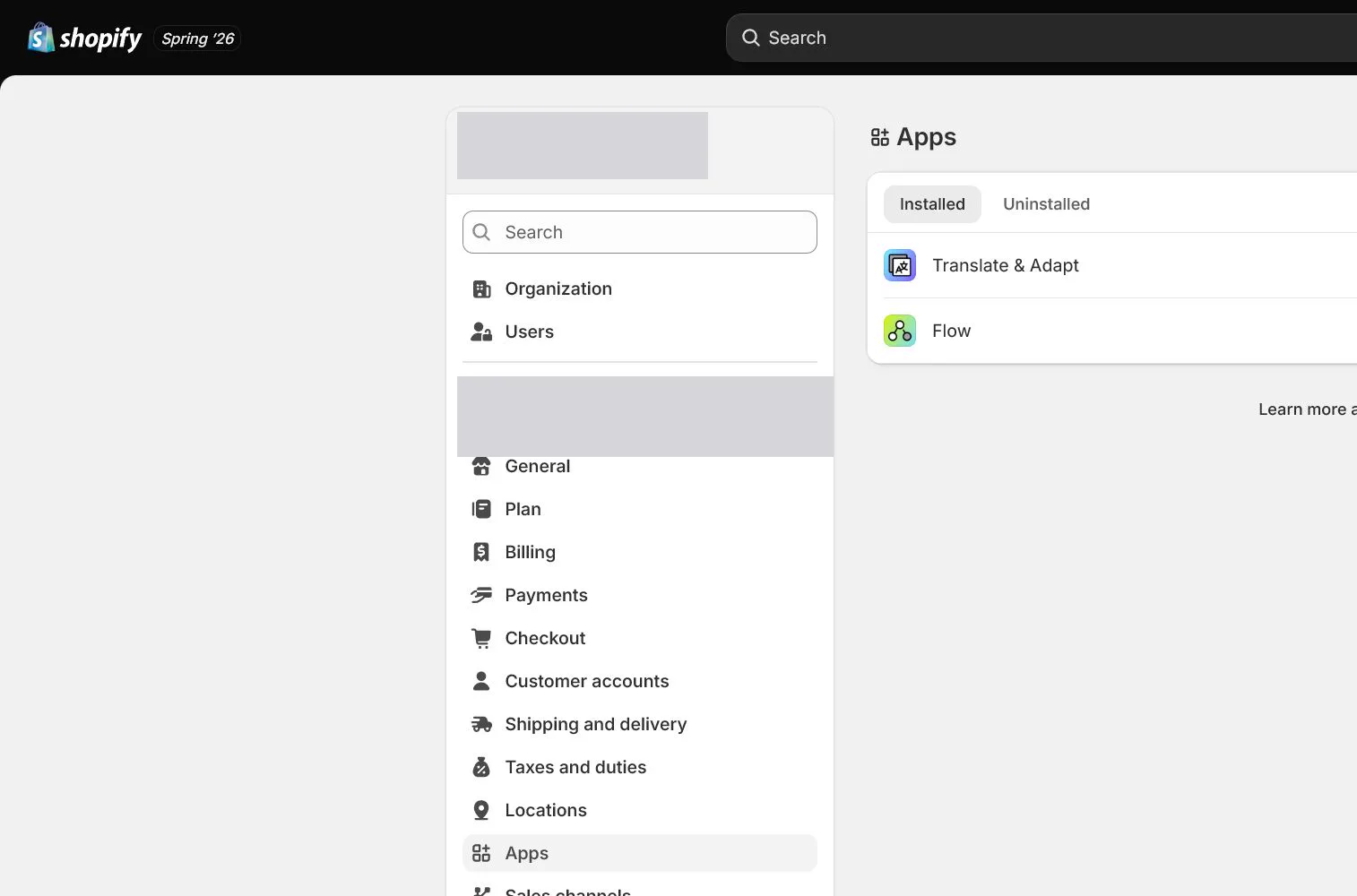
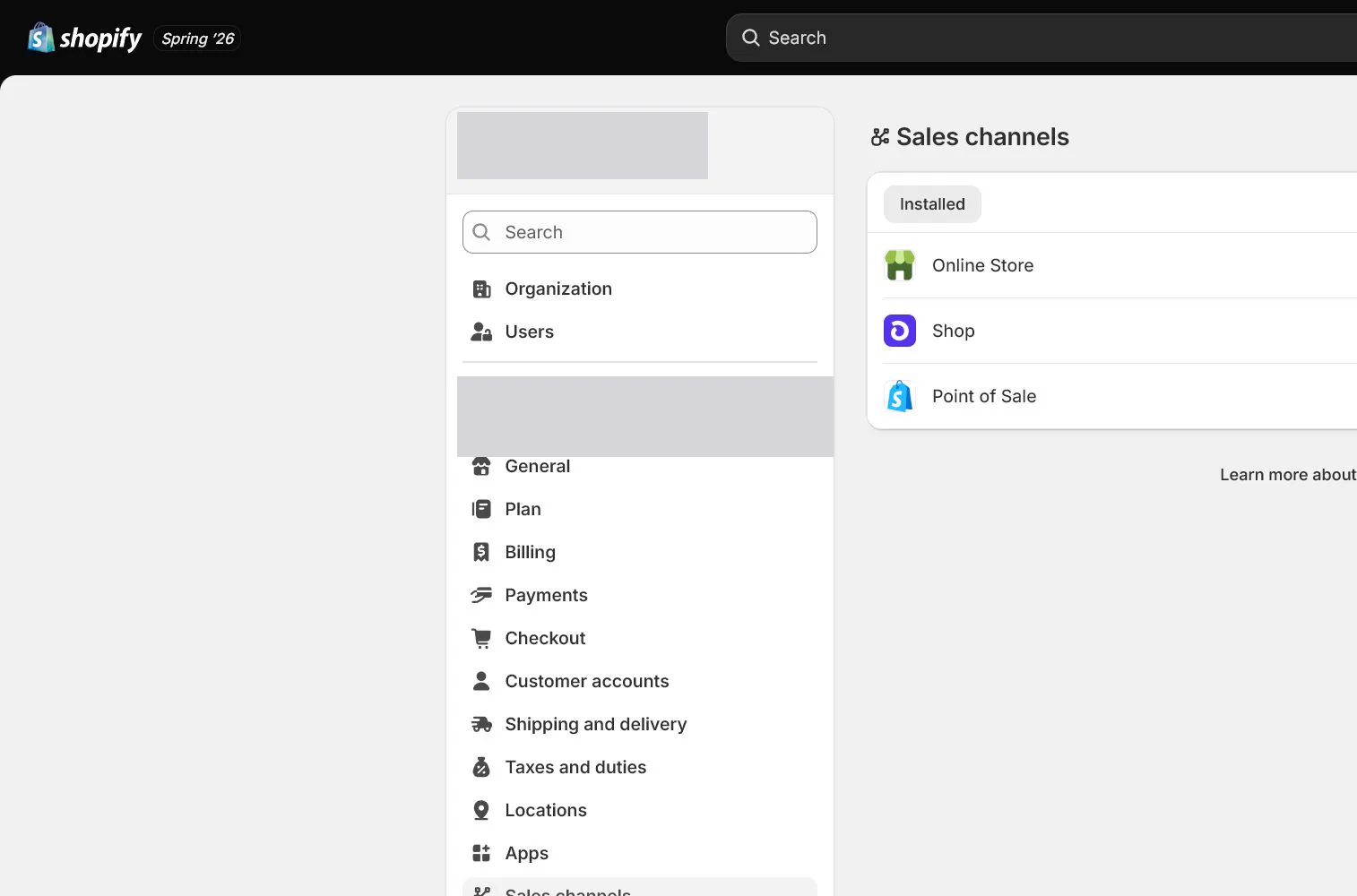
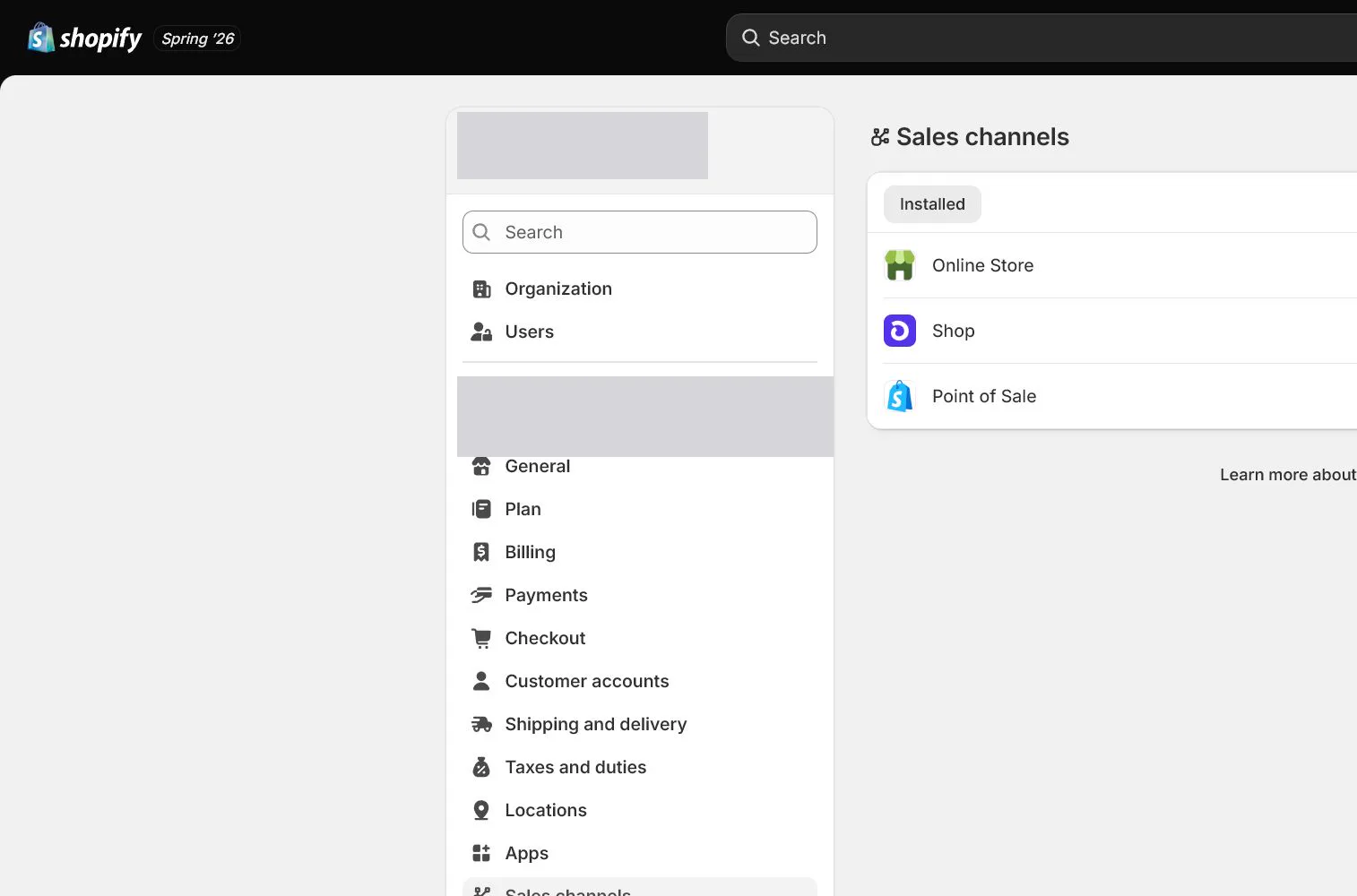
Open Settings > Apps and sales channels and review active channels such as Online Store, Shop, Google, or Meta. Verify account connection, data sharing, market, and product publication; Active in Shopify does not mean available everywhere.
Inspect app embeds, pixels, and webhooks
After installation, inspect Theme App embeds, Customer events, notifications, and external platform behavior. Record scripts, pixels, webhooks, or order tags and test performance, consent, and duplicate events.
Handle custom apps correctly
For new integrations in 2026, create custom apps through Shopify's current Dev Dashboard rather than following legacy Develop apps tutorials. Record scopes, tokens, rotation, and owner, and never expose tokens to storefront code.
Complete post-uninstall cleanup and evidence
Export required data and record billing and dependencies before removal. After uninstall, check theme code, app embeds, pixels, webhooks, API tokens, DNS, pages, menus, and external accounts. Confirm charges stop and handle retention or deletion before closure.
How North & Pine configures it
North & Pine launches with Online Store, required payments, and one measurement path. Review and email apps are installed only with an owner and trial end. Meta or Google channels receive separate product and pixel acceptance. After an old app is removed, theme app embeds and Customer events are reviewed again.
Decisions to make in this lesson
| Decision | Recommended setting | Why |
|---|---|---|
| Install condition | Defined job and metric | Potential usefulness is not enough |
| Permissions | Minimum necessary | Reduces customer and order-data exposure |
| Sales channels | Accept individually | Product status does not guarantee channel publication |
| Custom app | Dev Dashboard | Matches the current 2026 creation path |
Do not change these blindly
- Do not one-click every recommended app.
- Do not assume uninstall removes all code and external data.
- Do not follow old instructions to create a legacy custom app.
Completion standard
The lesson is complete only when every item below has evidence. Saying that the page was reviewed is not acceptance.
- Every app and channel has owner, job, cost, and permission records.
- Product availability is checked in every used channel.
- App embeds, pixels, webhooks, and performance are reviewed.
- Custom apps use the current Dev Dashboard path with protected tokens.
- Uninstall cleanup covers code, charges, data, and external accounts.
Common failures and fixes
| Symptom | What to do |
|---|---|
| A product is missing from a channel | Check channel connection, Markets, Catalog, product availability, policy review, and feed errors rather than repeatedly publishing. |
| A storefront widget remains after uninstall | Inspect theme app embeds, sections, snippets, script tags, and cache, following official cleanup guidance and validating on a theme copy. |
| The old Develop apps entry is missing | Use Shopify Dev Dashboard for new custom apps and follow current official documentation. |
Frequently asked questions
Why review permissions before installing an app?
An app can read or change customers, orders, products, themes, and settings. Access should match the business job; excess scope increases security, privacy, and operational risk.
What should happen after uninstalling an app?
Check billing, theme code, app embeds, pixels, webhooks, tokens, external accounts, retention, and pages or menus. Removal is complete only when these are resolved.
Where are Shopify custom apps created in 2026?
Shopify no longer creates new legacy custom apps. New custom apps use the Dev Dashboard with current scope, credential, and deployment workflows.
Official sources
Admin labels and rules change. These official pages are the maintenance baseline, and every screenshot must be checked against the current English admin.